Within the Candidate Profile there is a WhatsApp tab where the Company User can view all WhatsApp conversations open with the candidate.
From this page, the Company User can send a new message to the candidate by clicking the Send new template button, which will open the configuration for sending a WhatsApp message to the individual candidate.

or from the quick actions bar, by clicking the icon [screenshot]

During the sending configuration phase, the Company User must fill in the following sections:
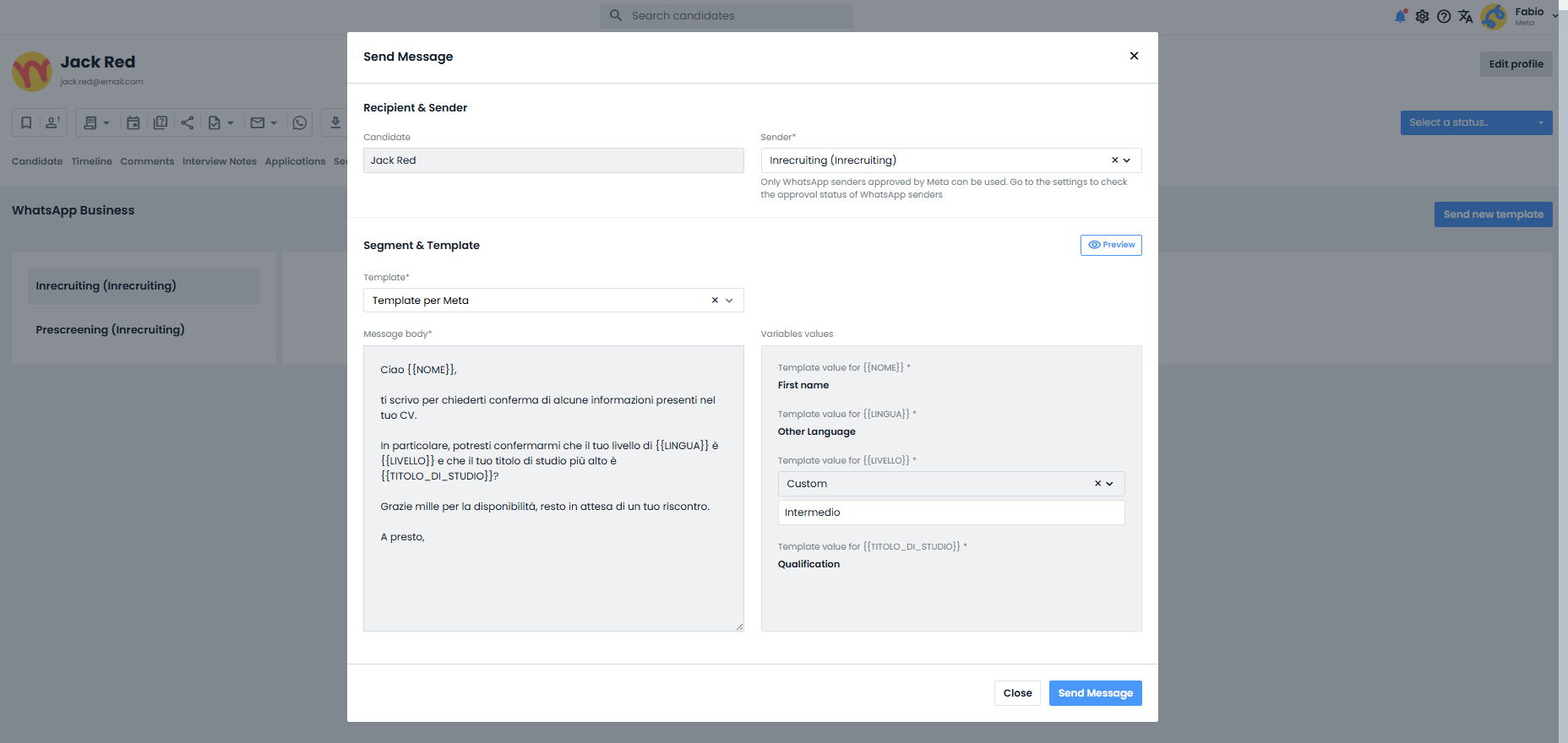
Recipient and sender
In the Candidate field, the name of the selected recipient Candidate will be displayed.
In the Sender field, the Company User must choose which of the approved company WhatsApp numbers they want to use as the sender of the message.
Template
In this section, the Company User must choose which of the available approved Templates they want to use for sending.
Message preview generation and Message sending
By clicking the Preview button, the Company User will be able to view a preview of the configured message.
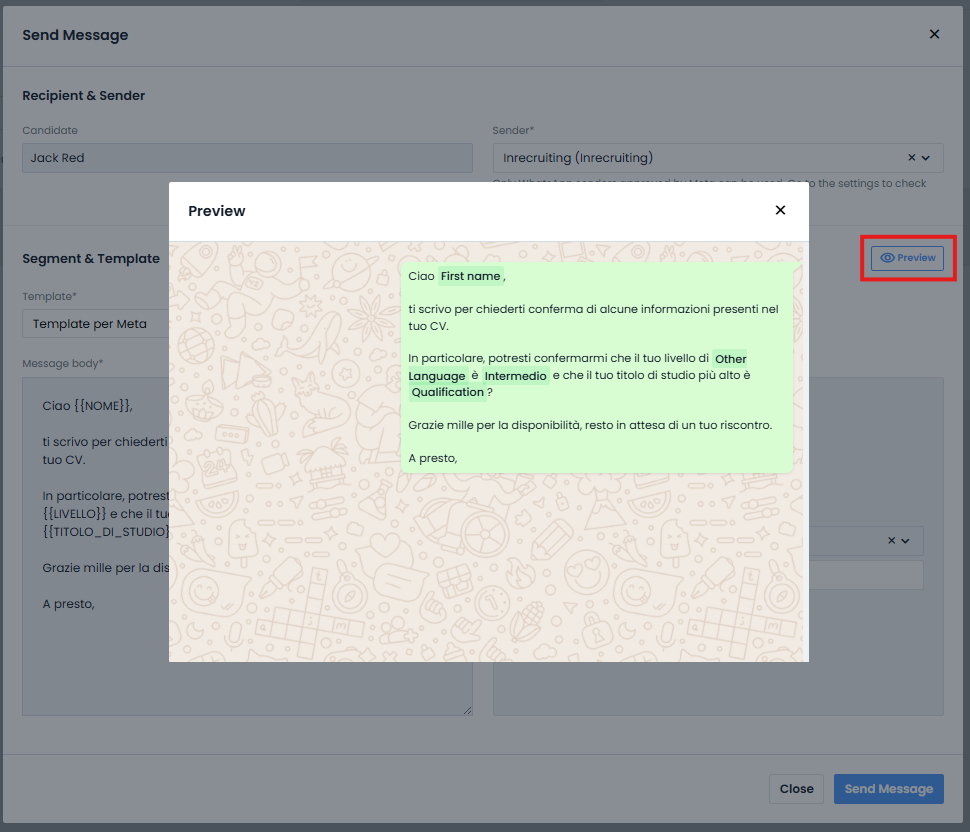
Finally, by clicking the Send message button, it will be possible to proceed with sending the communication to the selected candidate
Was this article helpful?
That’s Great!
Thank you for your feedback
Sorry! We couldn't be helpful
Thank you for your feedback
Feedback sent
We appreciate your effort and will try to fix the article