Company prerequisites required to enable the integration
WhatsApp Business or WhatsApp Business Platform? The key difference for Inrecruiting integration
WhatsApp Business is a free application designed for small businesses, intended for manual use and without the possibility of integration with external software.
For structured, automated communication fully integrated into HR processes, it is instead necessary to use WhatsApp Business Platform, Meta’s Enterprise solution.
Integration with the Inrecruiting ATS is possible exclusively through WhatsApp Business Platform, and requires as a fundamental prerequisite that the company has an active and verified Meta Business Portfolio.
This ensures:
- Integration with the ATS
- Use of official templates approved by Meta
- Compliance, traceability, and centralized communication management
- Scalability for structured HR teams
Note: WhatsApp Business Platform is mutually exclusive with WhatsApp (consumer app) and WhatsApp Business.
This means that the same phone number can only be registered and used on one of the three solutions.
To use WhatsApp Business Platform, the selected phone number must not already be active on WhatsApp or WhatsApp Business.
Meta Business Manager
Meta Business Manager is Meta’s operational tool that allows companies to manage accounts, roles, Facebook pages, Instagram profiles, and advertising assets from a single interface.
Meta Business Portfolio
The Meta Business Portfolio (evolution of Business Manager) is the official business container that identifies a company within the Meta ecosystem.
It represents the company at a formal level for Meta and allows the connection and management of key business assets such as:
- WhatsApp Business Platform
- WhatsApp sender phone numbers
- Company advertising accounts
- Integrations with external software
The Portfolio must be verified by Meta, as it certifies the company’s identity.
Current Meta terminology:
- Meta Business Manager → Operational management tool
- Meta Business Portfolio → Meta business identity required for Enterprise solutions
To activate the WhatsApp Business Platform integration with the Inrecruiting ATS, it is therefore mandatory for the company to have an active Meta Business Portfolio.
This is the key prerequisite to ensure integration, compliance, and professional use of the WhatsApp messaging channel within Inrecruiting.
Service activation
The WhatsApp Business messaging feature is implemented as an optional module (enabled on request), called “WhatsApp”, and is accessible from the left sidebar of the Inrecruiting user interface.
WhatsApp Business Platform configuration
A Company User with WhatsApp Admin permissions must configure their company’s WhatsApp Business Platform account in: System Settings → External Systems → Third-party system configurations → WhatsApp Business Platform Configuration.
To use WhatsApp Business Platform within Inrecruiting, the Company User must first log in to their Meta business account via Facebook.
By clicking on the “Log in with Facebook” button, the user will access the login process, which takes place outside of Inrecruiting, within the guided interface of their company’s Meta Business Manager.
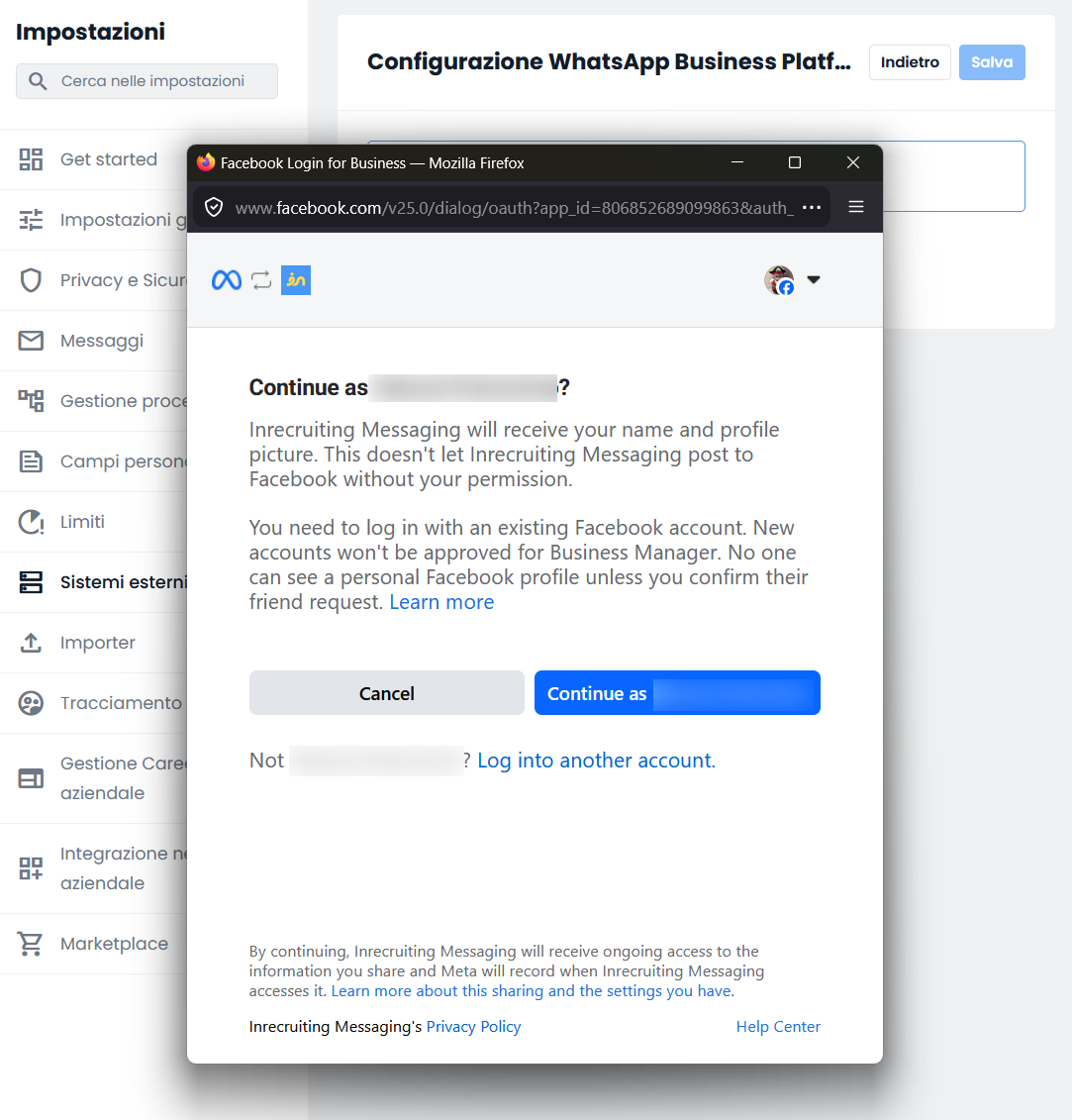
Once your account has been identified, click Continue as [Name].
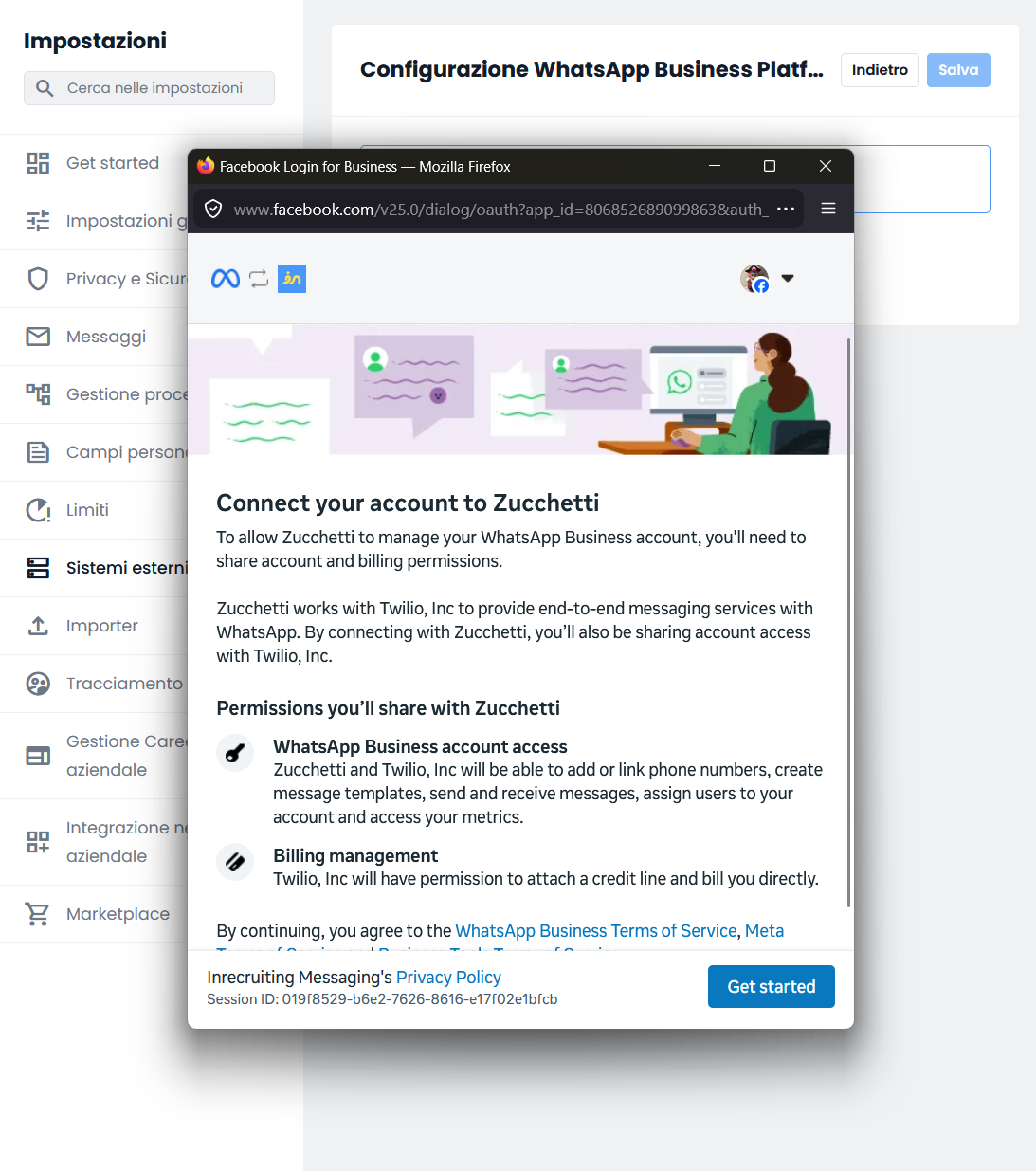
On the next page, you'll be asked to grant Zucchetti and Twilio access to your WhatsApp Business Account by clicking Get Started.
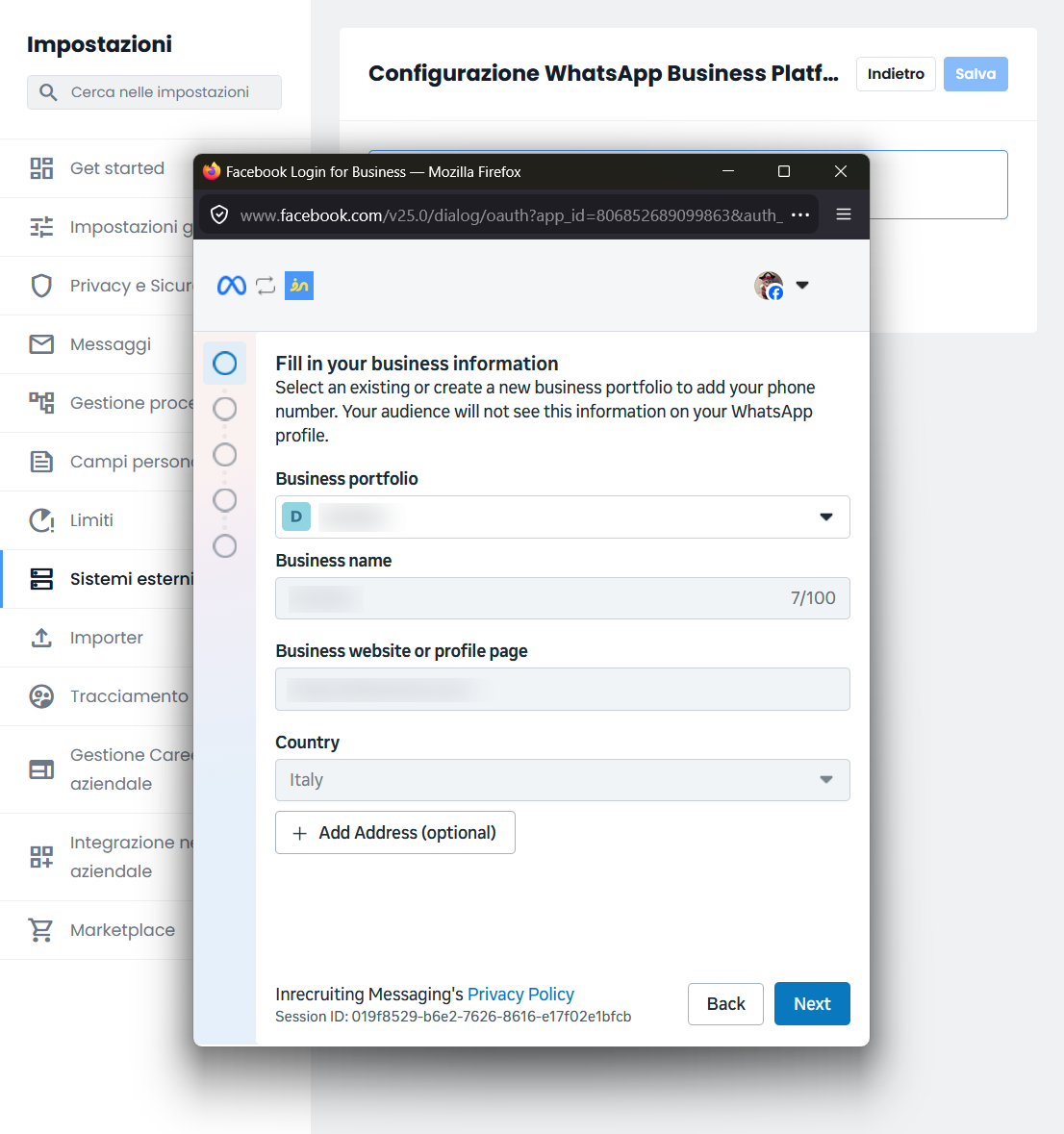
Next, select your Business portfolio from the first dropdown menu.
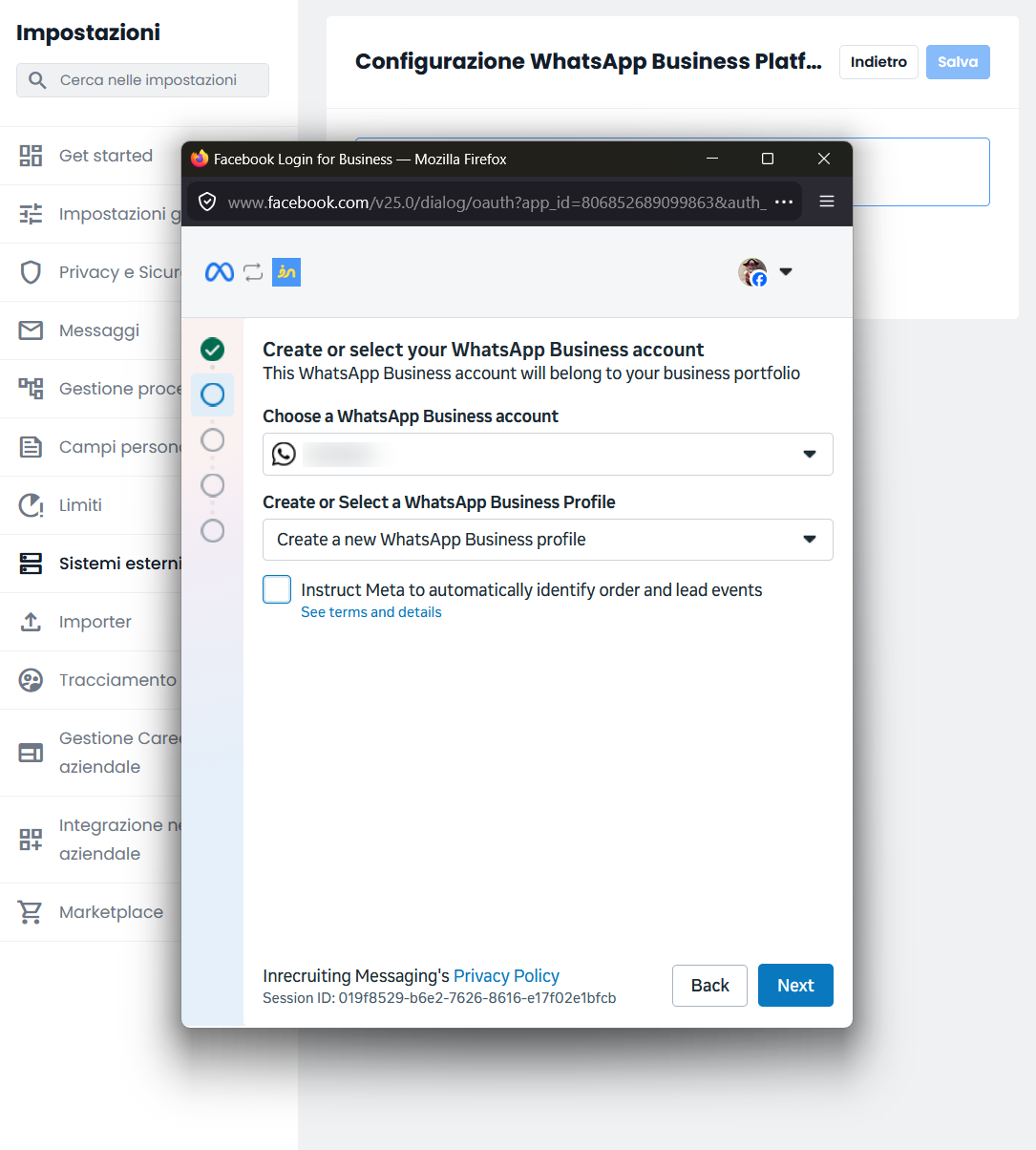
Then, select Create a new WhatsApp Business Account from the second dropdown menu.
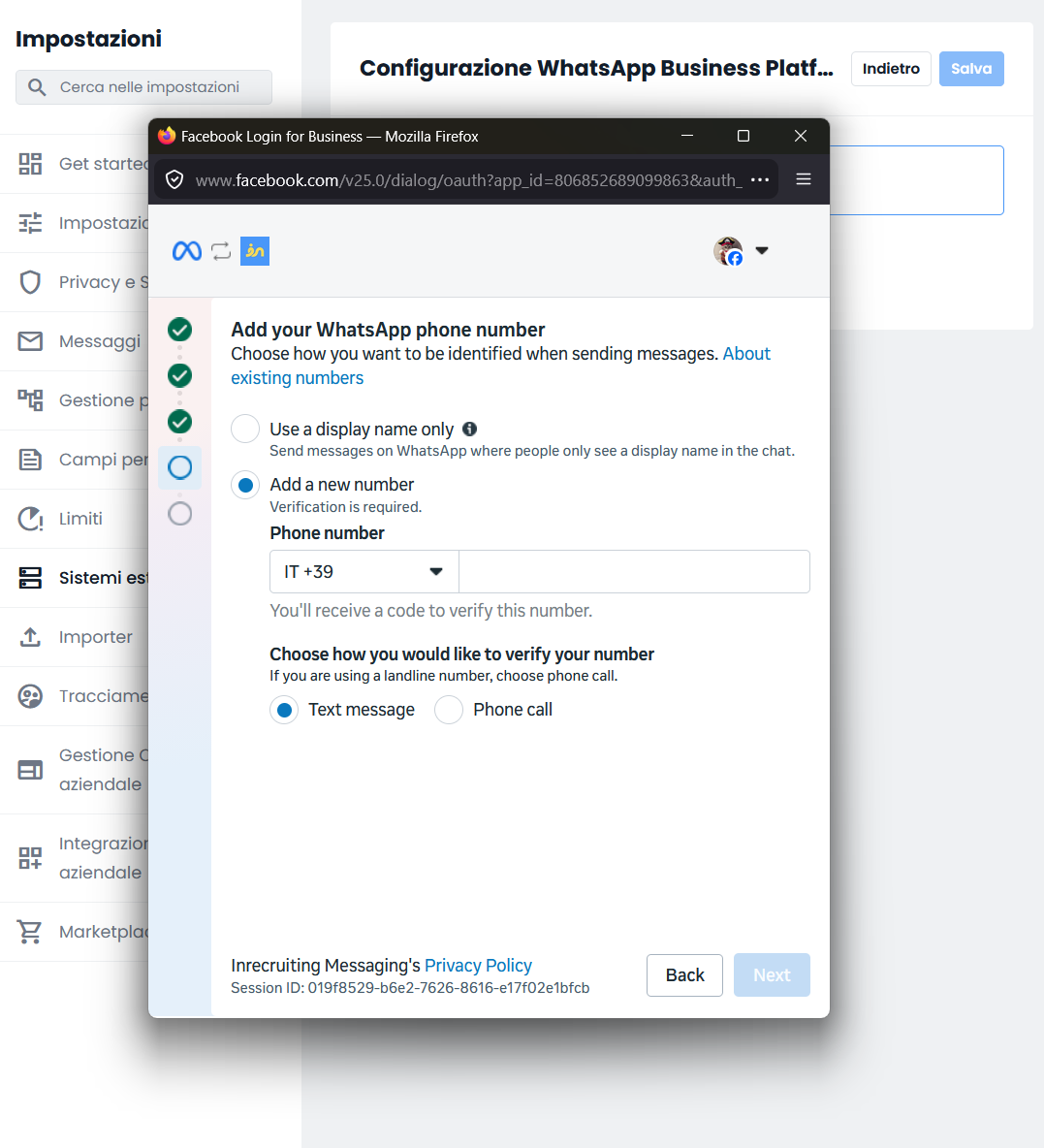
 Next, enter the phone number you want to use under Add a new number and verify it using either a text message or a phone call.
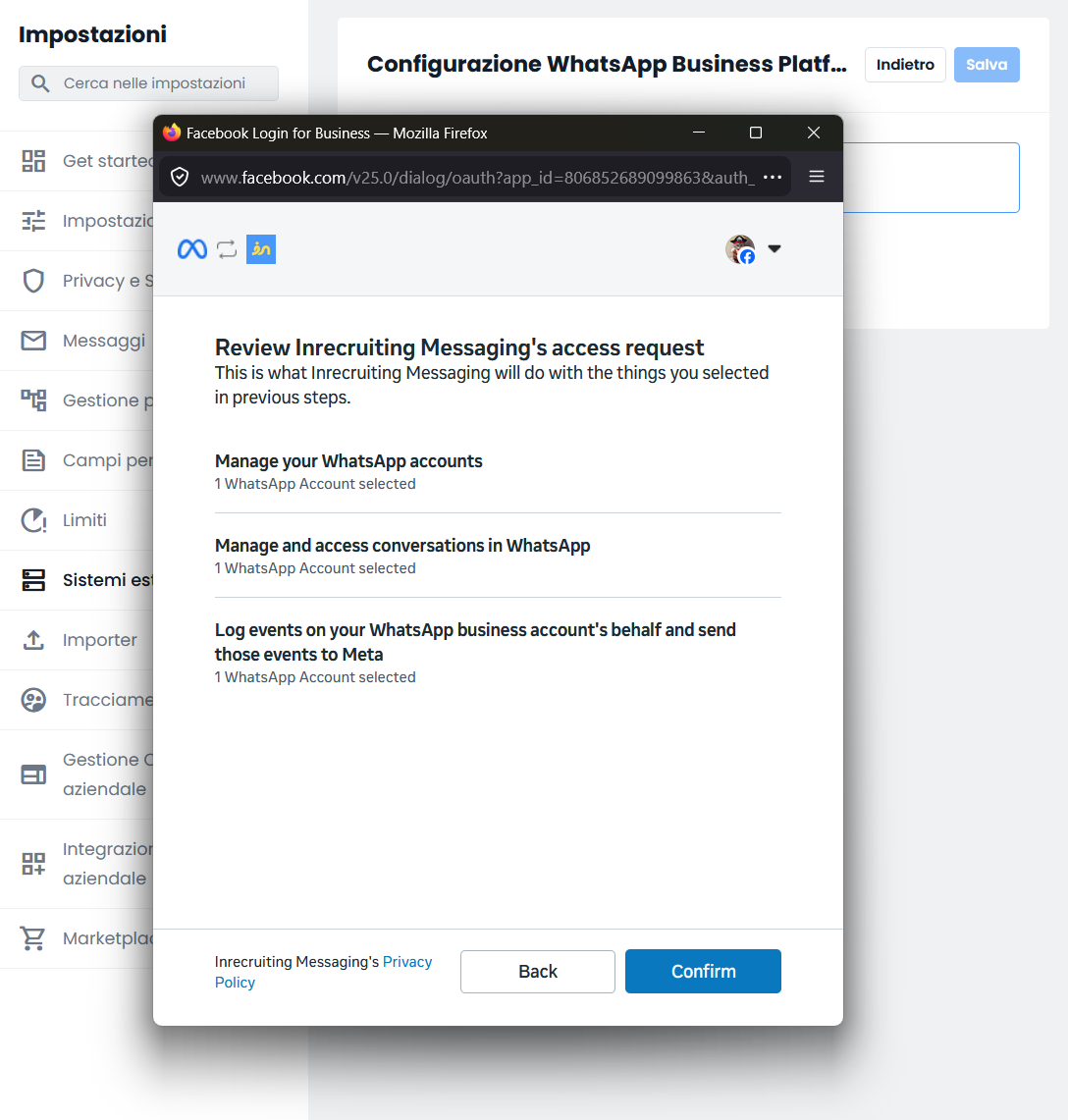
The final step is to review the access granted to Inrecruiting and click Confirm.
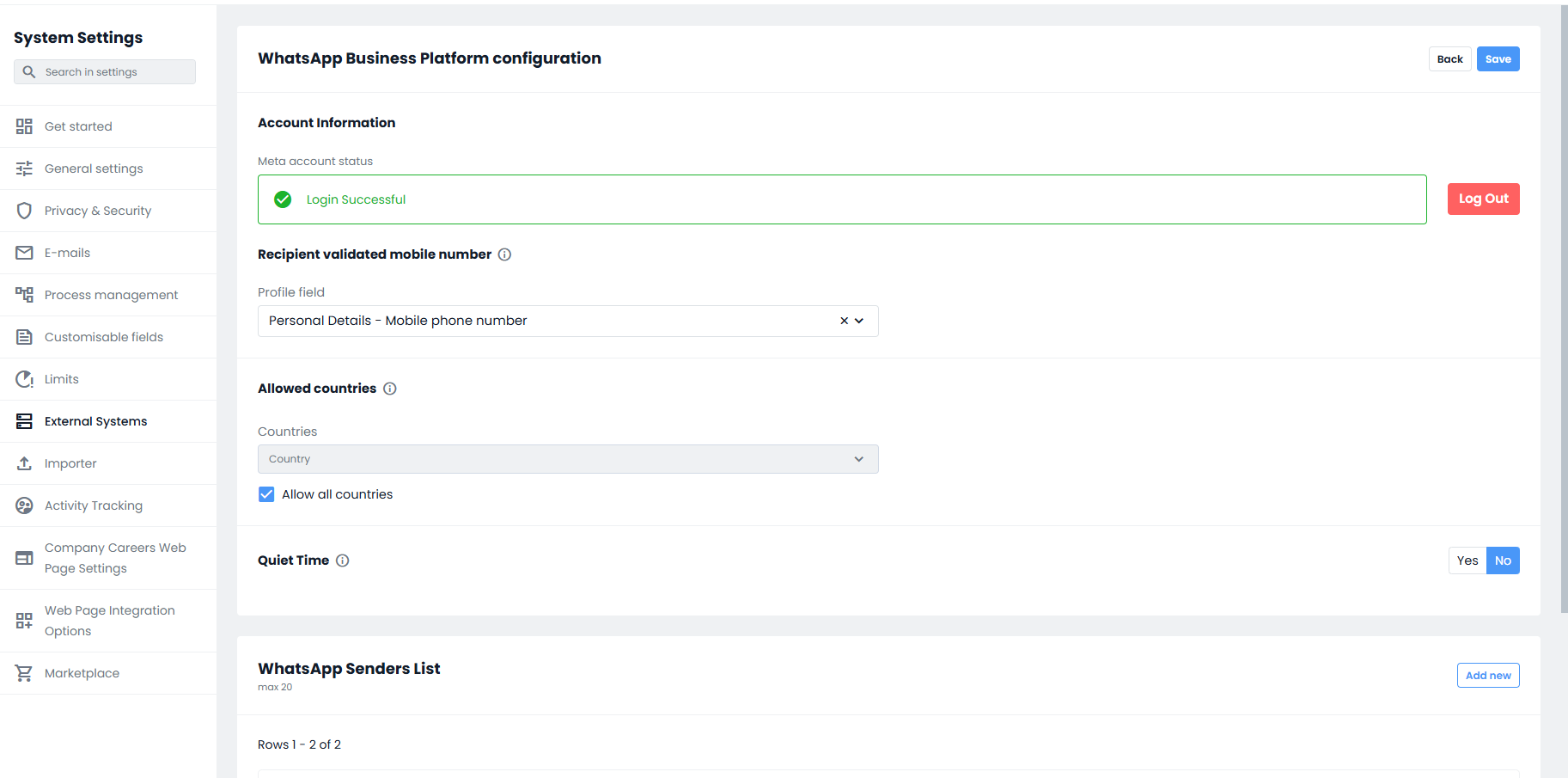
In the Recipient validated mobile number section, the Company User must select which of the fields in the candidate field structure of type “Validated mobile number” will be used as the recipient’s phone number for WhatsApp Business messages sent to candidates.
Note: The dropdown menu will show only fields of type “Validated mobile number” available in the company’s Inrecruiting setup. Therefore, only candidates who have the selected field populated among their candidate fields can be contacted via WhatsApp Business in Inrecruiting.
In the Allowed countries section, the Company User can add one or more countries to the list of countries where sending WhatsApp Business messages will be permitted. If no selection is made, sending will be allowed worldwide by default.
Note: Meta applies different pricing depending on the recipient’s country (see WhatsApp Business Platform Pricing | Developer Documentation). This setting allows you to restrict the countries where new messages can be sent.
It is also possible to configure the Quiet Time section, which defines the time range during which bulk message sending is not allowed. Messages sent to a single recipient, however, will still be allowed without time restrictions.
The user can configure in detail: days of the week, timezone, Quiet Time start time and Quiet Time end time.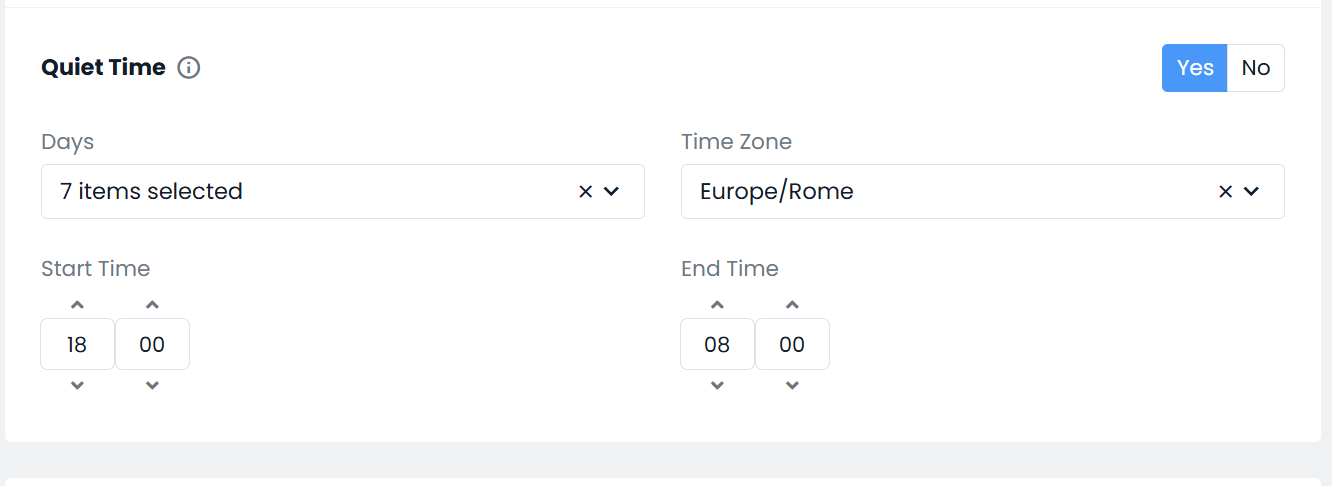
In the WhatsApp Sender List section, the Company User can add one or more company phone numbers, referred to as WhatsApp Senders.
By clicking “Add” in the top-right corner, it is possible to create a new WhatsApp Sender.
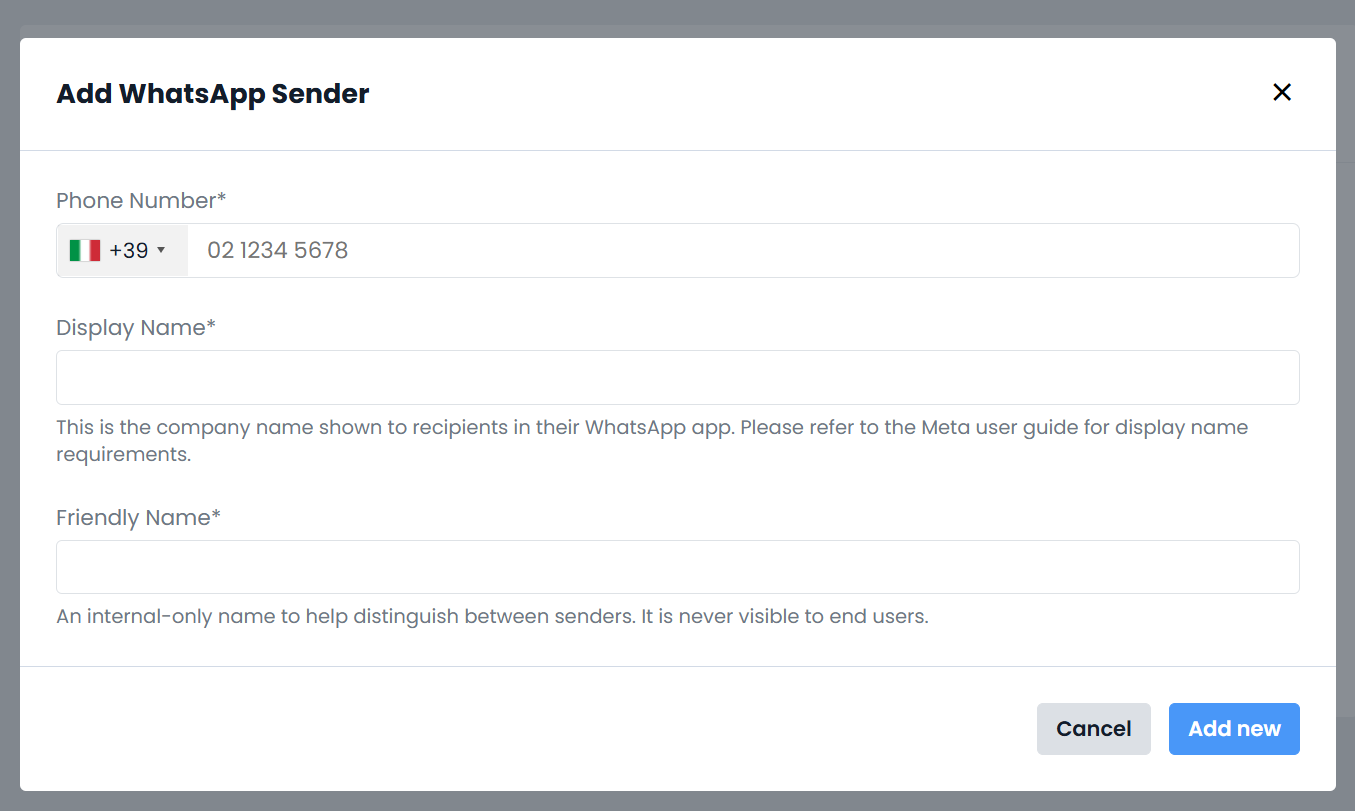
In the modal window, the Company User must enter the selected phone number in the “Mobile number” field.
Note: Meta allows up to 20 senders (WhatsApp Business Platform numbers) for each verified Business Manager.
In the “Display Name” field, the Company User must define the name that will be shown to recipients as the sender of WhatsApp Business messages sent from Inrecruiting.
Each WhatsApp Sender number must therefore have a text-based Display Name that complies with Meta’s guidelines.
Note: All Display Names must be approved in advance by Meta.
Meta guidelines for choosing an optimal Display Name: https://www.facebook.com/business/help/757569725593362
The Company User must also assign a Friendly Name to each WhatsApp Sender number.
Unlike the Display Name, the Friendly Name is visible only internally within Inrecruiting, does not need to meet any specific requirements, and can only be modified by Company Users with WhatsApp Admin permissions.
After saving, Meta requires verification of each WhatsApp Sender number.
At this stage, two scenarios may occur:
- If the WhatsApp Sender is a number that has already been verified and approved by Meta (for example, because it has been used by the company in other contexts), its status will immediately be “Approved”, and the Company User can start using it right away.
- The WhatsApp Sender is a number not yet approved by Meta. In this case, in the Status column of the newly added WhatsApp Sender, the clickable text “Verify” will be visible, which the Company User must click to start the WhatsApp Sender validation process through receiving and entering an OTP.
To perform OTP validation, the Company User must enter in the popup the digits of the OTP received on the WhatsApp Sender number itself and confirm by clicking the “Verify” button at the bottom right.
The WhatsApp Sender number will thus be verified by Meta and its status will change to “Approved”.
In case a Sender is not approved by Meta, it will be necessary to start a new process from scratch for adding the Sender and requesting approval.
When the status of a WhatsApp Sender number is “Approved”, the Company User can start using it as a sender for WhatsApp Business messaging within Inrecruiting.
Next to each WhatsApp Sender number, the Quality score will also be displayed, which depends exclusively on Meta, as it manages both the approval process of the WhatsApp Sender and the assignment of a quality level to the Sender, according to internal criteria defined by Meta.
Any communications from Meta regarding the Quality score cannot be managed within Inrecruiting, but must be handled directly within the company’s Meta Business Portfolio.
In the Quality score column of this view, the current Quality score of each WhatsApp Sender will simply be shown, allowing the Company User to have an overall view.
Message sending limits
At the following link in Meta’s online documentation, the messaging limits for the WhatsApp Business Platform are specified:
https://developers.facebook.com/documentation/business-messaging/whatsapp/messaging-limits
Messaging limits represent the maximum number of unique WhatsApp user phone numbers that your business can send messages to, outside the customer service window and within a rolling 24-hour window.
Messaging limits are calculated and set at the Business Portfolio level and are shared across all company phone numbers within a portfolio. This means that if a business portfolio has multiple company phone numbers, it is possible for one of them to exhaust the portfolio’s messaging capacity within a given period.
Was this article helpful?
That’s Great!
Thank you for your feedback
Sorry! We couldn't be helpful
Thank you for your feedback
Feedback sent
We appreciate your effort and will try to fix the article