In the WhatsApp > Templates section, the Company User will be able to:
- View existing templates
- Create new templates
- Edit existing templates (only if in "Not sent" status)
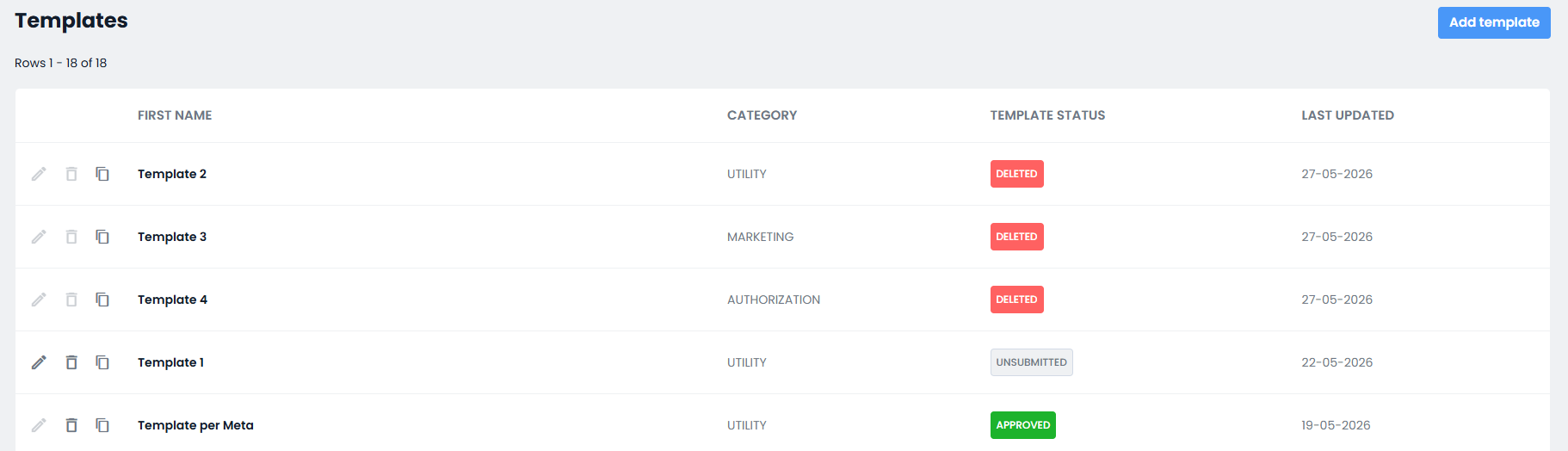
Viewing WhatsApp Templates
In the WhatsApp Templates section, the list of existing templates will be displayed, with the following detailed information divided into columns:
- Name: template name
- Category: template category according to Meta
- Template status: approval status of the Template by Meta
- Last update: date and time of the last modification of the template
Creating a new Template
By clicking the "Add template" button located at the top right of the screen, it will be possible to proceed with creating a new Template.
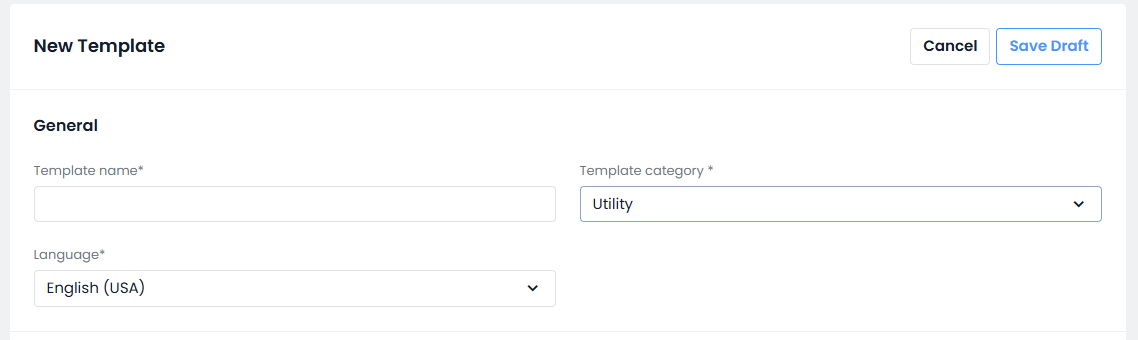
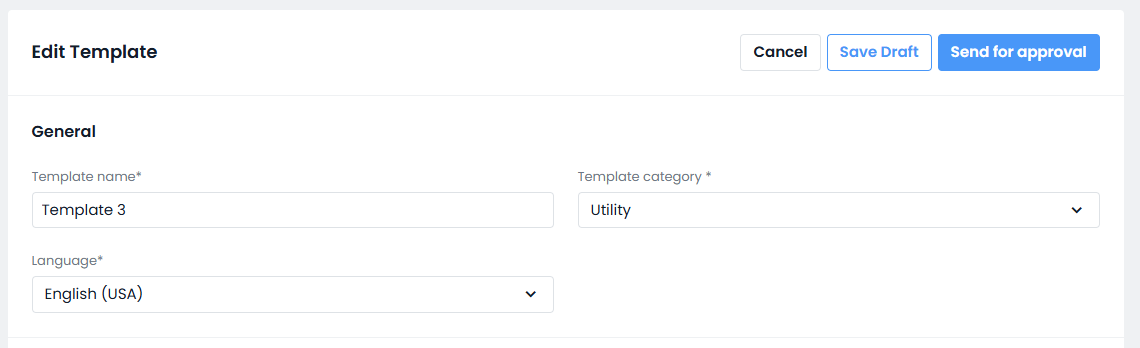
In the General section, the Company User must assign a name to the Template, select one of the categories provided by Meta* (Utility or Marketing), and choose the Template language.
* at the following link you can find Meta's guidelines regarding template categorization:
https://developers.facebook.com/documentation/business-messaging/whatsapp/templates/template-categorization
In the Message section, the Company User can then configure the message body (mandatory), any variable fields (optional), the footer (optional) and the Buttons (optional).
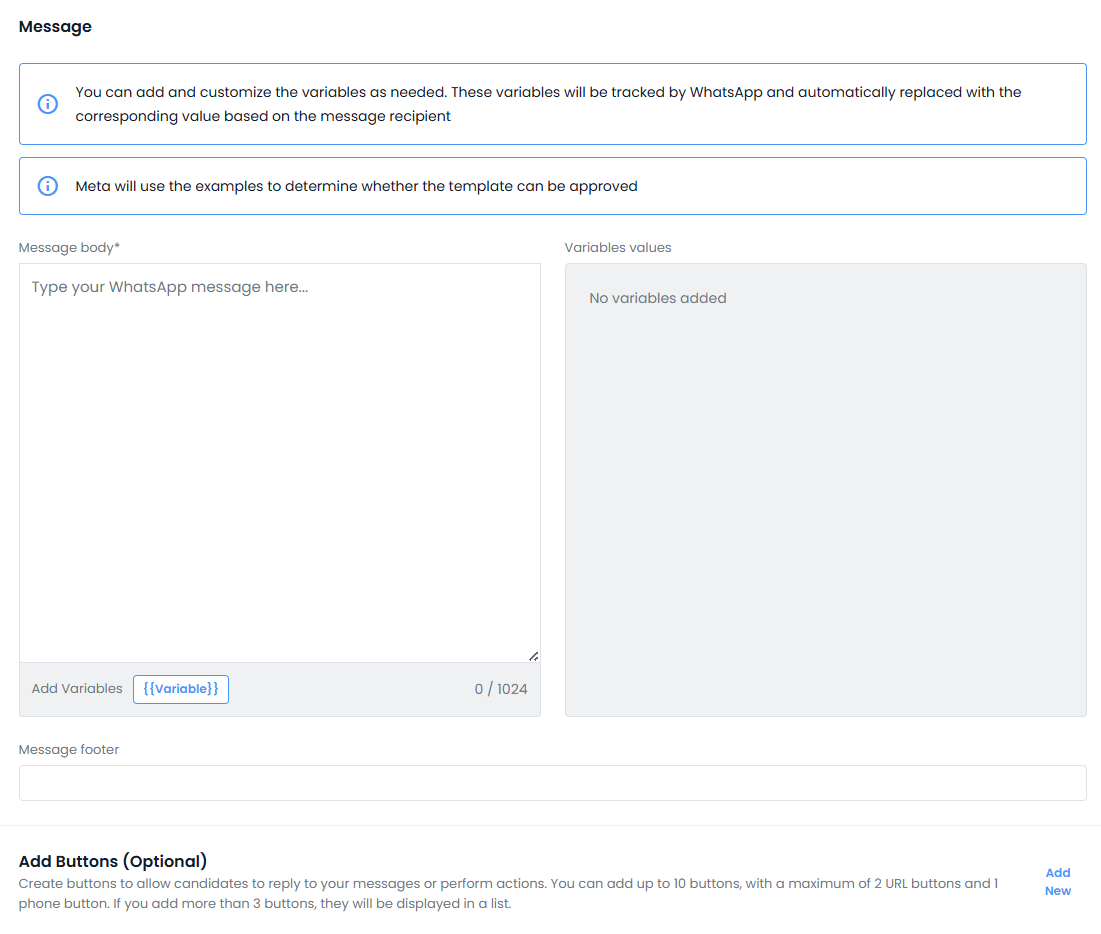
-) Message body (mandatory): the message body must be textual, with the possibility of including variable fields as well (see next point).
It is possible to apply Meta formatting rules for bold, italic, code, quotes, and strikethrough, following the instructions provided in the following link > https://faq.whatsapp.com/539178204879377/?locale=it_IT&cms_platform=web
It is also possible to add Emojis to the template, but not images, videos, documents, or external links.
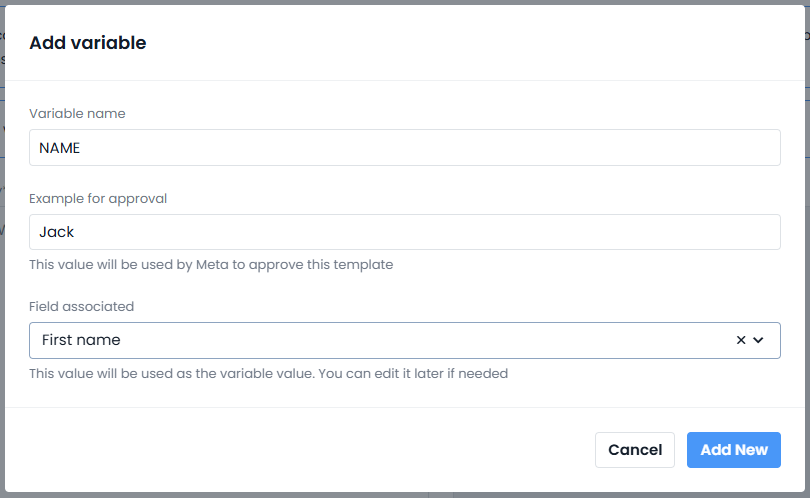
-) Variables (optional): by clicking the "Add variables" button, the Company User can choose to insert variables into the templates, i.e. "placeholders" that are automatically replaced with a real value when the system sends the template.
When adding a variable, it is necessary to assign a name to the placeholder (e.g.: NAME).
To obtain approval of a template by Meta, it is also necessary to provide an example content for each configured variable field. The examples provided must be consistent with the expected content of the variable field (e.g. for the variable field NAME, a plausible example could be the text “Mario”).
Finally, it is necessary to associate each VARIABLE field with a corresponding candidate field in Inrecruiting.
-) Footer (optional): in this section it is possible to enter a closing content for the template. Its configuration is optional. The text will be displayed at the end of the message, with a lighter color compared to the message body.
-) Buttons (optional): templates can be enhanced with interactive buttons that allow candidates to perform immediate actions directly from the message they receive.
Three types of buttons are available:
- URL: redirects the candidate to an external web page (e.g. a job application link, a scheduling calendar, etc.);
- Quick Reply: allows the candidate to send a predefined response with a single tap (e.g. YES/NO);
- Phone Number: initiates a phone call directly to the configured number.
Using buttons makes communication more effective, simplifies interactions with candidates, and encourages faster responses.
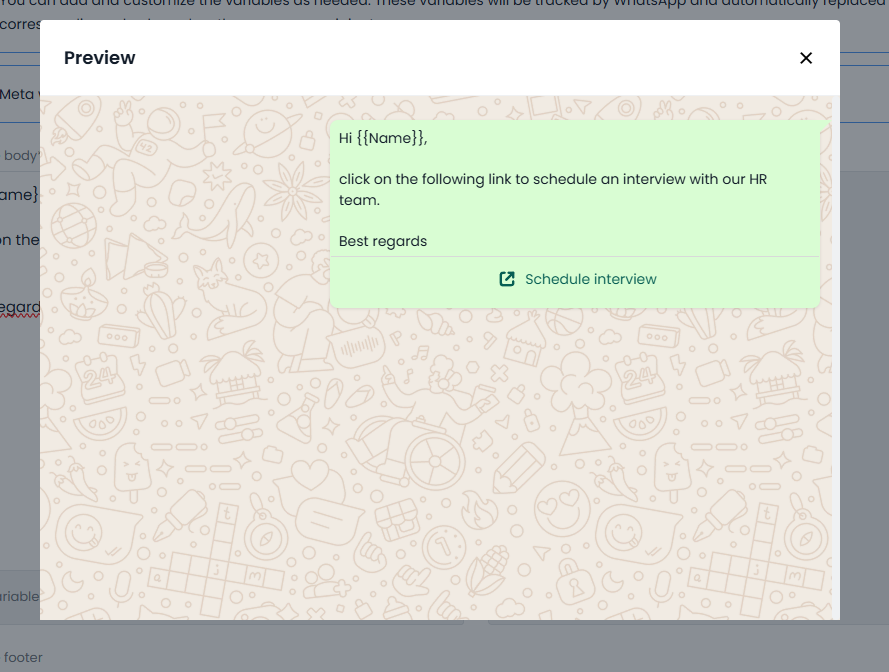
Note:
- A maximum of 10 buttons can be added to each template.
- A maximum of 2 URL buttons can be added.
- A maximum of 1 Phone Number button can be added.
- The Button Text field must be unique within the template.
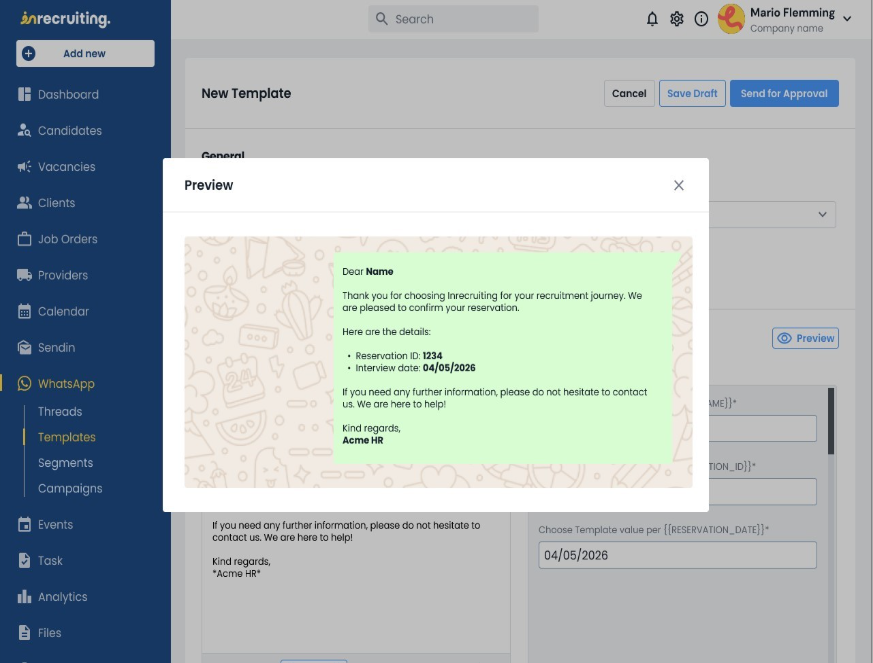
By clicking the Preview button in the Message section, the Company User will be able to view a preview of the sample message, as filled in at the moment the preview is generated.
The Company User will be able to edit only templates in Draft status by clicking the pencil icon next to the Template Name in the template list page.
All templates with a status different from Draft cannot be edited, but only deleted or duplicated.
NB: in case of duplicating a template, the procedure for requesting approval of the template by Meta (see next paragraph) starts again from the beginning, as if it were a new template being added.
Meta does NOT allow modifying already approved templates in any way.
Template Approval by Meta
During the configuration process, it is possible to save the template as a draft by clicking the Save draft button at the top right.
In this case, the template will be saved with Draft status and the Company User will be able to complete its configuration later.
When the Company User has completed the final configuration of the Template, they can send it to Meta to request approval by clicking the Send for approval button at the top right.
At the following link in Meta’s online guide, it is possible to view the template approval process (timing and rejection reasons): https://developers.facebook.com/documentation/business-messaging/whatsapp/templates/template-review/
The configuration will then be saved as final, and the template will move to Pending approval status.
In order to use a template, the Company User must wait until the approval status shown is Approved. In all other cases, the template cannot be used, as it is not approved by Meta.
Was this article helpful?
That’s Great!
Thank you for your feedback
Sorry! We couldn't be helpful
Thank you for your feedback
Feedback sent
We appreciate your effort and will try to fix the article