With Welcomin, it is possible to configure Conditional Fields within Form-type steps. This feature allows you to show, hide, make mandatory, or make optional specific fields based on the answers provided by the user during completion. As a result, you can create more dynamic and personalized forms, simplifying the user experience and collecting only the information relevant to each specific case.
To activate this feature, access the configuration of the Form step (Settings > Workflow > Structure > Step Templates > Edit Form Step > Structure) and click the button  located on the right side of the desired field.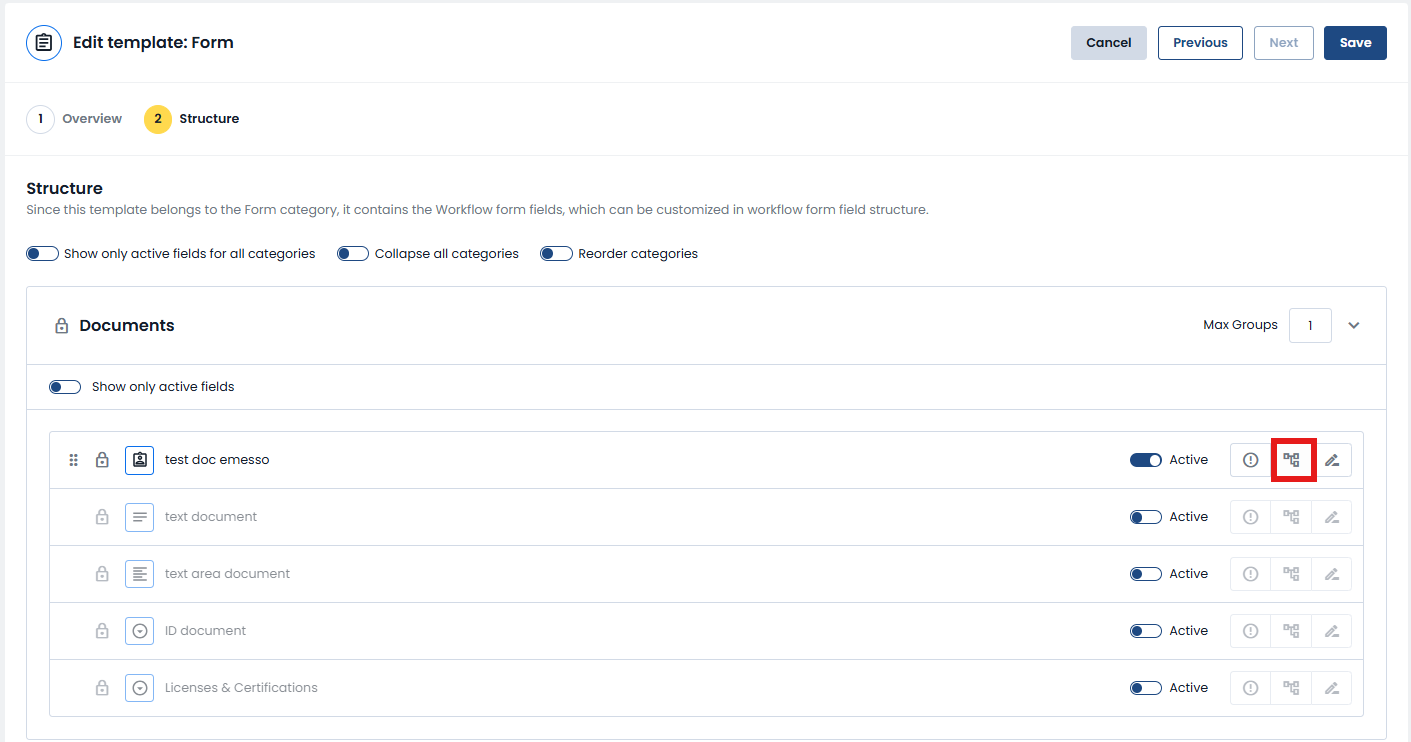
At this point, select the "IF" option and define one or more conditions that must be met by choosing from the available operators.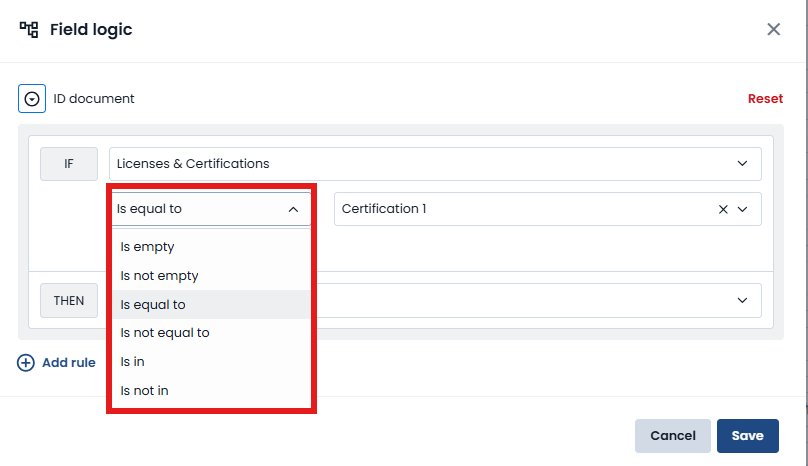
If you select the operators Is equal to, Is not equal to, Is included in, or Is not included in, an additional field will appear where you can specify the reference value. For single-choice, multi-choice, checkbox, and radio button fields, you will need to select one of the available options from the field.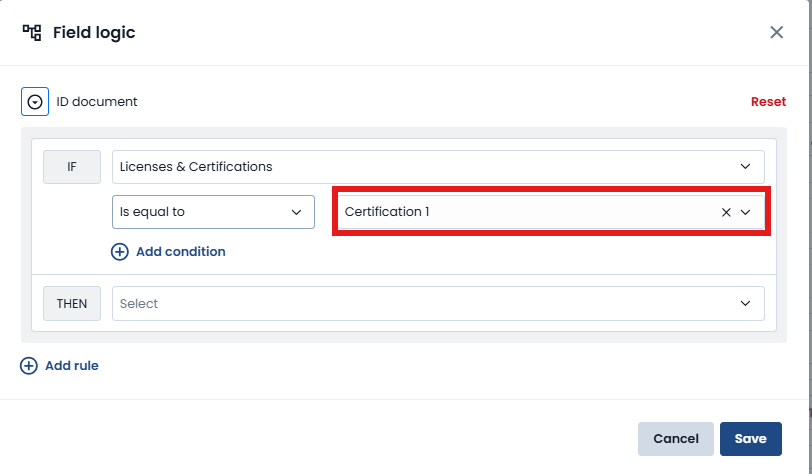
By clicking Add Condition, you can define additional criteria.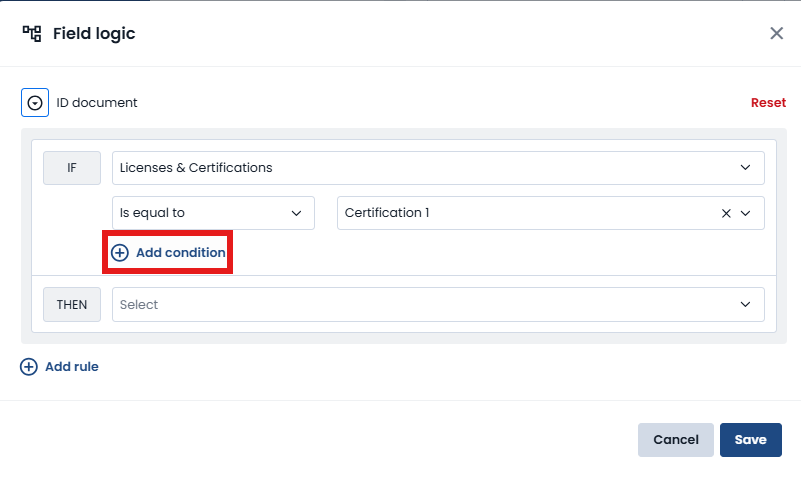
Conversely, by clicking Remove Condition, you can delete one of the configured conditions.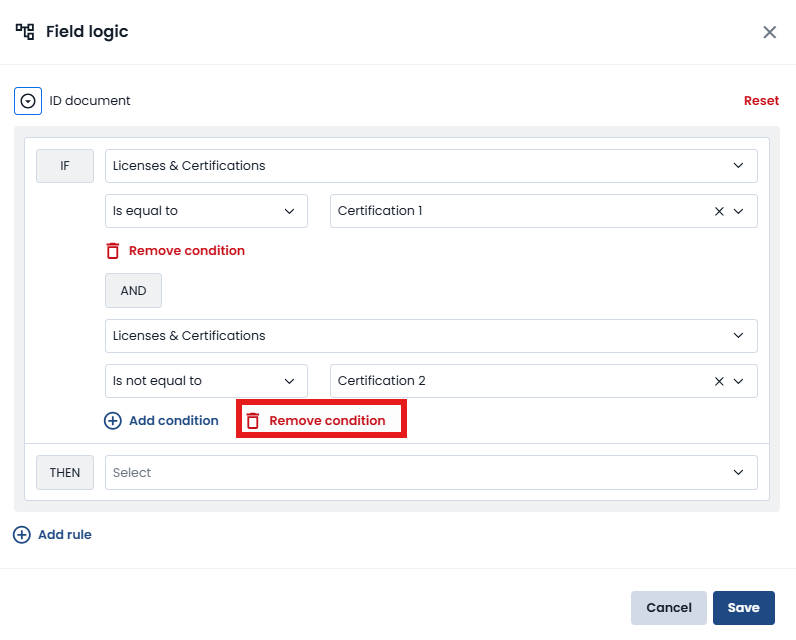
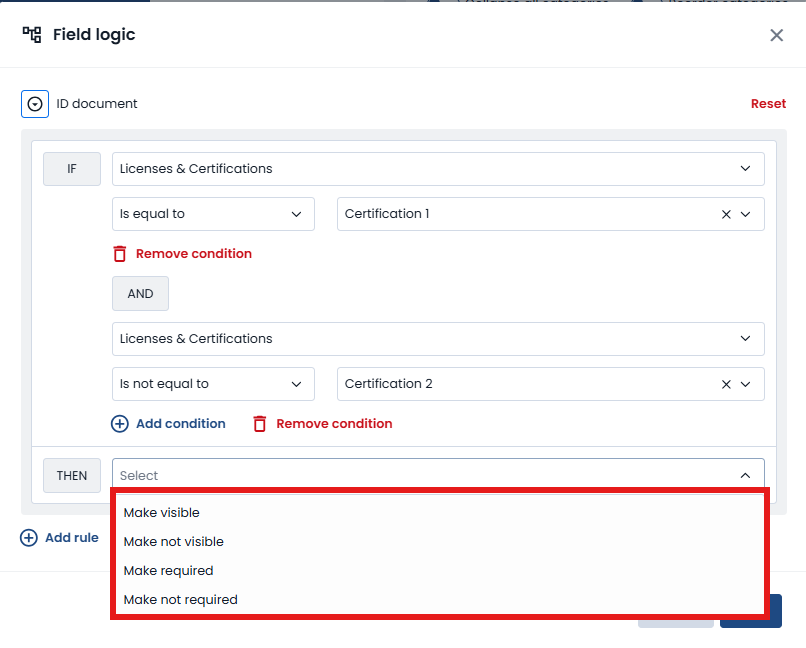
Once the criteria defining a specific scenario have been configured, you can set the THEN section, which allows you to define the action to be performed when all specified conditions are met.
You can configure the field to be:
- Visible
- Not visible
- Required
- Not required
By clicking Reset, all configured settings will be removed, allowing you to start the configuration from scratch.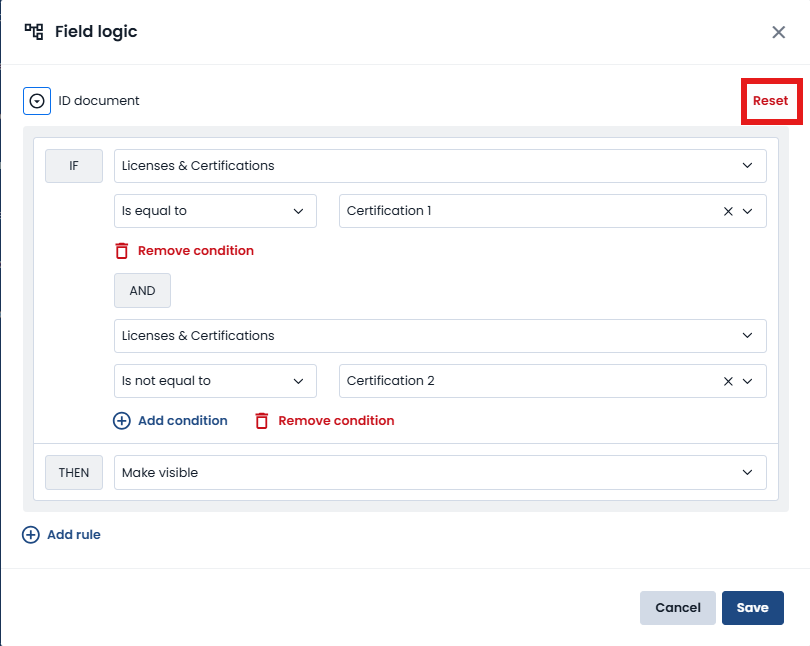
If the settings had already been saved, after clicking Reset, exiting, and re-entering the configuration page, the previously saved settings will be displayed again.
After saving the configuration, the Remove Rules button will be displayed. Clicking this button will delete all configured rules and automatically close the configuration window.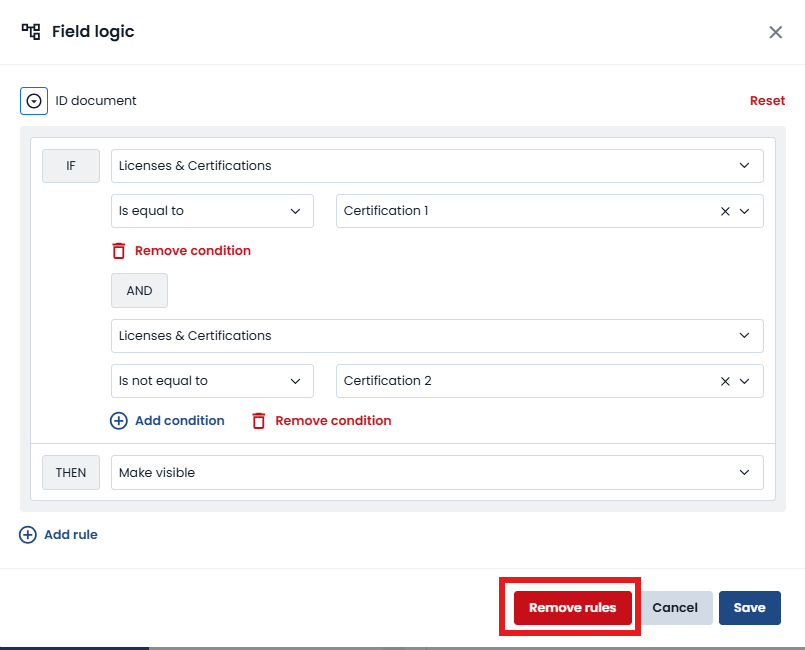
Thanks to Conditional Fields, you can create intelligent and flexible Form steps that automatically adapt to users' responses. By properly configuring the conditions in the IF section and the corresponding actions in the THEN section, you can easily and effectively manage field visibility and mandatory requirements, improving both data quality and the user experience.
Was this article helpful?
That’s Great!
Thank you for your feedback
Sorry! We couldn't be helpful
Thank you for your feedback
Feedback sent
We appreciate your effort and will try to fix the article