The Welcome Page represents the first point of contact between the person and the workflow: it acts as a cover and introduces the content of the process, offering an initial contextualization and guiding the user to start the compilation.
A clear and careful configuration of this section allows you to improve the user experience and make the collection of the required information more effective.
To create or customize a Welcome Page, you need to go to Settings > Workflows > Structure > Welcome Pages.
From the available list, by clicking on the "Add new" button at the top right
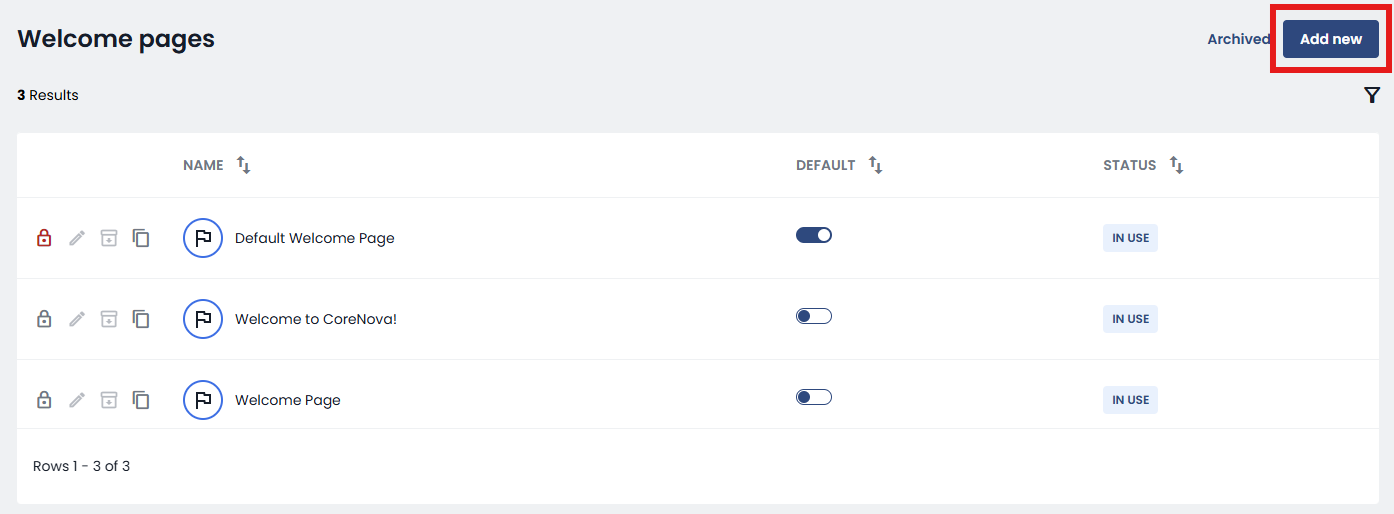
you can create a new one: a screen will open divided into two main sections, General and Content.
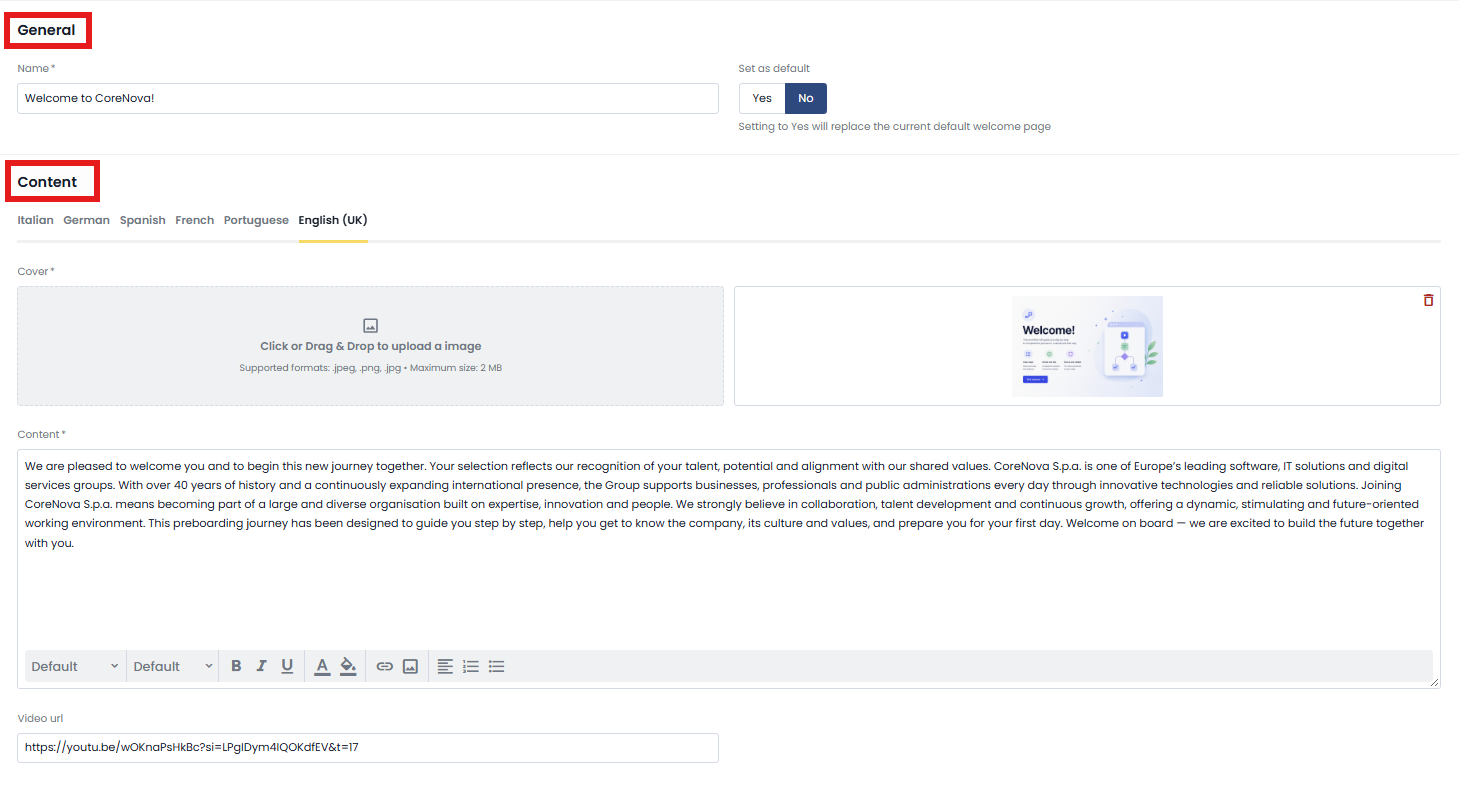
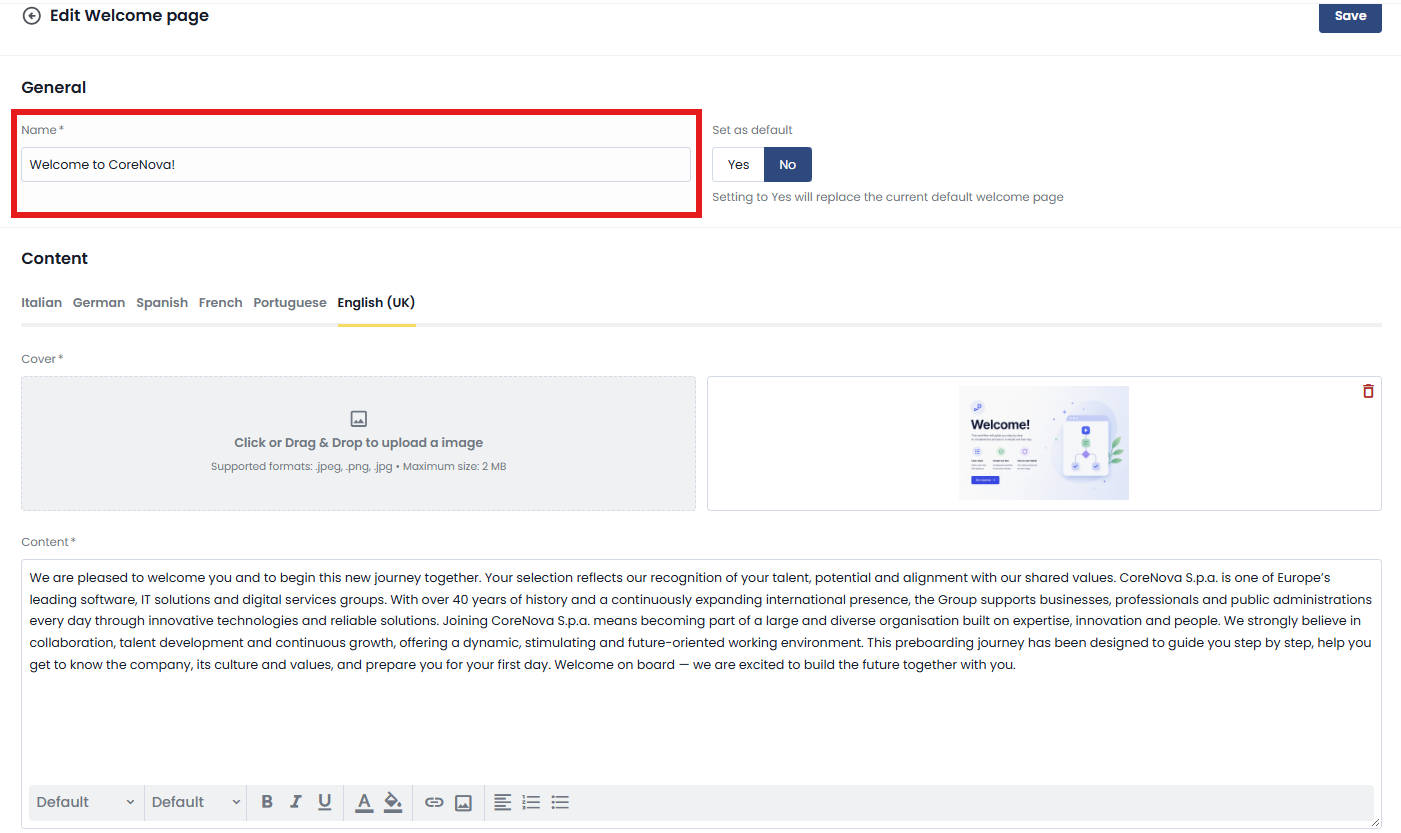
In the General section, you are required to enter the name of the Welcome Page and you can define it as the default through the appropriate flag.
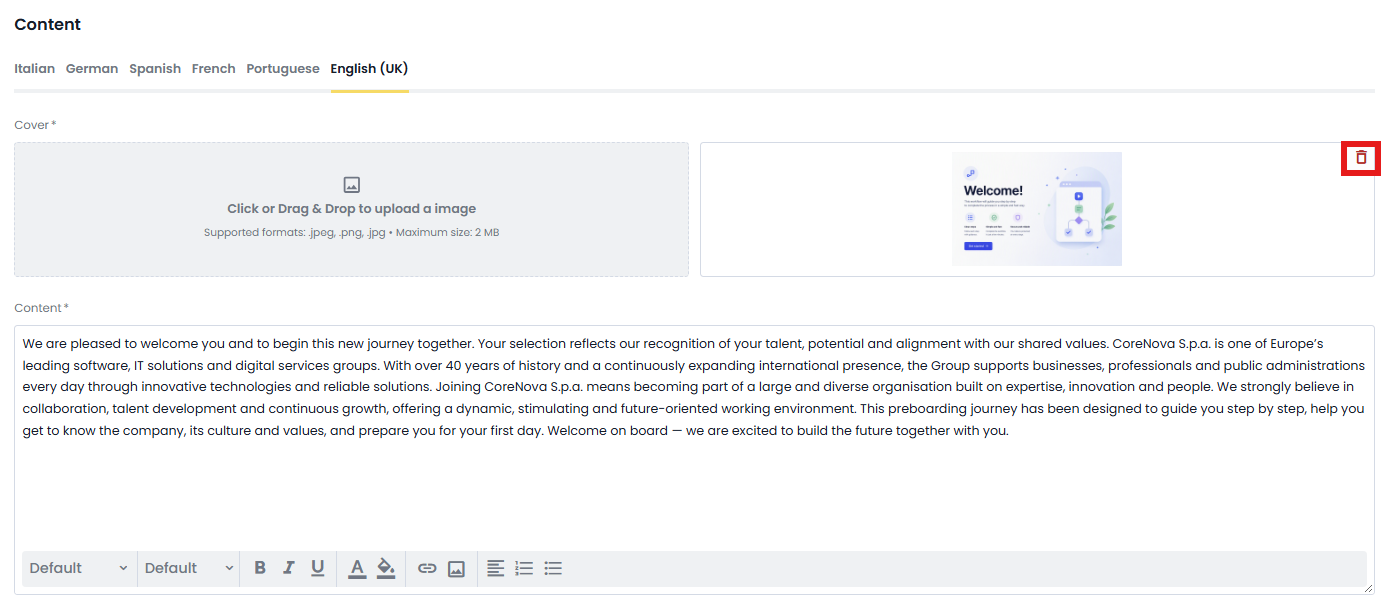
In the Content section, on the other hand, it is possible to build the visual and informative part of the page: you can upload an image, by clicking or dragging the file, which will constitute the cover:
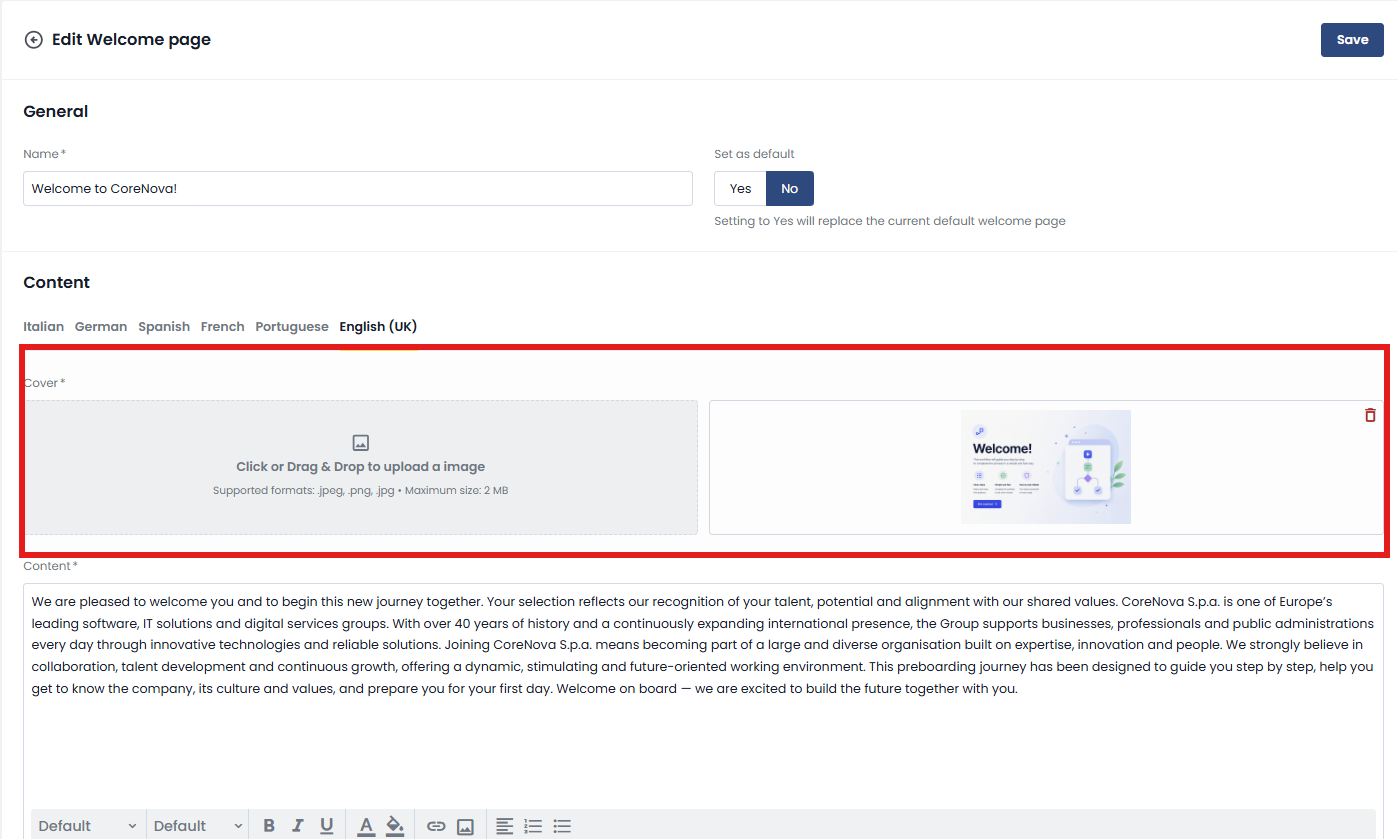
In case we want to replace the image, we can delete it from the icon :
:
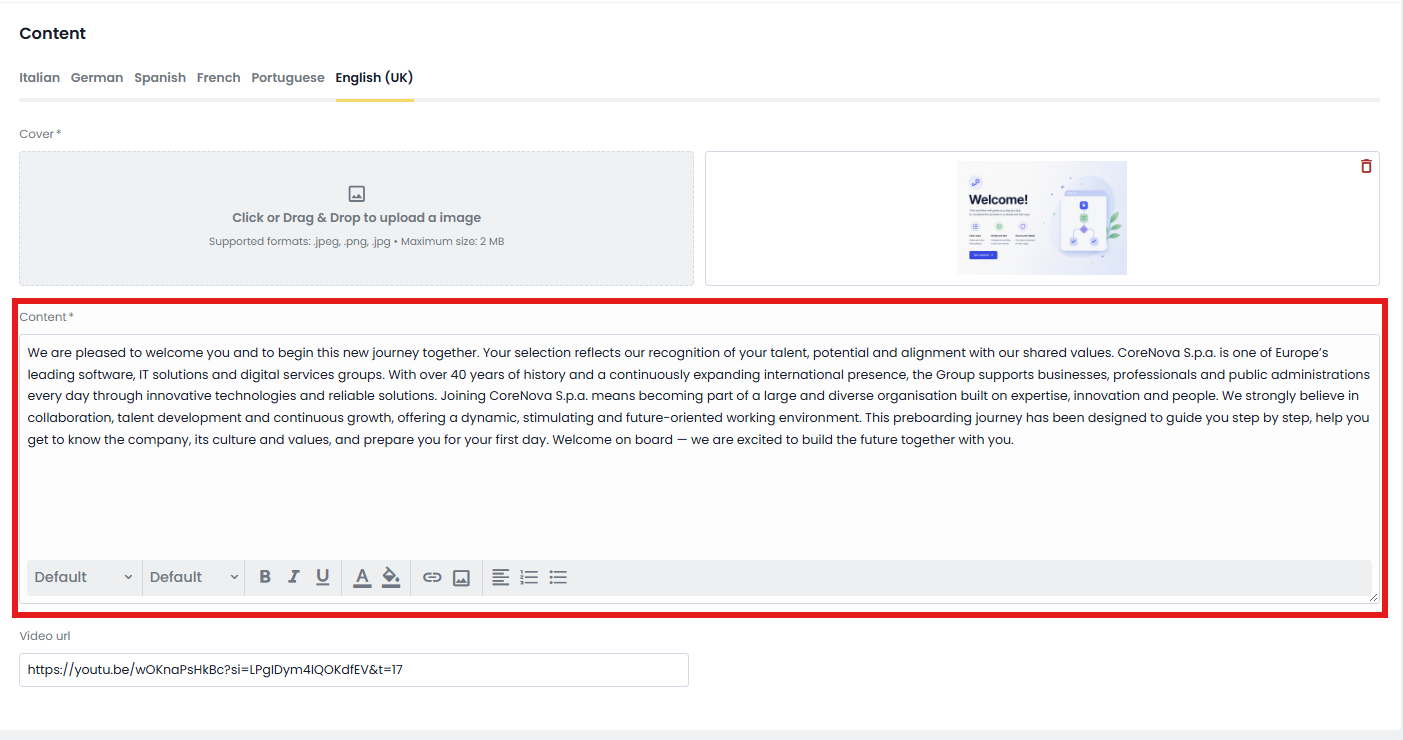
You can also enter the text that will be shown to the person
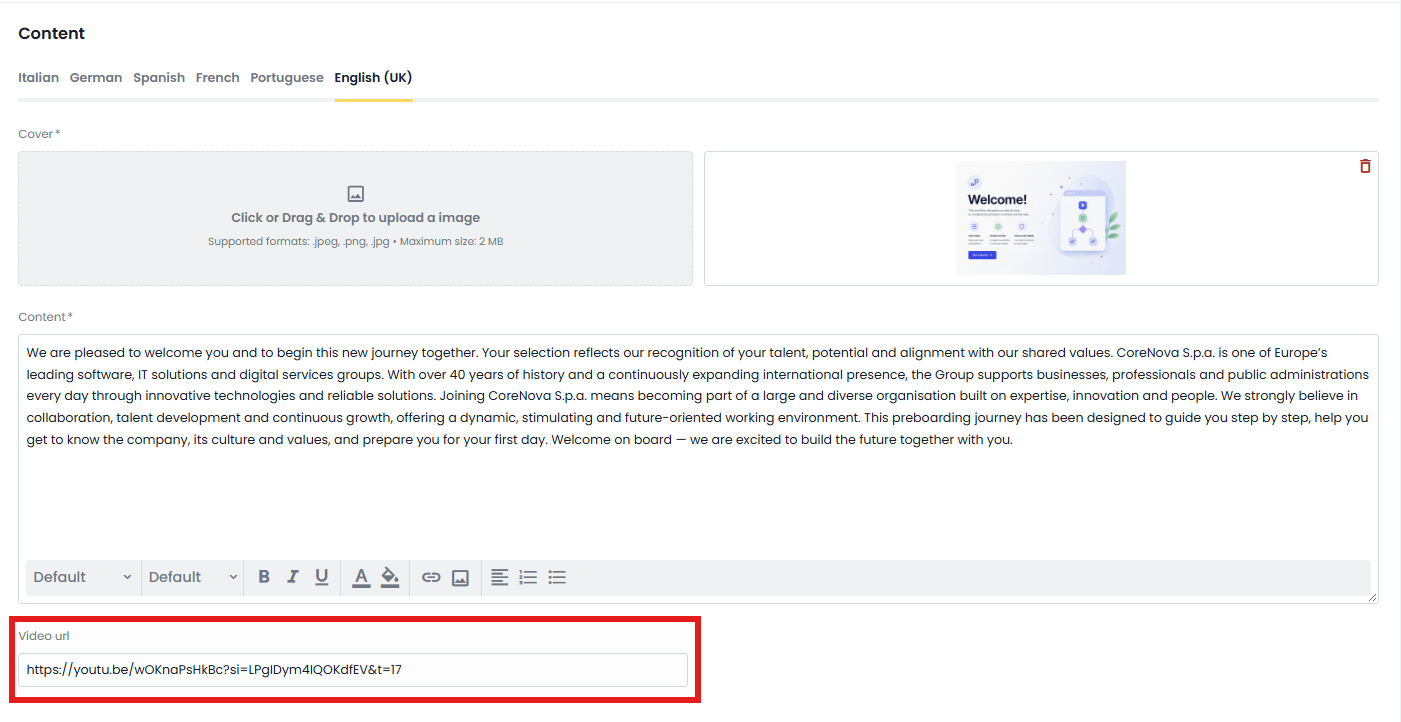
and, if necessary, add the URL of a supporting video.
Once the configuration is complete, by clicking on "Save" at the top right the page will be registered and made available within the list.
In the list of Welcome Pages, next to each item, there are several icons that indicate its status and available actions:
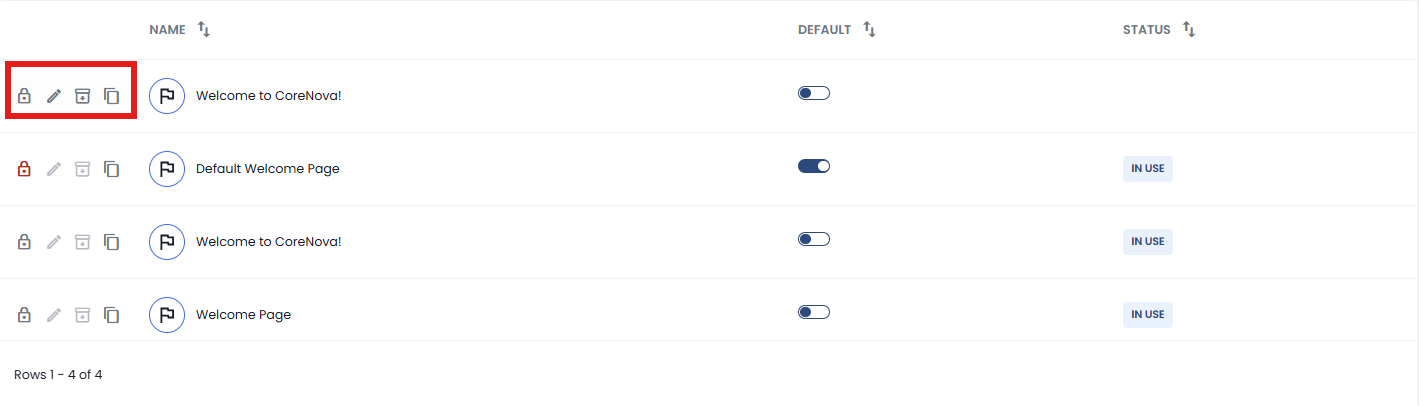
You can view whether a page is locked  (and therefore editable only by users with the appropriate permissions), access the edit
 , check it in,
 or duplicate it
 using the clone function.
In the following columns, you can see the name of the page, the indication of the page set as the default — which can be changed at any time — and the usage status, i.e. whether the page is currently used within one or more workflows.
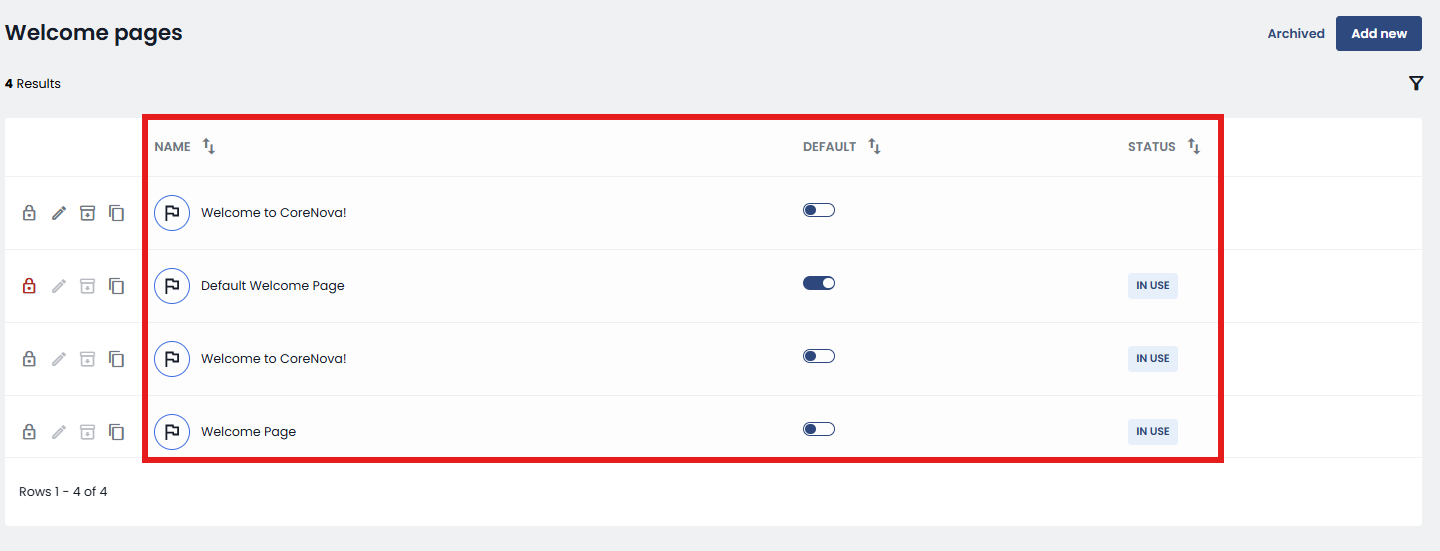
If a Welcome Page is in use, it cannot be edited or archived.
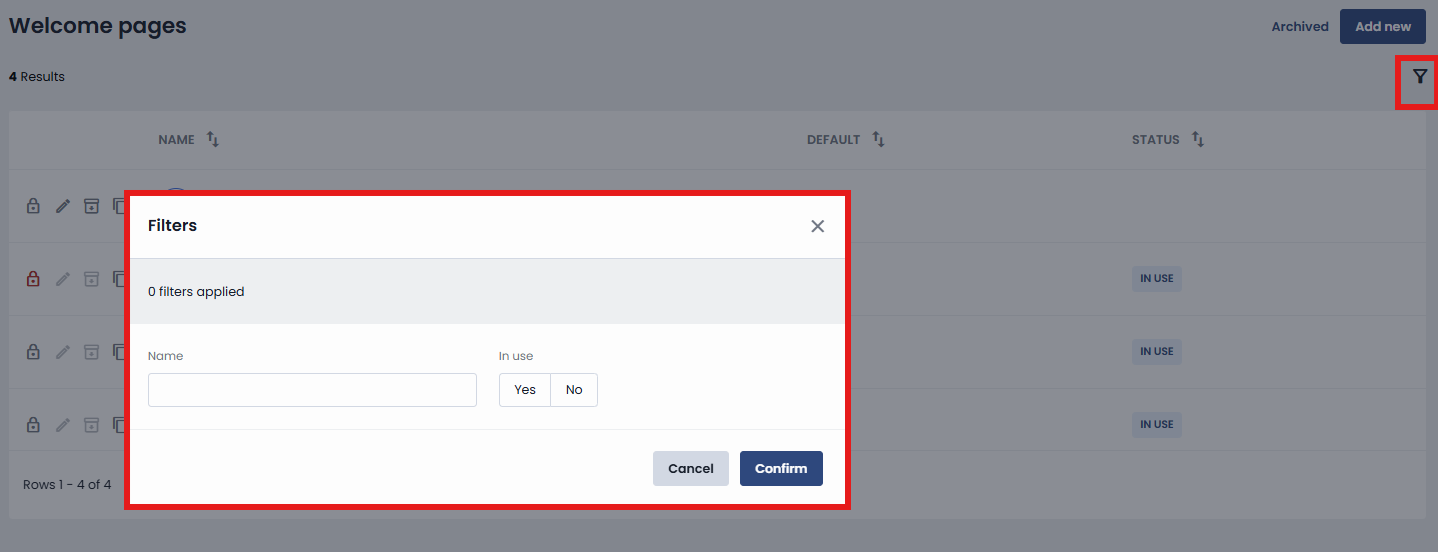
There's also a filter icon in the top right, allowing you to search and filter pages based on criteria such as usage.
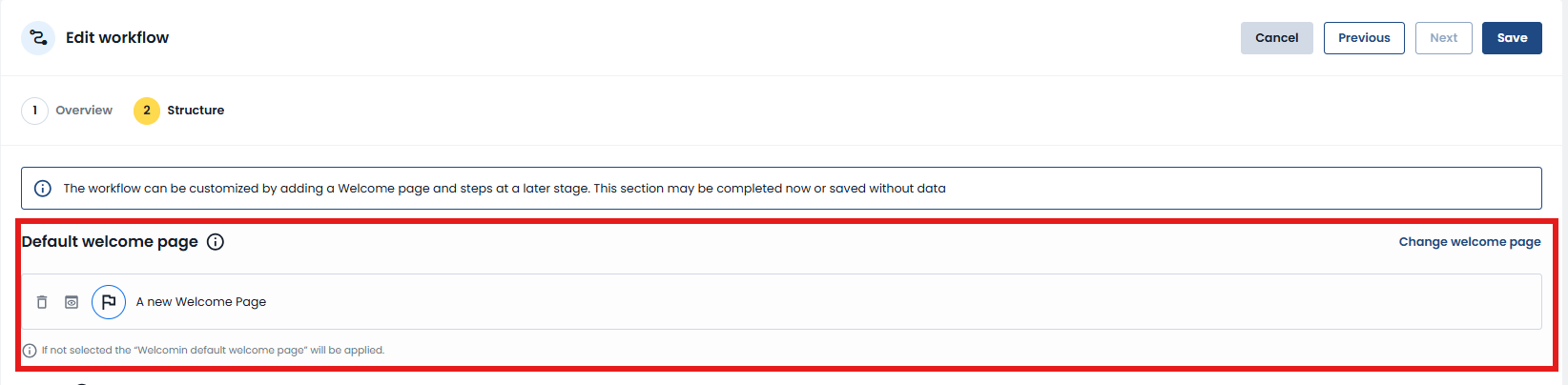
Once created, the Welcome Page can be used in workflows within the Structure tab, in the section dedicated to the default Welcome Page.
If set as the default, it will be automatically proposed and pre-filled during the workflow configuration; alternatively, it will always be possible to select a different page from those available, according to your specific needs.
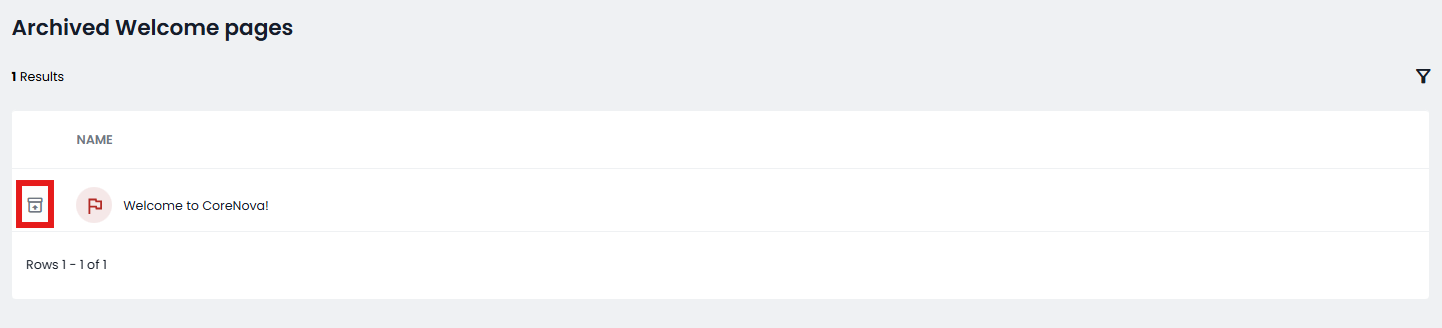
By clicking the Archive button in the top right corner, you can view all archived workflows.
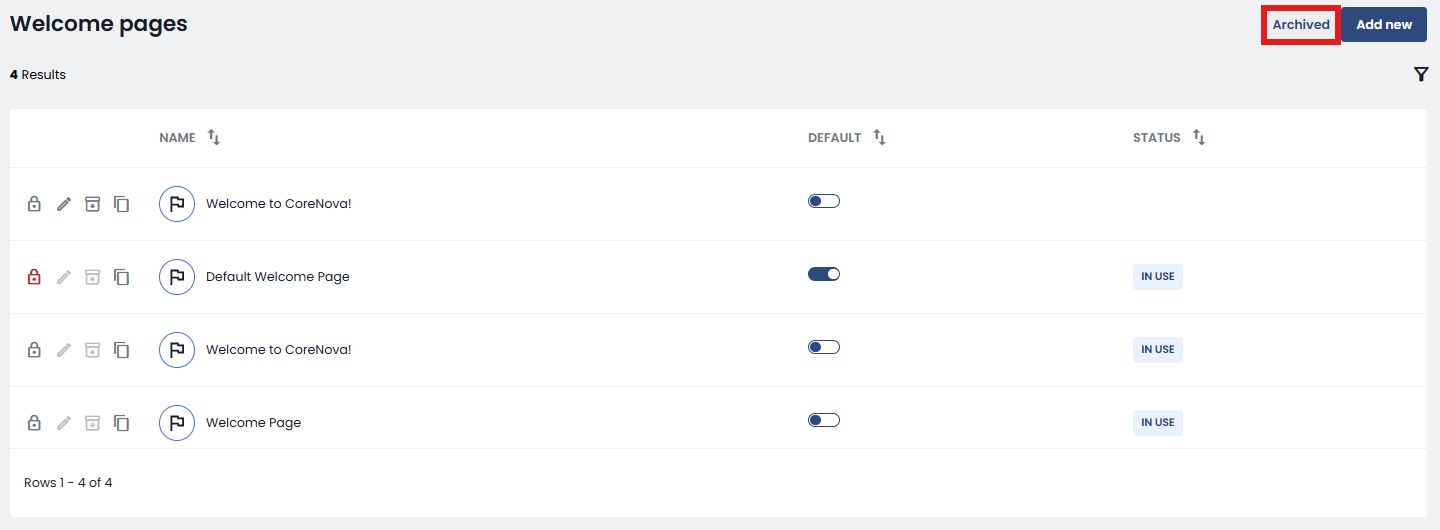
In this section, you can use the restore icon to reactivate a workflow.
A correct configuration of the Welcome Page allows you to make the workflow clearer, more intuitive and consistent, improving the initial experience of people and facilitating the start of the entire process.
Was this article helpful?
That’s Great!
Thank you for your feedback
Sorry! We couldn't be helpful
Thank you for your feedback
Feedback sent
We appreciate your effort and will try to fix the article