The integration between Inrecruiting and Skillvue enhances recruitment processes by combining candidate management and advanced assessments within a single workflow.
Through this integration, recruiters can gather more structured and objective competency evaluations, improving the quality of hiring decisions.
This guide explains how to activate and make the most of the integration.
Note: To use the integration, you must have an active contract with Skillvue and obtain the corresponding API Keys, which are provided directly by the Skillvue team.
Sending Assessments to Candidates
Assessments can be sent in two ways:
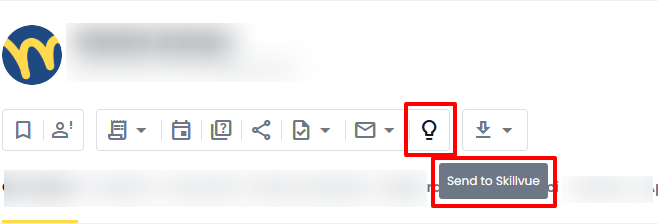
- Single Candidate: within the candidate profile, the "Send to Skillvue" option is available in the top bar. This allows recruiters to select which assessment to send to the candidate.
- Bulk Send: It is also possible to send assessments to multiple candidates at once. From any candidate list (for example, search results, candidates associated with a vacancy, or candidates within a project), select the desired candidates and use the "Send to Skillvue" option available in the Quick Actions menu at the bottom of the page. You can then choose which assessment to send.
Note: Bulk sending is limited to the candidates displayed in "This page". The "Entire search result" option is not supported.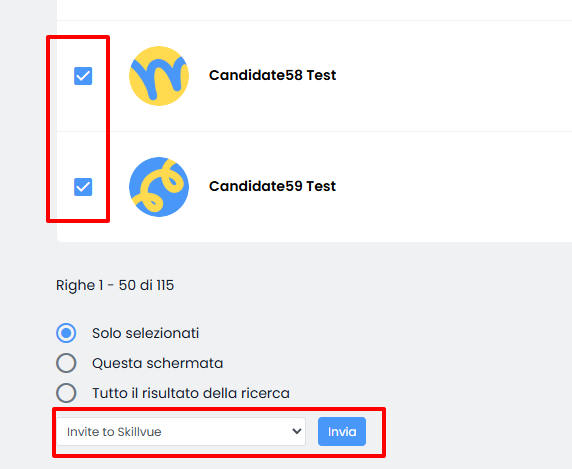
Once the invitation has been sent, the candidate will receive an email requesting them to complete the assessment.
The content of the email sent to candidates can be customized from System Settings > E-mails> Assessment Solutions > Skillvue.
Candidate Experience
After receiving the invitation, the candidate can access the skill assessment through the link provided in the email and complete the assessment directly on the Skillvue platform.
Once the assessment has been completed, the candidate will receive a confirmation email acknowledging the successful completion of the evaluation.
Monitoring and Results
All assessment-related information is available in the dedicated "Skillvue" tab within the candidate profile.
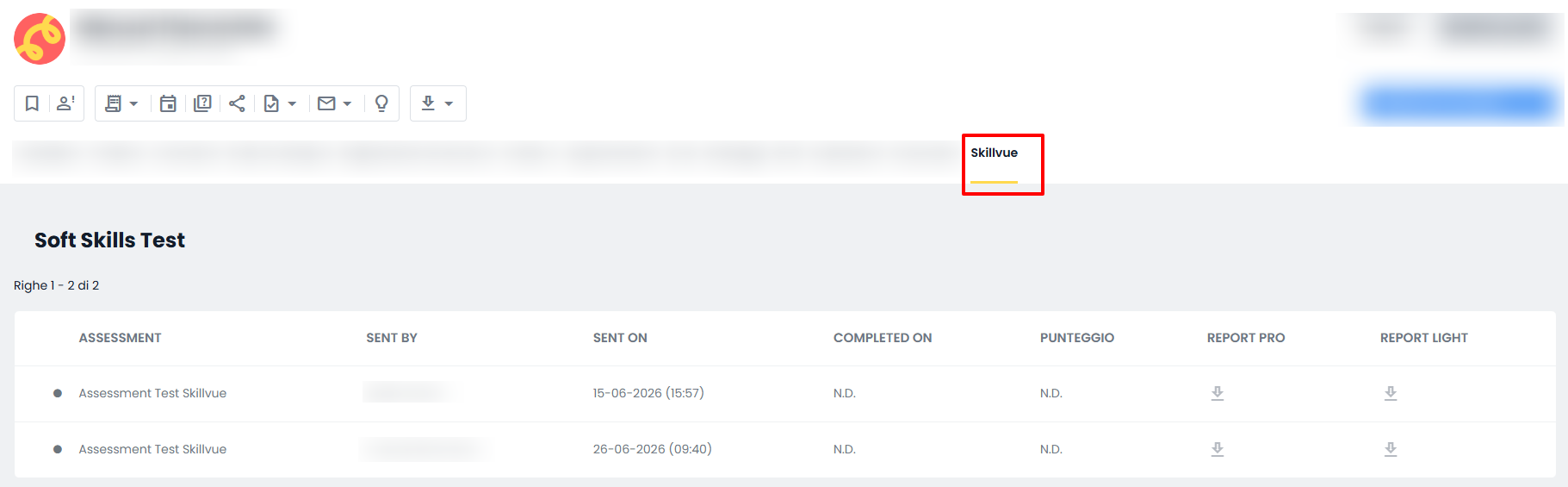
From this section, recruiters can:
- View the status of submitted assessments
- Review assessment results
- Access evaluation reports
Two types of reports are available:
- Lite Report A narrative summary providing an overall overview of the candidate’s performance.
- Pro Report A detailed analysis containing in-depth insights, including the transcription of the candidate’s responses.
Was this article helpful?
That’s Great!
Thank you for your feedback
Sorry! We couldn't be helpful
Thank you for your feedback
Feedback sent
We appreciate your effort and will try to fix the article