In order to make the selection process more efficient, Inrecruiting introduces Conversa PreScreen, the intelligent assistant that speaks with your candidates to collect all the information that does not emerge from the CV.
With Conversa PreScreen, you can automate pre‑screening interviews while keeping the candidate experience and human oversight at the center of the selection process.
The AI Vocal Agent autonomously manages a real voice or text‑based interview (for those who cannot or do not wish to speak), asking targeted and customizable questions defined by the recruiter in order to:
- Collect additional information not included in the CV
- Deepen the evaluation of the most relevant hard and soft skills for the vacancy
- Assess the candidate’s language proficiency by conversing in the required language and level
- Confirm key requirements such as availability to travel, shifts, or specific working hours
Conversa PreScreen is not limited to external recruitment processes: it can also be used for Employees within Internal Job Posting initiatives, supporting HR teams in enhancing the value of talent already present in the company.
Thanks to automated pre‑screening, Conversa intelligently gathers and analyzes information from internal applicants, facilitates their application to new opportunities, and accelerates the initial HR evaluation.
The result is a faster, more transparent, and more inclusive process that fosters internal mobility and improves the employee experience.
Below you will find information related to:
- Configurations
- Managing Pre‑Screening Interview Invitations
- Conducting the Pre‑Screening Interview
- Report generation and consultation
- Invalidation and deletion of Pre‑Screening Interview data
Configurations
User permissions
From Settings > General Settings > Company Role Management > Vacancy, the permission “Generate pre‑screening interviews” is available. This permission allows access to the configuration section to create a new pre‑screening interview during the publication/modification of a vacancy.
NB: This permission will be assigned by default to Administrator users.
Invitations and information related to pre‑screening interviews are visible only to users who have the permission View pre‑screening information and send pre‑screening invitations to candidates, which can be activated from
Settings > General Settings > Company User Role Management.
Pre‑Screening Interview Configuration
When creating or editing a vacancy, users who have been assigned the permission mentioned above will see a “Pre‑screening” tab, allowing access to the general configuration of the pre‑screening interview that will be sent to candidates.
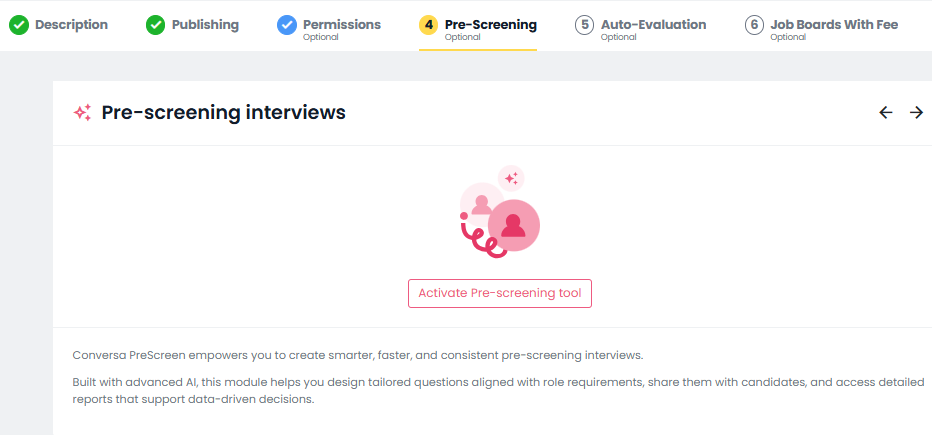
By clicking on the “Activate the pre‑screening tool” button, you can access the details of the following configurations: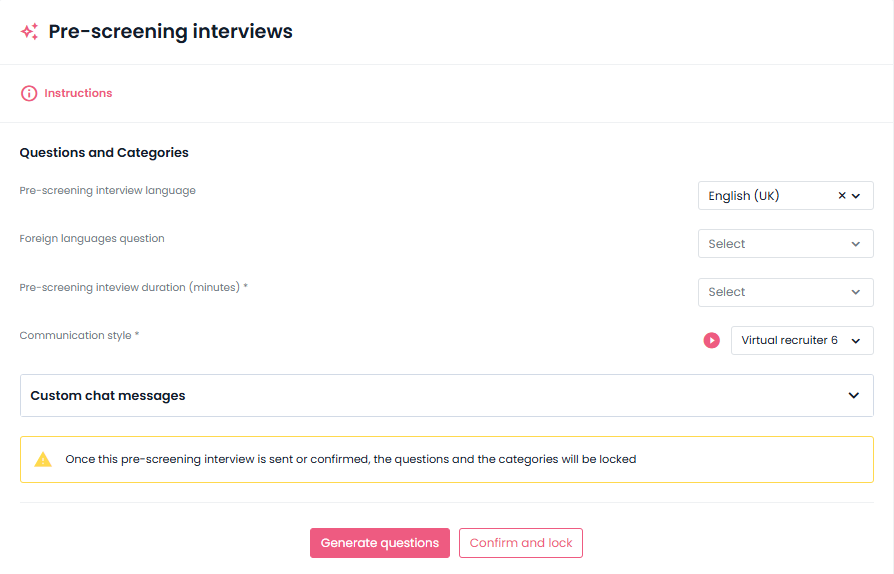
Language of the pre‑screening interview:The default language of the interview (chosen among the languages enabled in your Inrecruiting interface; by default, it will match the navigation language of the user performing the configuration).
NB: You can set “Candidate’s choice” to allow candidates to select their preferred language from a proposed list.Communication style: You can choose the voice used by Conversa PreScreen to ask questions to the candidate, selecting it from the list. You may choose among 5 male voices and 5 female voices; the label “Suggested tone of voice” will recommend the most suitable communication style. An audio preview is also available.
NB: You can set the default voice for these messages from Settings > Inda Conversa > Conversa PreScreen Settings.Foreign language questions: Allows specifying the languages in which you want certain questions to be asked to the candidate, in order to assess their linguistic competence (optional; chosen among the languages enabled in the Inrecruiting interface).
Pre‑screening interview duration (minutes): The maximum duration of the interview.
NB: Based on the configured duration, the system will generate a maximum number of questions to be submitted during the interview.Customized chat messages: You can customize the Introductory Chat Message and Final Chat Message, which will appear to candidates at the beginning and end of the pre‑screening interview.
NB: You can set default texts from: Settings > Inda Conversa > Conversa PreScreen Settings.
After completing the general configurations, by clicking the “Generate questions” button, you can automatically generate the content of the interview: this includes both the questions to be asked to the candidate and the analysis categories used to organize the information collected.
NB: Questions are generated automatically based on the vacancy text entered by the company user, using the title and job description to create content relevant to the role and the selection context.
The questions are designed to guide the conversation and explore specific aspects, such as availability for certain shifts or previous work experience.
The analysis categories serve instead to structure the final report by grouping data into relevant thematic areas.
Each category represents a specific field of analysis and allows the algorithm to interpret responses according to clear and consistent parameters, ensuring consistency, transparency, coherence, and repeatability in the analysis.
Each category should be defined with a clear name and a precise description explaining what must be analyzed and why it is relevant, and must include at least one explicit question linked to the requirement being assessed.
This allows the system to map each response to the correct category and generate an accurate and understandable analysis of the candidate’s suitability relative to that category.
Once the content has been generated, it is possible to review, modify, or delete both the questions and the categories.
NB: The number of questions depends on the duration of the interview set during the initial configuration.
However, Conversa PreScreen may add follow‑up questions beyond the configured set to request more details from the candidate (e.g., unclear or incomplete answers).
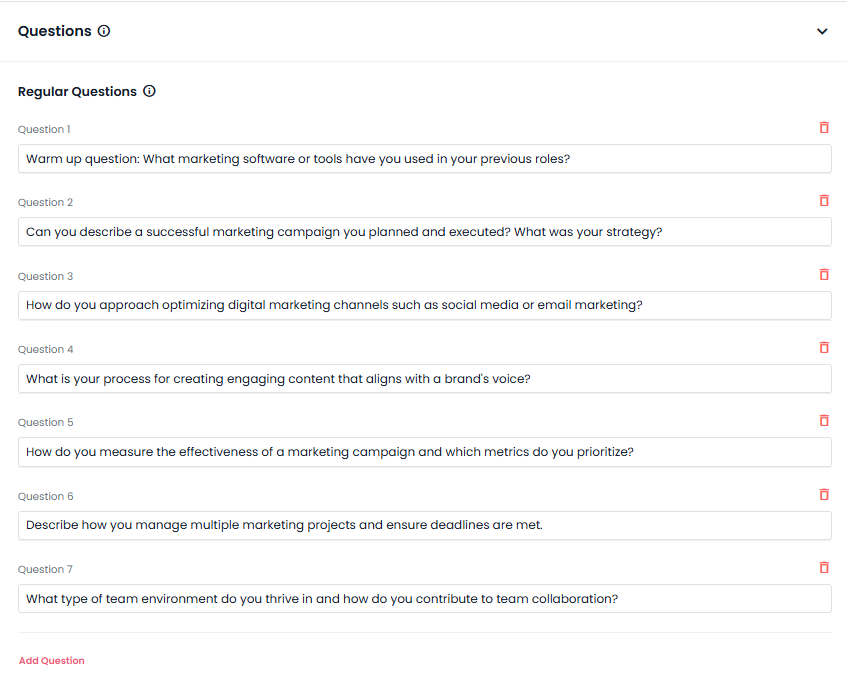
After completing and customizing the content, you can confirm the configuration by clicking the “Confirm and lock” button.
From this moment on, questions and categories can no longer be modified: this ensures that the interview starts with final and consistent content, maintaining traceability and comparability across reports.
From the Configurations section, you can also define the following information:
Enable invitation to the interview based on the vacancy state associated with the candidate: If enabled, the system automatically suggests sending invitations when certain “Vacancy Status” are assigned within the pipeline.
NB: The dropdown menu will only show Vacancy Status for which this functionality has been enabled in the Hiring Pipeline configuration.Pre‑screening interview invitation (On‑screen notification): The welcome text displayed to the candidate introducing the pre‑screening interview (customizable text).
NB: You can customize the default message from System Settings > E-mail> Vacancies> Pre‑screening interview invitation (On‑screen notification).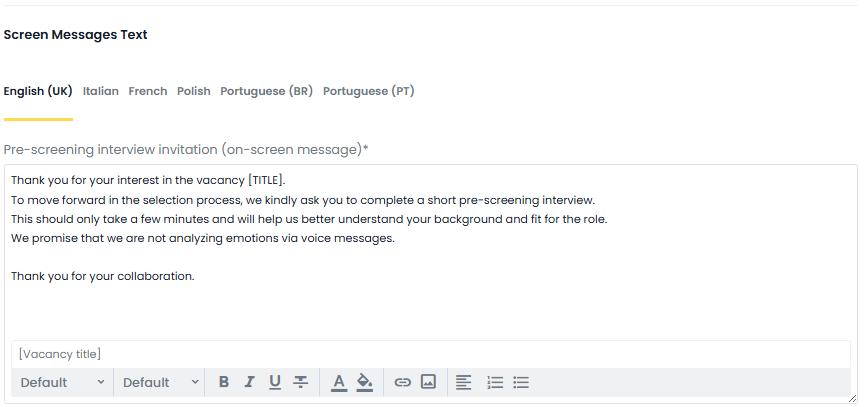
Thank‑you message for the pre‑screening interview (On‑screen notification): The final message shown at the end of the chat, thanking the candidate (customizable text).
NB: You can customize the default message from System Settings > E-mail> Vacancies> Thank‑you message for the pre‑screening interview (On‑screen notification).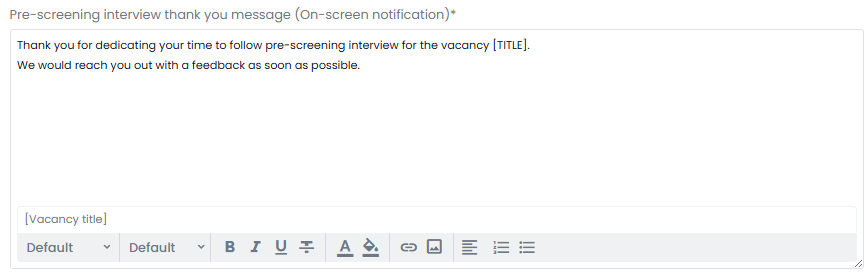
Email template for the pre‑screening interview invitation: The email text that will be sent to invited candidates (customizable text).
NB: You can customize the default email from System Settings > E-mail> Vacancies> Pre‑screening interview invitation (Email).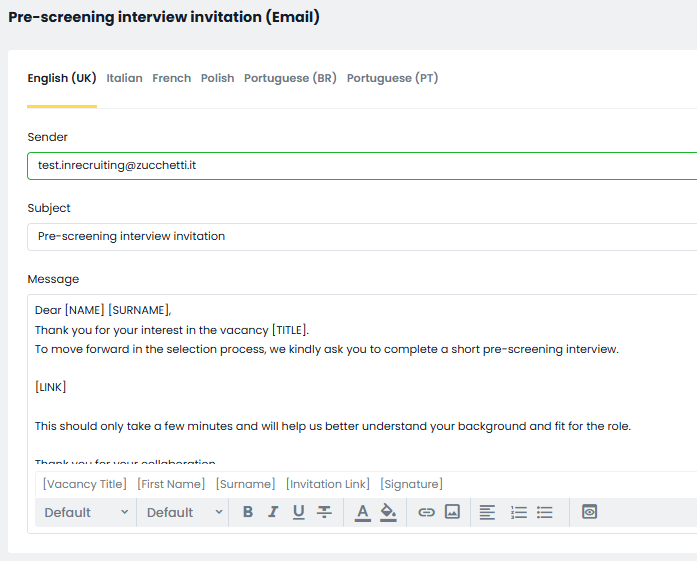
Customized chat message templates These include the default introductory chat message and the default final chat message.
NB: Defaults can be customized from System Settings > Inda Conversa > Conversa PreScreen Settings.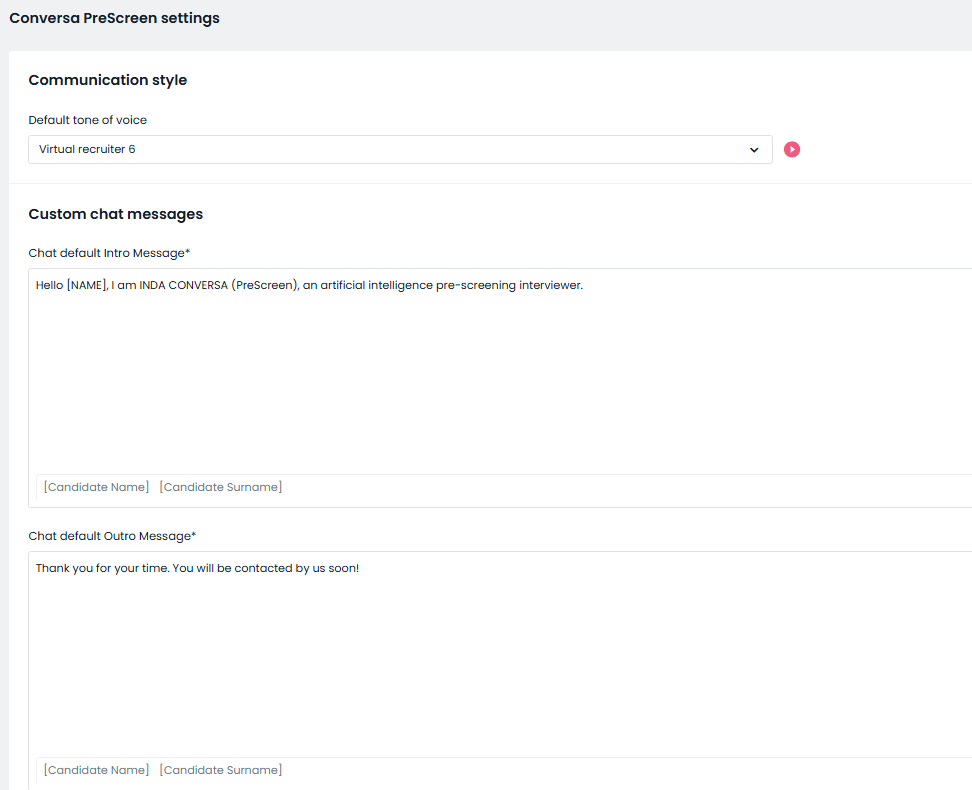
Managing Pre‑Screening Interview Invitations
⚠️ N.B. Invitations and information related to pre‑screening interviews are visible only to users with the permission: View pre‑screening information and send pre‑screening invitations to candidates (activatable via System Settings > General Settings > Company User Role Management).
Manual Invitation
Manual invitation can be sent directly from the “Registered” tab of the vacancy detail page, where you may select one or more candidates registered for the vacancy and then click on “Invite to pre‑screening interview” in the quick‑actions menu at the bottom of the page.
The system leads the user to a validation screen before sending where all selected profiles are listed, with spelt colour indications for candidates for whom the invitation may be inappropriate:
Yellow: candidates manually added by the company user (Sourced), who may not be aware of being associated with a vacacncy.
These candidates do not see the vacancy in their personal area, but they can still access the pre‑screening if invited.Red: candidates who have already received an invitation or have completed a pre‑screening interview (unless the previous interview was invalidated).
Green: candidates for whom the invitation has been successfully sent.
The screen allows the user to review the list, deselect non‑eligible candidates, and proceed with sending.
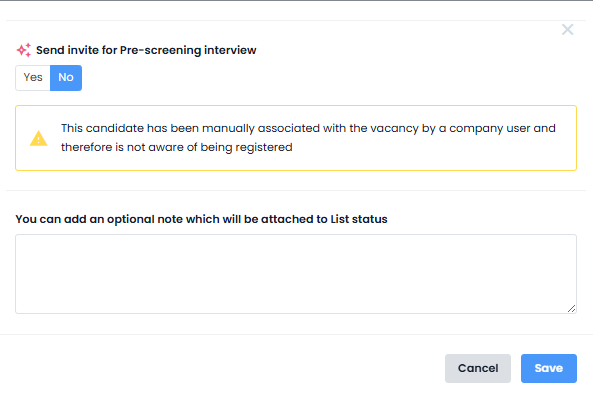
If the candidate is sourced (manually added), and the user chooses to invite them anyway, the system:
- Sets “Send invitation to pre‑screening interview” to “No” by default (for all other cases, the default is “Yes”).
- Displays a warning to remind the user that they are inviting a candidate who may not be aware of being linked to the vacancy.
Invitation triggered by Vacancy Status Change
If, during configuration, the option “Enable invitation based on vacancy status association” was activated:

When one or more candidates are moved into the specified vacancy status, a confirmation popup appears before sending the invitation, including any relevant alerts.
NB: It is not possible to link pre‑screening to an automated future‑dated state change.
Pre‑screening Interview Process
The pre‑screening interview is conducted asynchronously through a conversational interface designed to allow the candidate to carry out the conversation either in written mode or in voice mode, depending on their preferences.
NB: Interviews can be carried out even if they are associated with a vacancy that has been unpublished.
Once the invitation* has been received, the candidate can access the interview in two ways:
- from their personal candidate area where, after logging in, they will find a dedicated widget that guides them through the conversation and into a new dedicated section;
- through the direct link received in the pre‑screening invitation email, which allows immediate access to the interview without requiring a login, while still ensuring secure candidate identification via token.
* NB: the invitation link is valid for 7 days. After this period, the candidate will need to be invited again.
When opening the page dedicated to the interview, the candidate receives a short informational introduction that guides them in preparing. Specifically, it indicates:
- the estimated duration of the interview;
- the number of questions expected;
- the possibility to select the language in which they wish to conduct the conversation among the following: Afrikaans, Azerbaijani, Bosnian, Bulgarian, Chinese (Mandarin/Cantonese), Croatian, Czech, Danish, Dutch, English, Estonian, Finnish, French, German, Greek, Hindi, Hungarian, Icelandic, Indonesian, Italian, Japanese, Kazakh, Korean, Latvian, Lithuanian, Macedonian, Malay, Marathi, Nepali, Norwegian, Polish, Portuguese, Romanian, Russian, Serbian, Slovak, Slovenian, Spanish, Swahili, Swedish, Tagalog/Filipino, Tamil, Thai, Turkish, Ukrainian, and Vietnamese.
- a preliminary test to verify that the microphone and audio are working correctly.
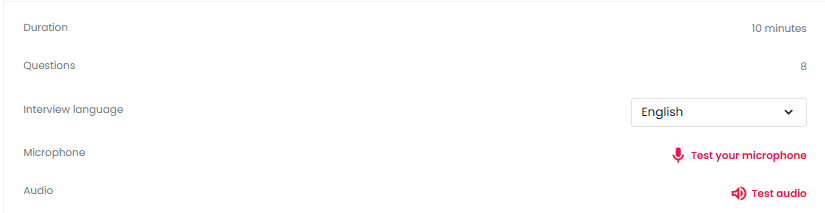
N.B. To achieve the best audio quality during the interview, the candidate should use headphones with an integrated microphone or an external microphone. These options help reduce background noise and ensure that their responses are recorded clearly. If neither option is available, we recommend switching to keyboard input for a smoother experience.
By proceeding with the interview through Start conversation, the candidate will see the following elements:
the Introductory Chat Message (text customizable by the company during interview configuration or from System Settings > Inda Conversa > PreScreen Conversation Settings);
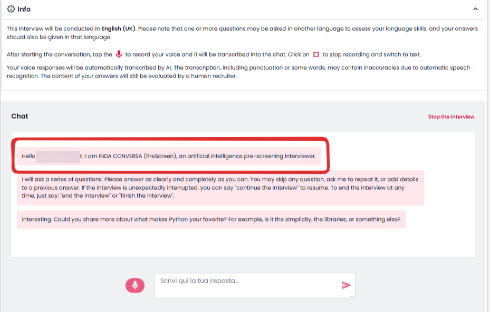
the Information Box, which provides essential guidance on how the voice conversation works within Conversa.
It first specifies the language in which the interview will take place, although some questions may be asked in another language to assess the candidate’s language skills; in this case, the candidate must answer in the same language as the question.
The box then explains how to use voice recording: after starting the conversation, the user must tap the microphone icon to record their response. Everything said will be automatically transcribed into the chat by the AI. The recording can be stopped by tapping the square icon
 Finally, it includes a notice informing that the voice transcription may contain minor inaccuracies due to automatic speech recognition, but the content of the responses will still be evaluated by a human recruiter.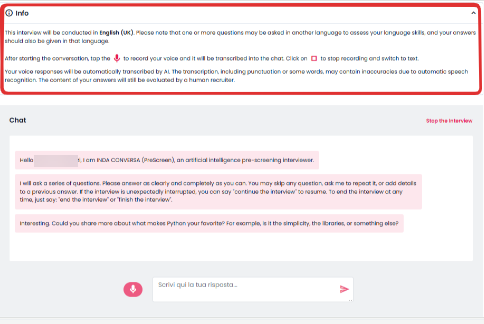
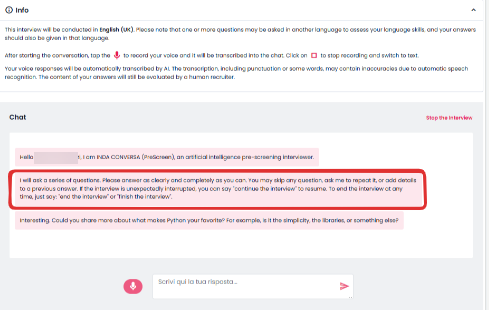
the guidelines on how the interview works: the panel explains that the virtual assistant will ask a series of questions, and the user can ask for clarifications, skip a question, or add details to their answers. They can also resume the interview by saying “continue the interview” or end it at any moment with “end the interview” or “conclude the interview”.
the questions configured by the company user, plus any follow‑up questions suggested by Inda Conversa to deepen the topics of the interview.
NB: starting from this step, the system begins calculating the minutes associated with the interview duration defined during configuration.the Final Chat Message (customizable by the company during the interview configuration from System Settings > Inda Conversa > PreScreen Conversation Settings).
If the microphone is used, the transcription will be shown step‑by‑step as it is generated by the model; this approach makes the experience more dynamic and intuitive, reducing confusion and clarifying what happens as the candidate provides their responses.
Copy‑and‑paste within the conversation chat is also disabled for candidates.
If the candidate interrupts the session (e.g., by closing the browser or tab), the system allows them to resume the conversation from where it left off, preserving the content already collected and ensuring continuity.
Report Generation and Consultation
At the end of the pre‑screening interview, the system automatically starts generating the summary report, whose purpose is to collect and organize in a structured way the information that emerged during the conversation with the candidate.
The report is generated in the language used by the company user; if the candidate completed the interview in a language not familiar to the user, it can be translated into the desired language.
Report generation is managed by the INDA system, which processes the received data, including:
- the vacancy text;
- the candidate’s CV, if available;
- the analysis criteria defined during configuration;
- the interview transcript containing the responses provided. If the conversation occurred in a language unfamiliar to the user, it can be translated into the desired language.
The report also shows the date and time for each question/answer and specifies whether responses were provided by voice or via chat; - the system never discards candidates and never assigns automatic scores, preventing any risk of bias or discrimination;
- no voice information is stored or analyzed: audio is used only for the conversation and is neither saved nor evaluated;
- video is not used;
- decisions always remain in the hands of the recruiter: the AI observes, listens, and supports — it does not judge.
Reports can be viewed from various sections of the ATS to provide a complete, contextualized view of the pre‑screening process:
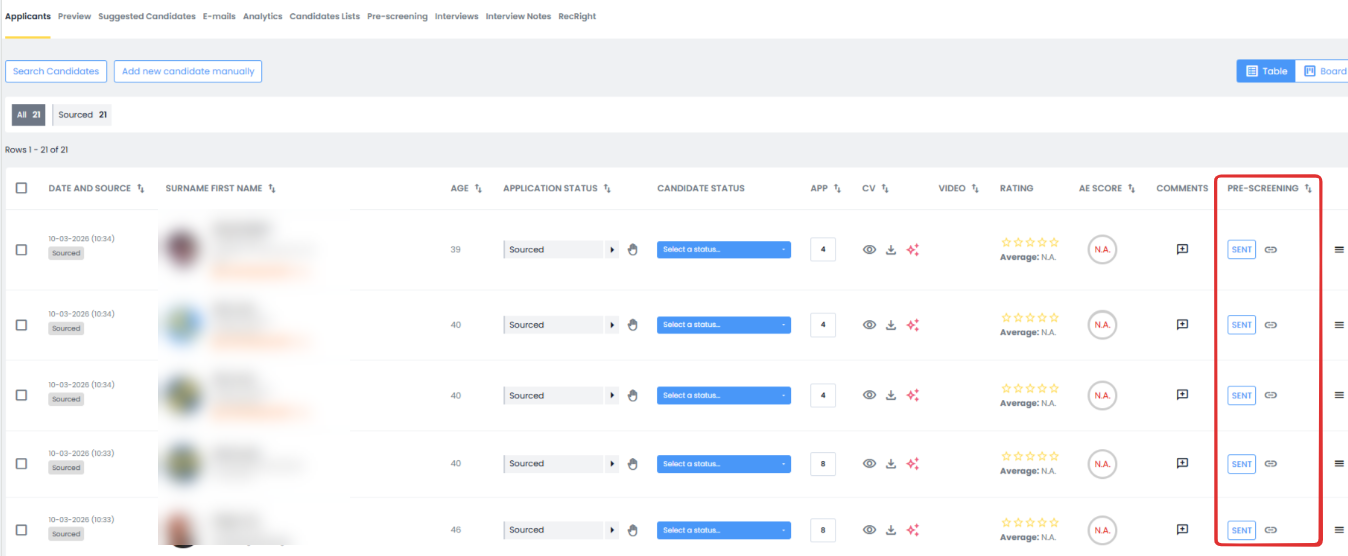
in the “Applicants” tab of the vacancy, a new “Pre‑screening” column shows the interview completion status;
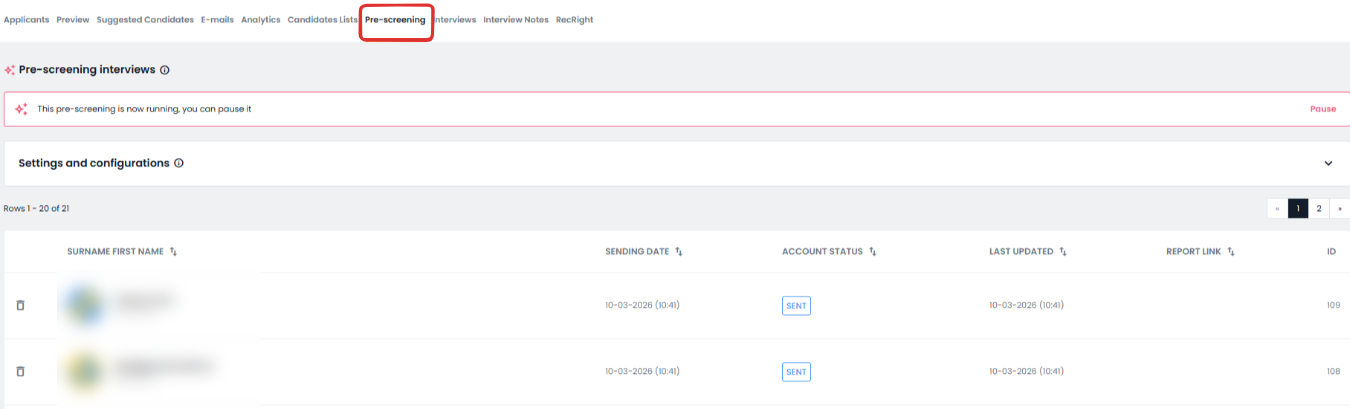
in the vacancy detail page, a new “Pre‑screening” tab lists invited candidates and those who have completed the interview, with direct access to the report when available;
in the candidate profile, a dedicated tab collects the history of completed pre‑screening interviews and their respective reports.

The report contains the following elements:
- summary of the main elements of the vacancy;
- pre‑screening interview status;
- interview transcript;
- detail of the answers to the questions (completed, skipped, unanswered);
- language assessment of any foreign languages (CEFR levels A, B, C or Unknown);
- any inconsistencies between answers and CV content;
- analysis categories and their results (each can be expanded to view the associated questions and the interview/CV elements that contributed to the output).
For each analysis category, the output is a label indicating how much the candidate’s response matches what the category requires, based on its name, description, and associated questions.
The goal is not to express a judgment, but to identify whether the response includes the required informational elements, thus structuring and organizing the information gathered during the interview.
Invalidation and Deletion of Pre‑screening Interview Data
The system provides mechanisms for managing and controlling completed pre‑screening interviews, giving the company user the possibility to invalidate an interview when necessary — for example, due to configuration errors, technical issues, or to repeat the interaction with the candidate.
Invalidation can be carried out directly from the “Pre‑screening” tab in the vacancy detail page by selecting the “trash bin” button.
Once invalidated, the interview is no longer considered valid for evaluation purposes, but the transcript remains available for internal consultation by company users.
The candidate can also be invited again to complete a new interview, without limitations related to the previous session.
The invalidation event is logged, just like the invitation itself, in the candidate timeline.
NB: if a company user removes a candidate from the vacancy, any pre‑screening invitation stops working.
If the pre‑screening has already been completed, it remains available in the vacancy’s “Pre‑screening” tab.
In this tab, deregistered candidates (either autonomously or by a company user) are marked with an alert icon and a tooltip indicating that the candidate is no longer registered.
Regarding data deletion, the system applies a retention logic that ensures traceability and availability of information even if the candidate is removed from a single vacancy.
In other words: if a candidate is removed from a specific vacancy, pre‑screening data remains stored.
The definitive deletion of all data associated with the pre‑screening interview occurs only when the candidate is fully removed from the ATS — either for retention reasons, by initiative of the company user, or at the explicit request of the candidate.
Was this article helpful?
That’s Great!
Thank you for your feedback
Sorry! We couldn't be helpful
Thank you for your feedback
Feedback sent
We appreciate your effort and will try to fix the article