With Inrecruiting, it's quick and easy to post a vacancy and then track and manage candidates through the hiring process.
To create a new Vacancy, you have several equivalent options:
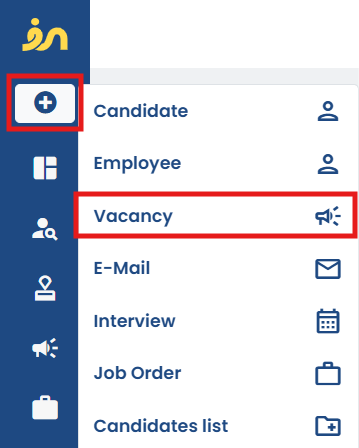
- Click on the "+" icon in the side menu and then on the item Vacancy
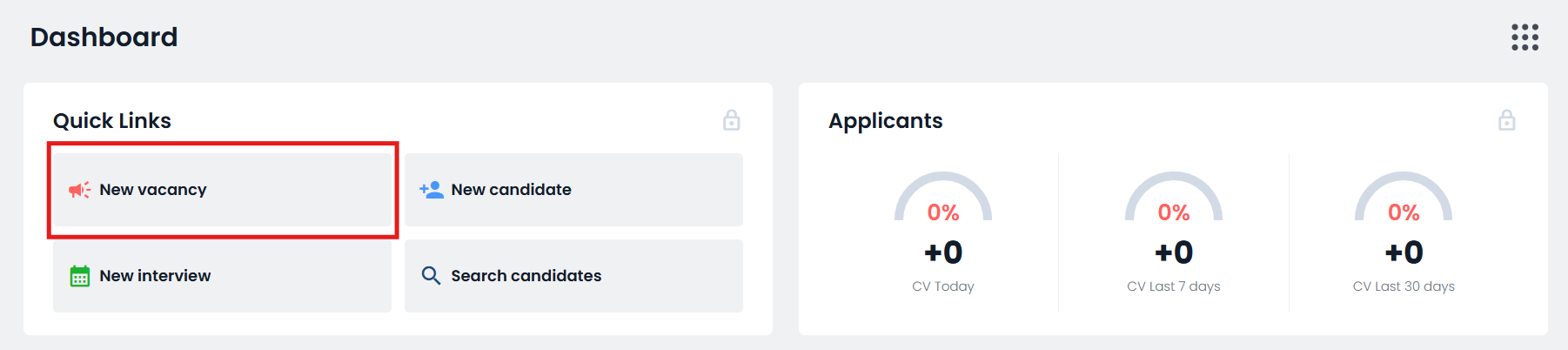
- Click New vacancy in the Quick links widget in the Dashboard
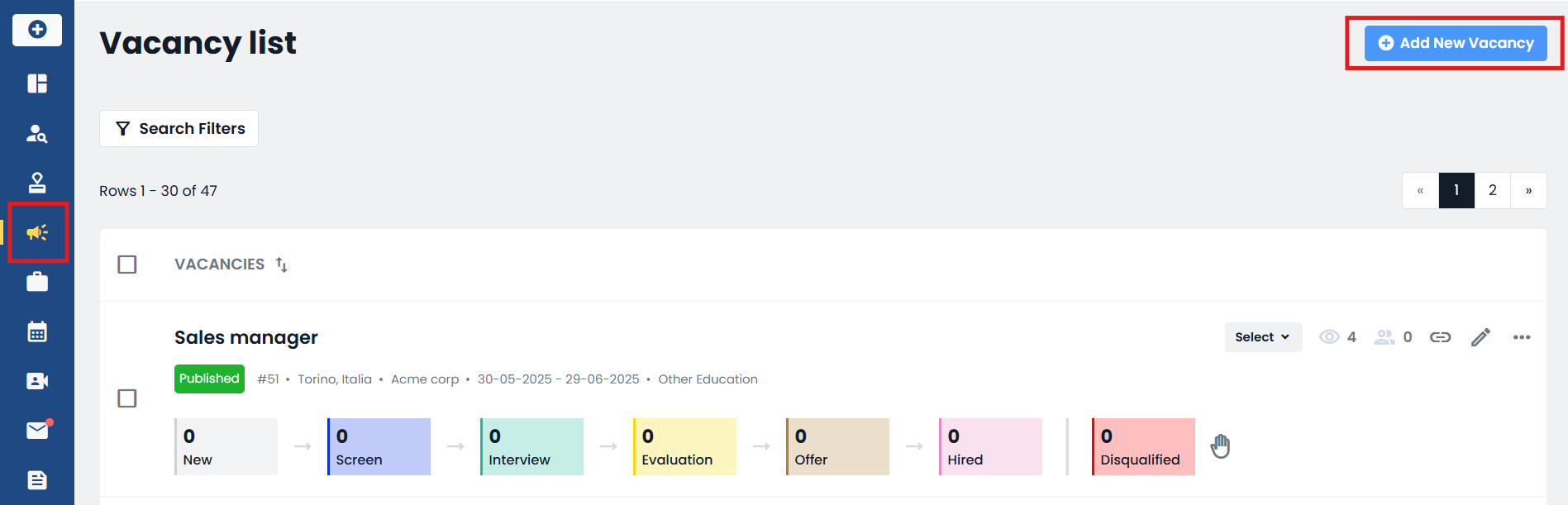
- Click on Vacancys in the Side Menu and then on Add New Vacancy
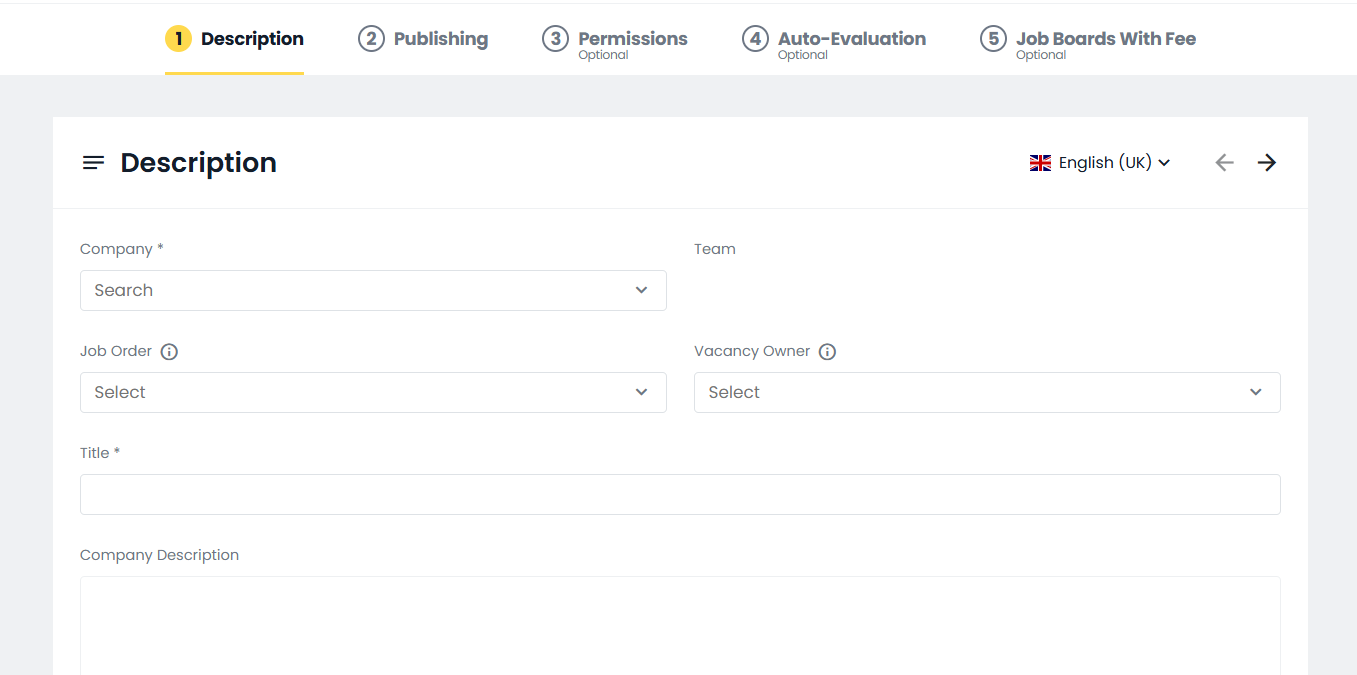
In Tab 1 Description, you will have to enter the following mandatory fields, which will be visible to candidates during registration:
- the title of the vacancy;
- the company description (which you can set by default by clicking on Settings > General > General Settings >Company Profile > Profile visible on ON > >Company Details > Company Description);
- the position sought;
- the necessary requirements;
- the profession/function;
- the place of work.
It is also possible to enter the following optional fields:
- Sector
- Required level of education
- Years of experience
- Seniority Level
- Type of contract
- Type of place of work
- Benefit
- Additional remuneration
- Salary type (it is possible to make this field mandatory from the System Settings > Process Management > “Salary type” field required enabled)
This data is entered into the XML Feed that we send to the job boards integrated in our Multiposting; Each portal then defines which of these data to make visible on its site.
The Video URL, Benefits, Supplemental Compensation, and Salary Type fields are always visible in unique vacancy links and in the integration on the company site via iframes.
NB: field values can be edited directly by clicking on the "Add new " button:
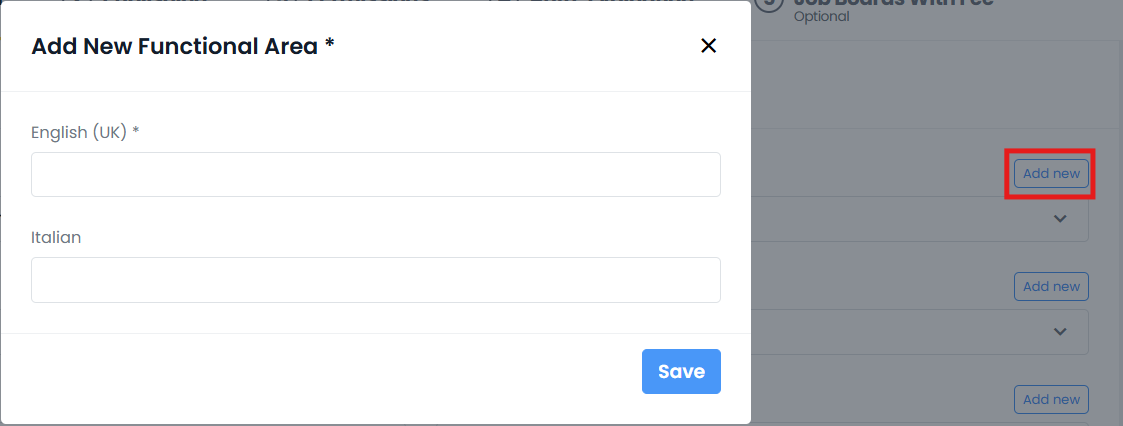
It is also possible to track the following information, which will NOT be visible to candidates:
- Division;
- Internal Contact: The company user mapped to this field will be notified that the vacancy has been created.
- Tags.
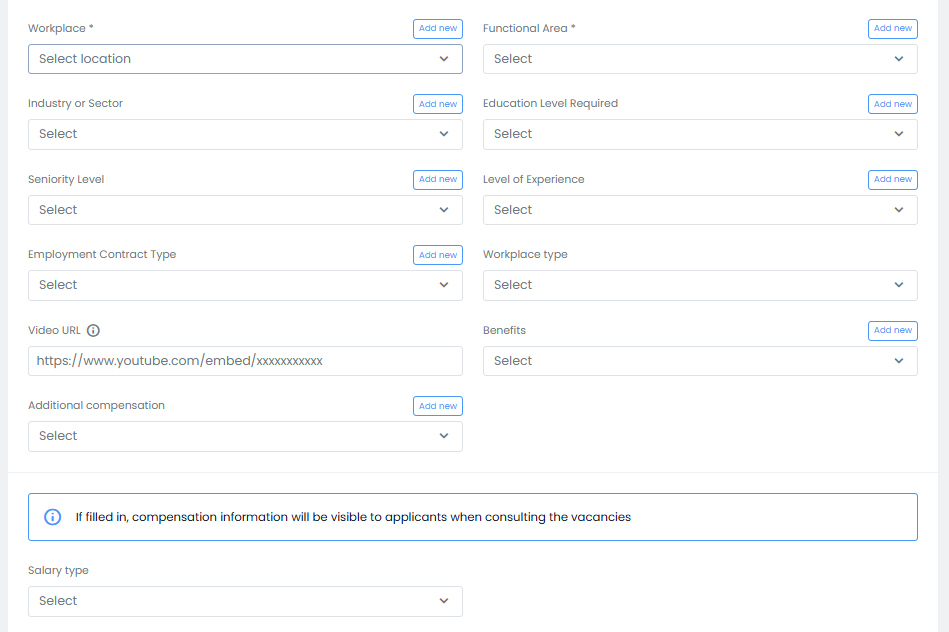
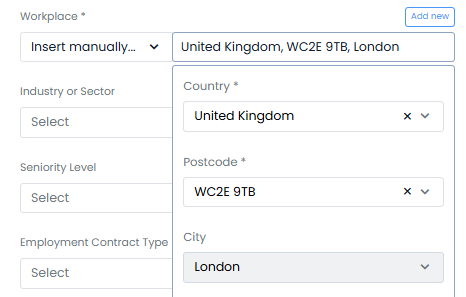
N.B. In the Workplace field, in Tab 1 Description, it is mandatory to enter the Zip Code and the Country.
The location can be entered manually, by selecting Manually insert in the drop-down menu:
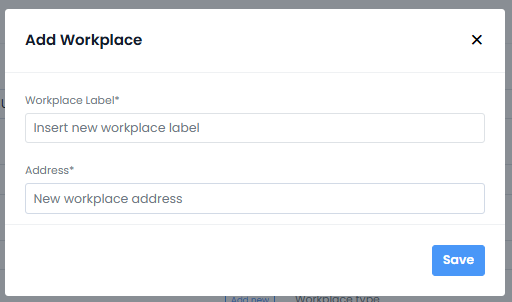
Alternatively, it is possible to save a Default location by clicking on the "Add new" button which will then be selectable directly in the Place of work drop-down menu:
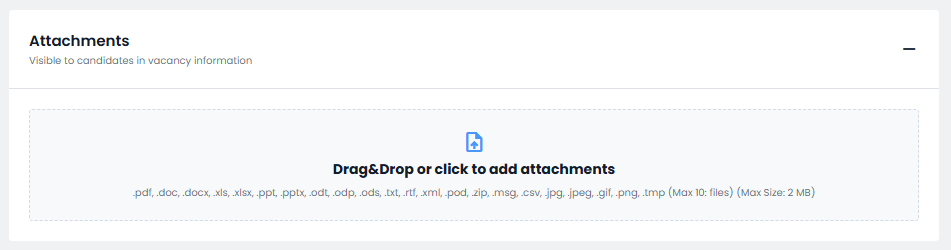
In addition, by clicking on the "Attachments" item, you can upload a file (or more) that will be publicly visible as a downlovacancyable link on the public page of the vacancy:
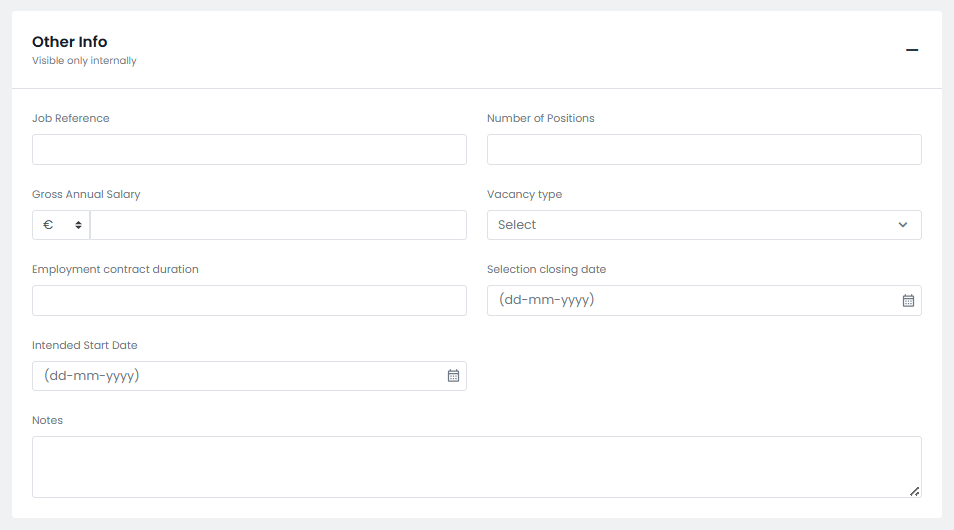
Finally, by clicking on "Other information" there are some additional fields, which allow you to keep track of some additional information about the vacancy you are publishing.
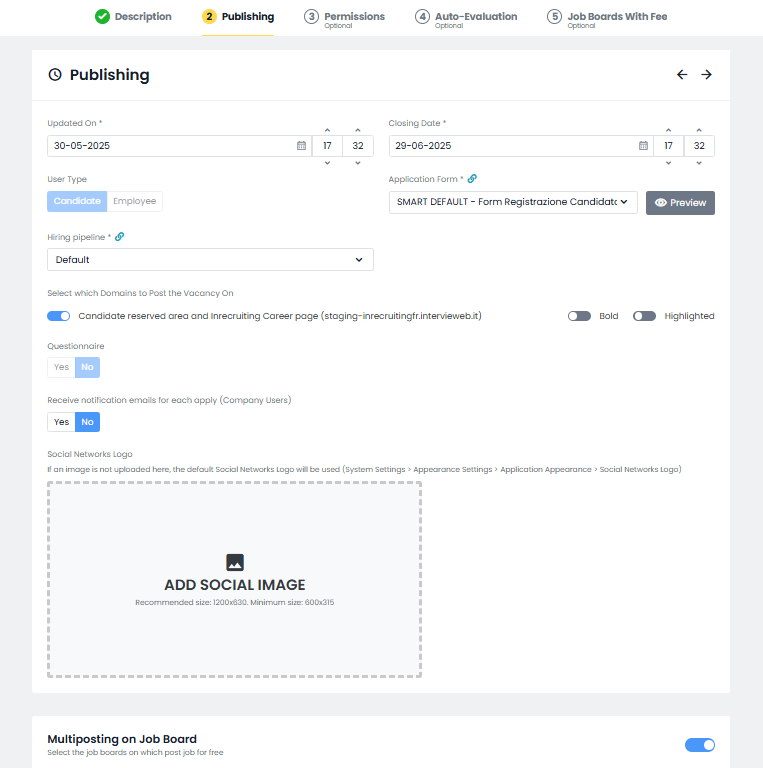
In Tab 2 Publication it is possible to define the following information:
- Updated On: This date will automatically update to today's date when you select the "Publishing" section. You can change it to a manual date if you like. (Shows on the Vacancy information page that candidates see)
- Closing Date: This date will be when the vacancy will change from "Published" to "Expired".
- Appication form: choose which form you want users to use when applying for this vacancy (Forms are created from System Settings > Process management > Application form > Candidates form - the form needs to be set as external and published from that page to appear in this drop=down)
- Hiring Pipeline that you want to associate with the vacancy
- Domain - either the internal platform or the external sites that you have integrated with..
- Questionnaire: You can choose whether you want a Questionnaire to be sent to a candidate once they apply. If you select Yes, a drop-down will appear which you should use to choose the questionnaire. A field will also appear which allows you to choose the questionnaire top mark.
- Notifications to company users: You can decide if and who receives an email notification when a candidate registers for the job.
- Social network logo: uploading an image that will be used as a preview of posts when sharing the vacancy on social media;
- Multiposting: posting to multiple job boards. You can select which boards to post to by choosing Yes or No on each
- Notifications to candidates: you will be able to edit the text of the email notification to candidates who register for the vacancy.
After filling in the Tabs, you will have to click on the Publish button to make the publication of the Vacancy effective.

Was this article helpful?
That’s Great!
Thank you for your feedback
Sorry! We couldn't be helpful
Thank you for your feedback
Feedback sent
We appreciate your effort and will try to fix the article