Inrecruiting allows you to automatically publish jobs on LinkedIn Basic Jobs, making them visible in LinkedIn's Jobs section. This helps candidates easily discover your open positions and ensures that each job is linked to the appropriate LinkedIn Company Page.
NB: to use this feature you need to have a company page on LinkedIn.
NB2: beginning in August 2024, jobs posted by search and staffing companies may no longer be visible on LinkedIn when they are ingested as Basic Jobs from third-party sources such as applicant tracking systems (ATSs) and job boards.
LinkedIn Basic Jobs Publishing Limits
1. Company-level listing cap (beginning September 14th)
- New limit: Limited Listings will be capped at 150 active jobs per employer (Company ID) at any given time. This is a flat limit to start, but may vary by industry in the future. This replaces the previous limit of 500 postings per day for high-volume employers.
- Job selection: If a feed contains more than 150 jobs for a single Company ID, LinkedIn will keep the 150 most recently updated listings visible (by original list date). Jobs above the cap will be hidden from seekers but remain in your feed and in the employer's account.
Note: Employers with paid Job Slots have a separate cap of 200 Basic Jobs for a single Company ID.
2. Apply cap (ramping over the coming months)
- New limit: we will gradually ramp a per-job apply limit. Once a free listing reaches 25 apply clicks, it will be hidden from seekers. We will share more details about timelines prior to ramping this experience.
Settings
To be able to publish vacancies using the LinkedIn Basic Jobs you must first enter your LinkedIn URL and Company ID in your Inrecruiting account. Here's how:
- Go to the System Settings section and navigate to External systems > Third‑party system configurations.
- In the LinkedIn Configurations section, enter the Company Page URL, the Company ID, and the Job Poster Email* in the appropriate fields.
*As of 1 July 2025, LinkedIn requires all vacancies posted by Inrecruiting to be associated with a valid and reachable company email address (Job Poster Email).
The email address will not be displayed by candidates, but will only be used by LinkedIn's Jobs Trust & Safety team to verify companies posting vacanceis.
From that date onwards, this field will be visible in Tab.2 Publishing when multiposting on LinkedIn is activated and will be a mandatory field to continue with job posting.

For those who have activated the CRM module (Customers and Job Orders) and want to publish the vacancies on behalf of the customer, thus making the vacancies appear on LinkedIn associated with the name of the customer and not that of their own company, it is necessary:
- enter the "Company ID" of the customer in the customer's profile
- when creating the vacancy select the customer in the field "Company" and then, in the tab "2. Publishing" set "Show company name = YES"
By setting "Show company name = NO" instead, the vacancies will be published in the name of your company and not the customer.
How to find your LinkedIn company ID:
- If you have access to the management of the corporate page on LinkedIn, enter in the login page and copy the number in the URL of the page (as highlighted in the following screenshot), which corresponds to the ID

- If you do not have access to the management of the corporate page on LinkedIn, open the company page, click on "See jobs" and copy the ID that appears after "C =" in the page URL (as highlighted in the following screenshot)

At this point you are ready to publish your vacancies on LinkedIn Basic Jobs. In the "Multiposting on Job Board" section, you must click on "YES" next to the LinkedIn logo and enter the information that appears in the box below "Details LinkedIn Basic Jobs".
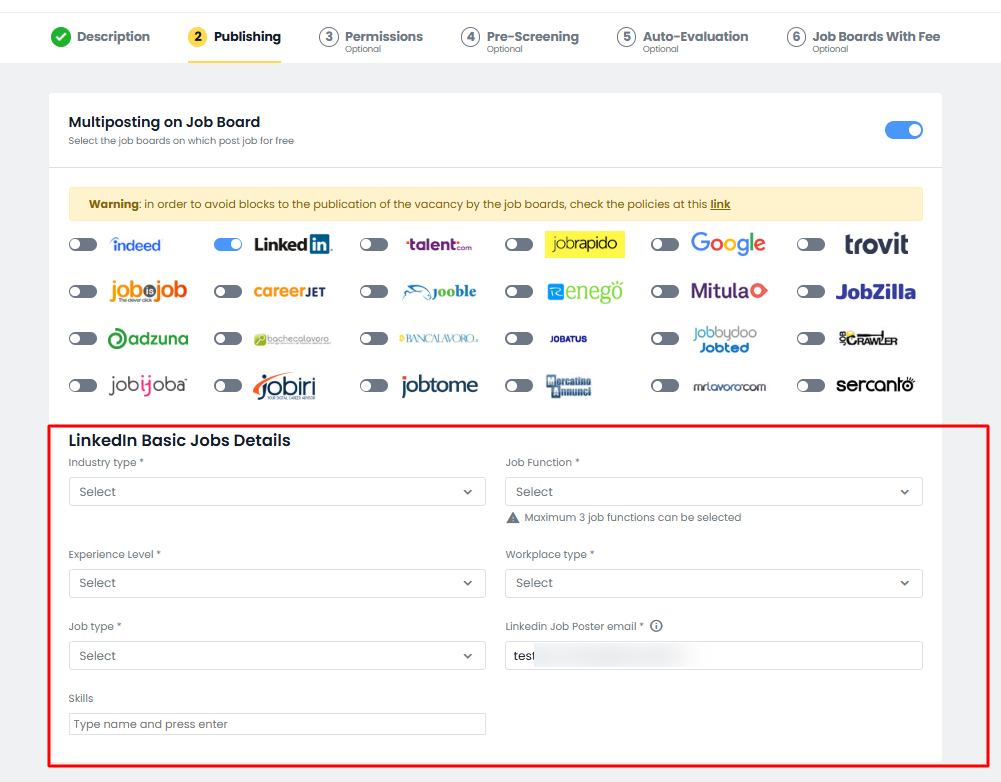
NB: As required by Linkedin, a maximum of 3 values can be selected in the Job function field.
By clicking on "Publish" at the bottom of the page the vacancy will then be published on LinkedIn Basic Jobs according to the timing (usually once a day) and the LinkedIn policy itself. LinkedIn does not guarantee that all vacancies will be published.
Basic Jobs allows free vacancies publishing but has some limitations compared to Job Slots. In particular, Basic Jobs are shown below the Job Slots, they can not be edited within LinkedIn, it is not possible to display statistical data on the vacancy and they can not be sponsored. This means that the vacancies will only be visible to candidates who are really looking for a job. You can find a complete description here.
If you have Job Slots enabled on LinkedIn and you want to use them directly from your Inrecruiting account, please contact us for more information.
Why is my job not visible on LinkedIn?
LinkedIn reviews every job posting before publishing it. Therefore, it is important to ensure that both the LinkedIn Company ID associated with the company and the job location specified in the posting are configured correctly.
Below are the main reasons why a job published through LinkedIn Basic Jobs may not appear on LinkedIn:
- An incorrect Company ID has been provided. In this case, LinkedIn may reject the job posting.
- The job is already available on the company’s LinkedIn page as a paid job posting, published through LinkedIn Recruiter, Job Wrapping, or other LinkedIn tools. Check the Jobs tab of your LinkedIn Company Page to confirm whether the position has already been published.
- The company has chosen to opt out of receiving jobs from third-party platforms.
- The job has been selected for LinkedIn's review process and does not comply with the platform’s guidelines. In such cases, it may be classified as spam and not published.
- Non-compliant job title: overly promotional titles, titles written entirely in uppercase letters, or titles containing advertising language may be rejected.
- Missing required information: incomplete or unclear details such as the job description, location, salary range, or other key information may cause the posting to be rejected.
- Formatting issues: poorly structured descriptions or content that does not meet LinkedIn Basic Jobs requirements may prevent the job from being published.
? Note: Job Wrapping is a service managed directly by LinkedIn. Inrecruiting has no control over the information displayed through this service and cannot intervene in its operation.
What should I do if my job posting is still not published?
If you have completed the checks above and your job posting is still not visible on LinkedIn, we recommend that you contact LinkedIn Support directly for further details regarding the reason for the rejection or lack of publication.
When contacting LinkedIn Support, we suggest providing the following information:
- ATS Name: Inrecruiting/Intervieweb
- Employer Name: The exact company name associated with the job posting.
- Job Posting ID: The external job posting ID generated by Inrecruiting.
- Job Title: The exact title of the published position.
Was this article helpful?
That’s Great!
Thank you for your feedback
Sorry! We couldn't be helpful
Thank you for your feedback
Feedback sent
We appreciate your effort and will try to fix the article