Conversa CV Builder is Inrecruiting's Conversational Artificial Intelligence feature that allows candidates to create their resume through a guided conversation, without having to have a CV ready.
Through a voice or text interaction, the candidate can tell about his or her professional career, work experience, training and skills acquired. Conversa CV Builder collects and organizes the information provided, progressively generating a resume that the candidate can view, integrate and correct before confirmation.
The information collected is also used to automatically pre-populate the appropriately configured fields of the application form, simplifying the process and reducing the need to re-enter the same data.
The use of Conversa CV Builder is optional: the candidate can always choose to use the traditional application process.
During the conversation, the system collects information such as:
- personal data and contacts;
- work experience;
- Educational path;
- professional skills;
- languages known;
- Additional information useful for the application.
The information collected during the conversation is used both to generate the CV and to automatically fill in the semantic fields in the application form.
N.B. In order for the automatic filling to take place correctly, the mapping of the semantic fields present in the form must have been previously configured.
This way, the candidate will not have to manually re-enter much of the information already provided during the conversation.
Depending on the configuration of the form, there may still be additional fields that require manual completion before the final submission of the application.
Permission and qualifications
The feature is available to companies that have purchased the Conversa CV Builder module, and the configuration of the feature is only allowed to users who have the Conversa CV Builder Configuration permission
Users without this permission will not be able to change the general configurations and activate/deactivate the functionality from individual vacancies.
Conversa CV Builder configurations
Settings
From Settings > Inda Conversa > Conversa CV Builder it is possible to configure the following settings that will be applied by default on all vacancies on which Conversa CV builder will be activated:
- Tone of voice
- Initial messages (introductory, instructive, and concluding)
In addition, from this section it is possible to enable Conversa CV builder in the spontaneous application form integrated into the company website by activating the dedicated option.
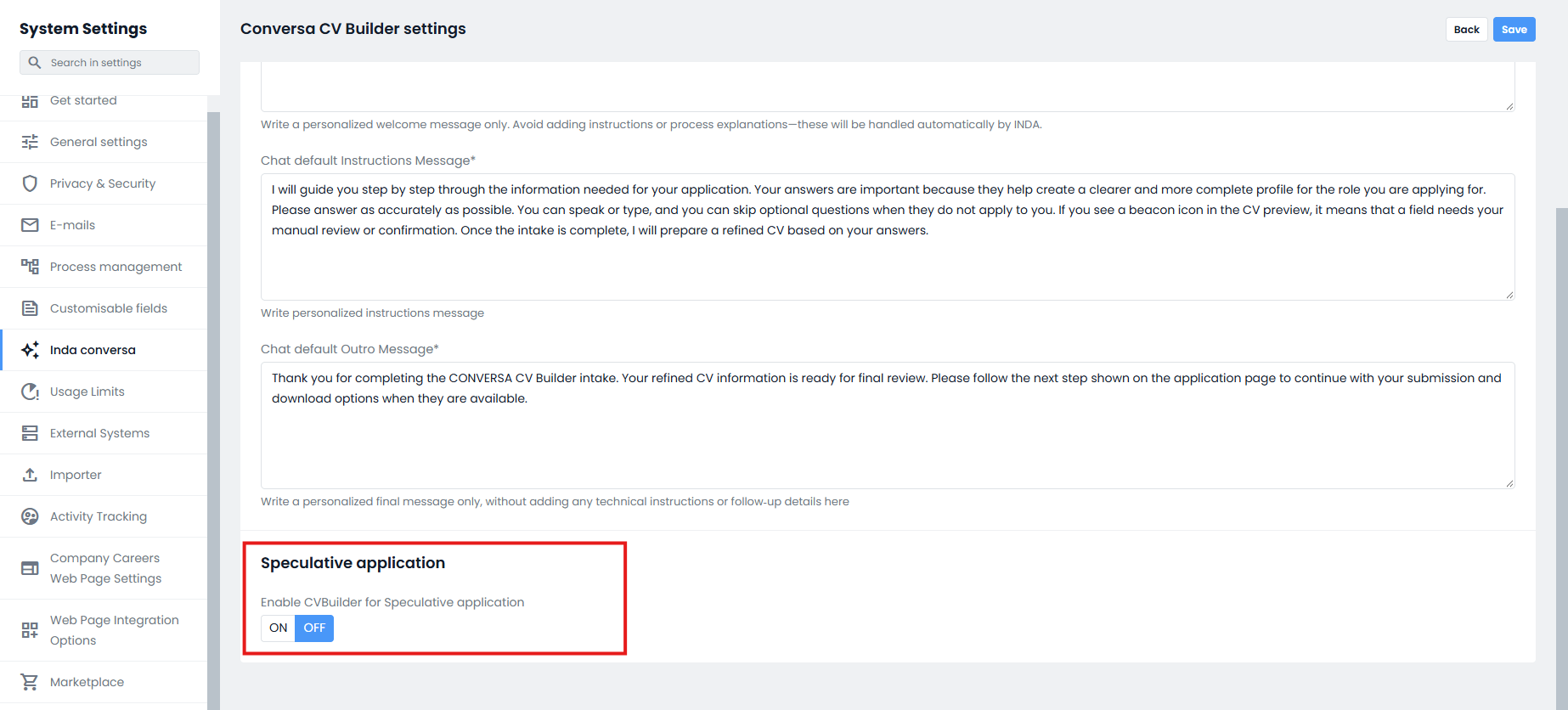
NOTE: The settings configured in this section are used as default values for all vacancies on which Conversa CV Builder has not yet been activated.
When Conversa CV Builder is activated on an ad, the settings are copied within that vacancy and become independent of the general configurations.
As a result, any subsequent changes made in the general settings will not impact the vacancies on which Conversa CV Builder is already active. To update these vacancies , you will need to directly modify their configurations at the vacancy level (Edit vacancy > TAB 2 - Publishing > Conversa CV Builder > On).
Privacy policy
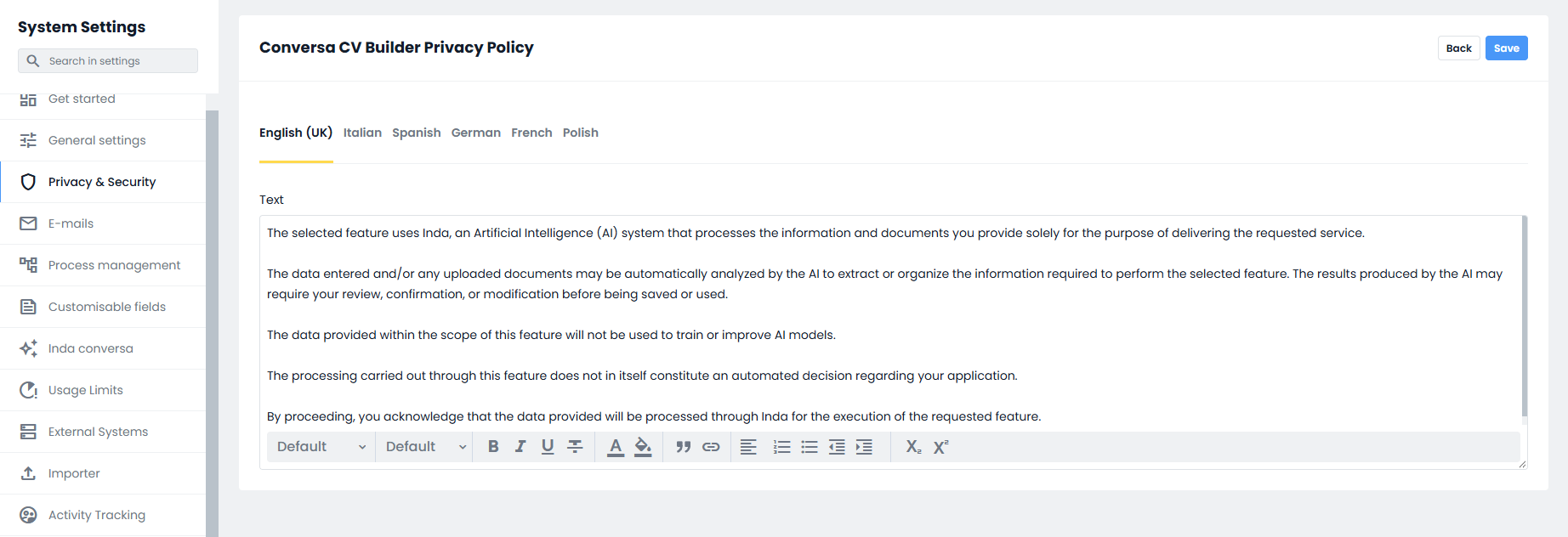
From Settings > Privacy & Security > Inda Information Texts > Conversa CV Builder Privacy Policy, it is possible to configure the privacy dedicated to the use of artificial intelligence for the creation of the CV that will be shown to the candidate if they decide to use Conversa CV builder to make their application.
Inrecruiting provides its customers with a text that has already been validated by Zucchetti's Privacy & Compliance department.
The text can be kept unchanged or customized.
Activation Conversa CV Builder
To activate Conversa CV Builder on vacancies, simply access TAB 2 - Pub > Conversa CV Builder > On
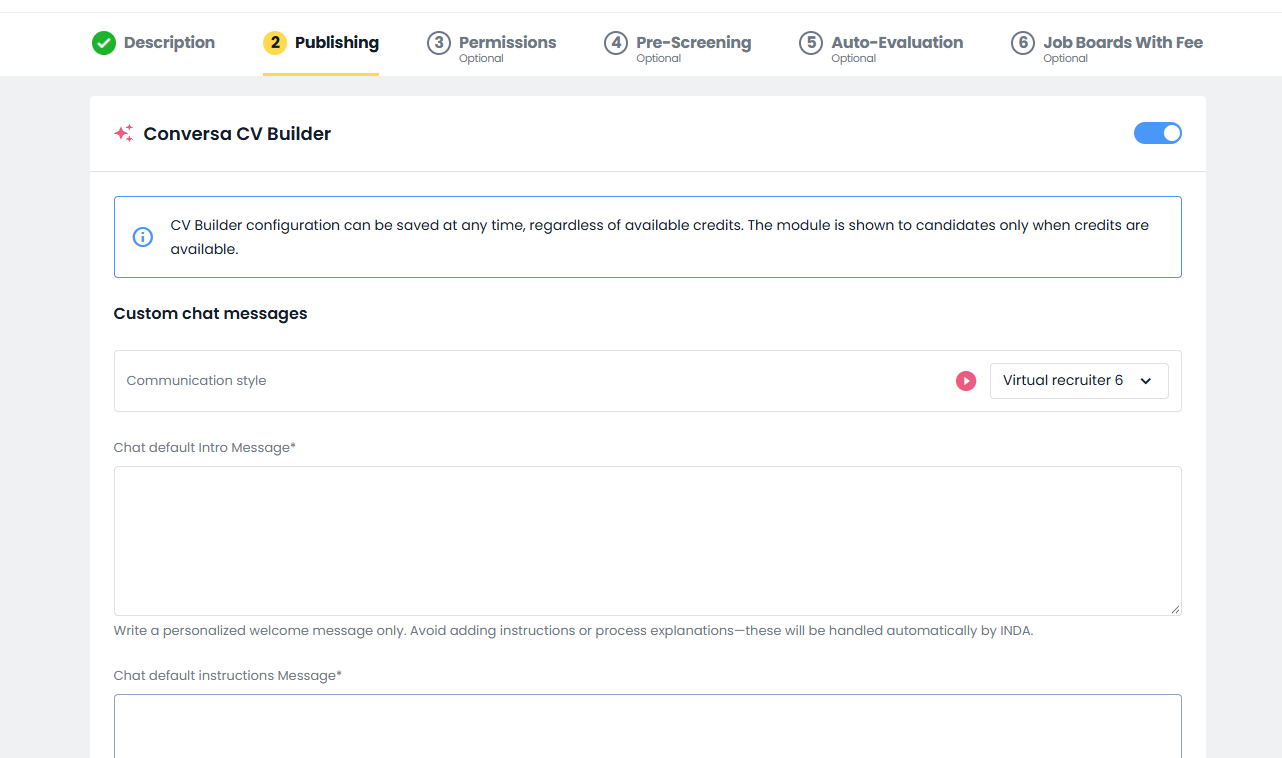
Once activated, in addition to being able to edit the data configured in Settings, it is also possible to change the text of the on-screen messages that are shown on the introductory page, i.e. the texts that will be visible to the candidate before of the conversation start.
Listings that have the Conversa CV Builder feature enabled will have the following badge in the listing:

Candidate experience
When Conversa CV Builder is active on the ad, the candidate will see a dedicated button on the application page.
You can choose whether to:
- apply through the traditional procedure;
- create your own resume with Conversa CV Builder.
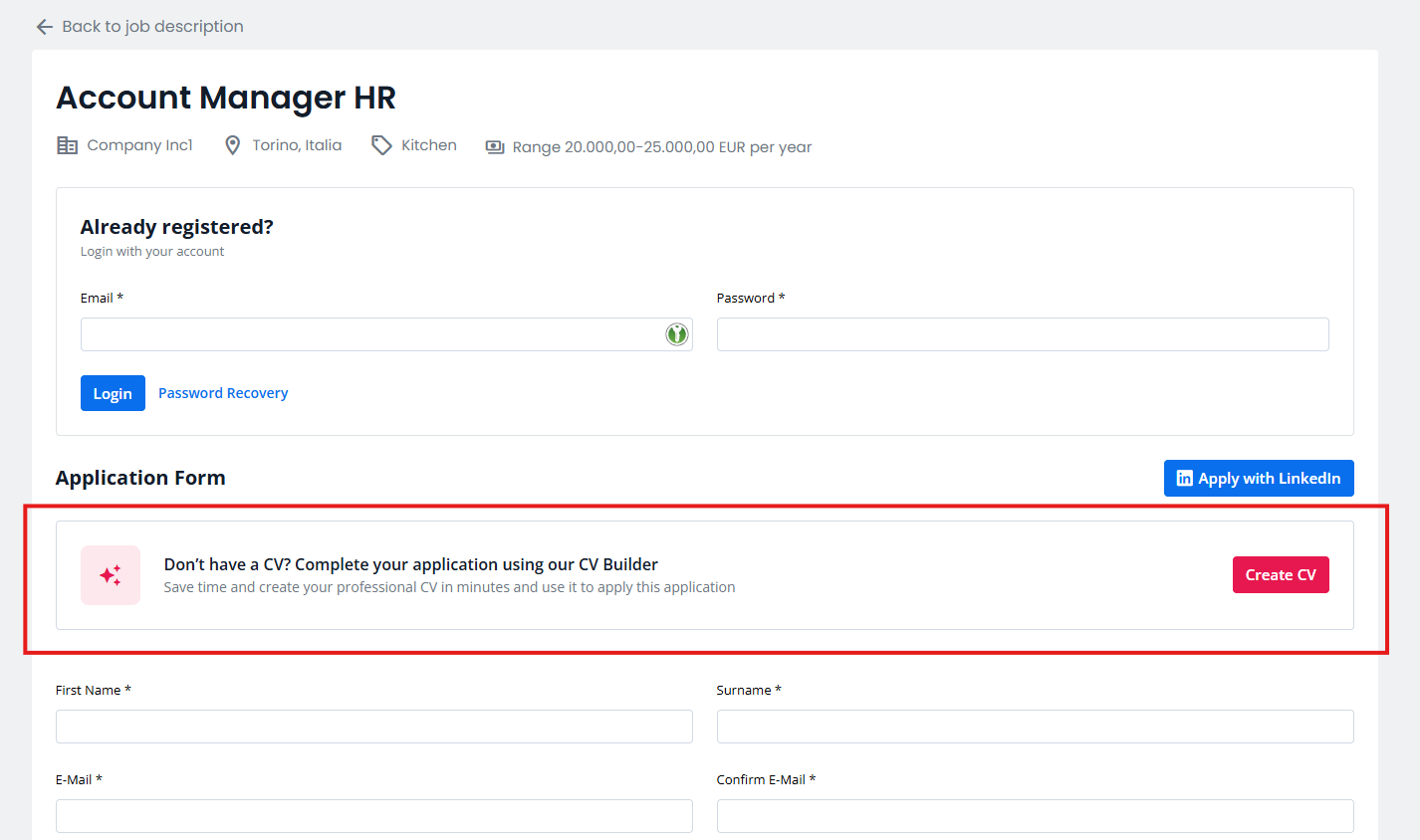
If the candidate chooses to create their CV with Conversa CV builder, before starting the conversation, the candidate must read the privacy policy dedicated to Conversa CV Builder and confirm acceptance. Only after this step will it be possible to start the conversation with Artificial Intelligence.
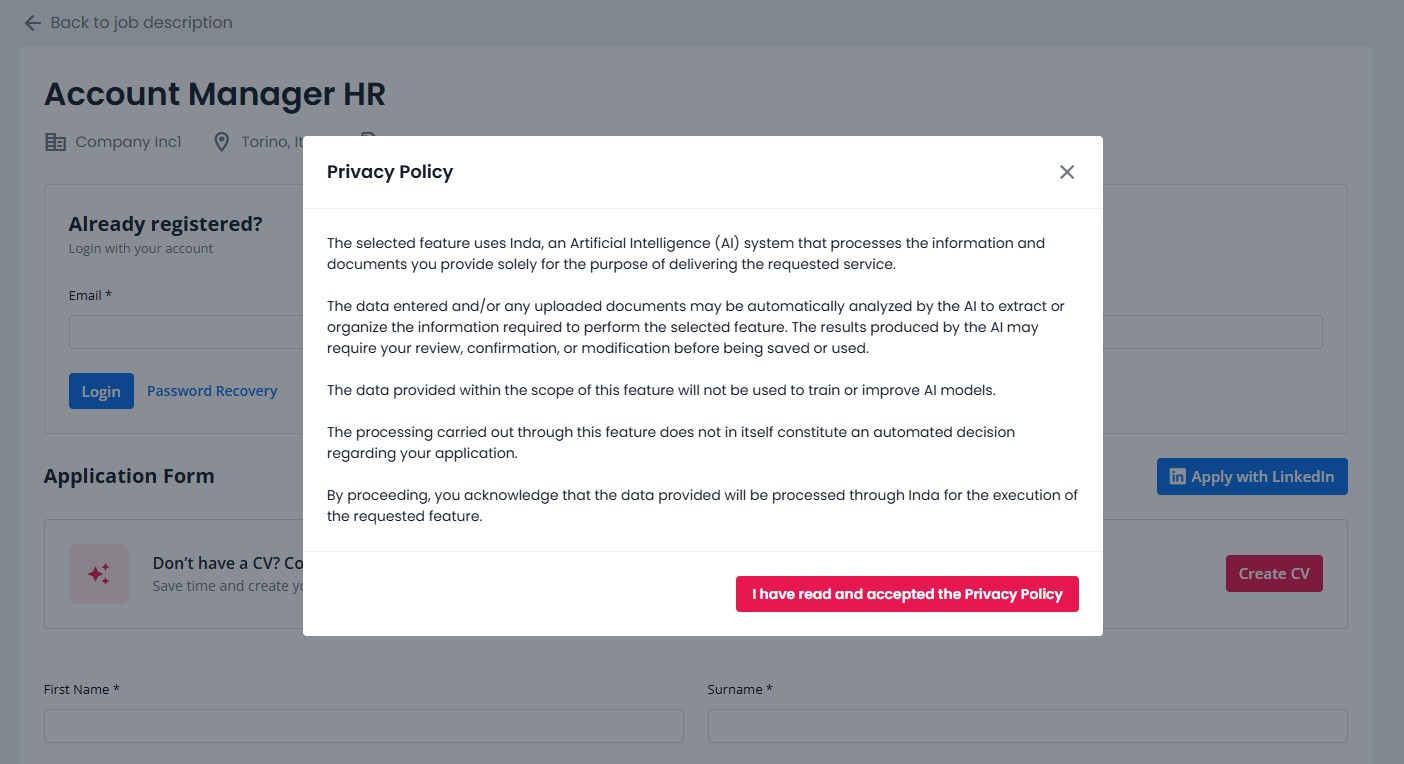
Then the introductory page is shown where the candidate can:
- select the language of the conversation;
- select the language to be used to generate the CV;
- activate or deactivate voice reading;
- test the microphone;
- test the audio;
- start the CV creation process.
Creating the curriculum
The interface consists of two main sections.
- Chat
This section displays the messages configured in Activate Conversa CV Builder and the questions necessary for the guided creation of the CV. It is possible to interact with the chat either vocally, by clicking on the icon , or textually, by typing the text in the appropriate box.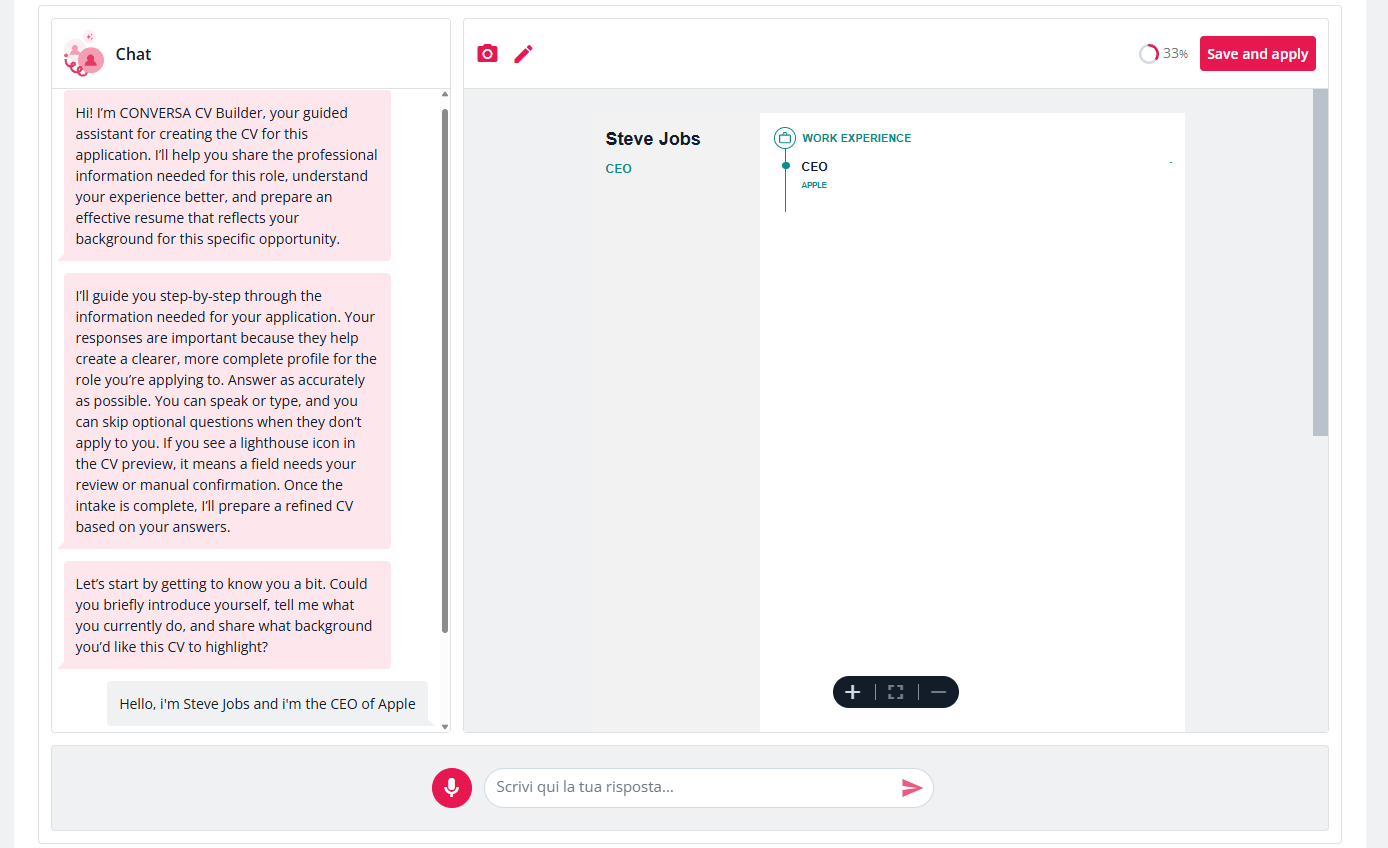
- CV preview
In this section, the information collected from the chat is processed in real time and used to progressively build the curriculum and at any time the candidate can correct the recognized data, add missing information and immediately verify the result obtained: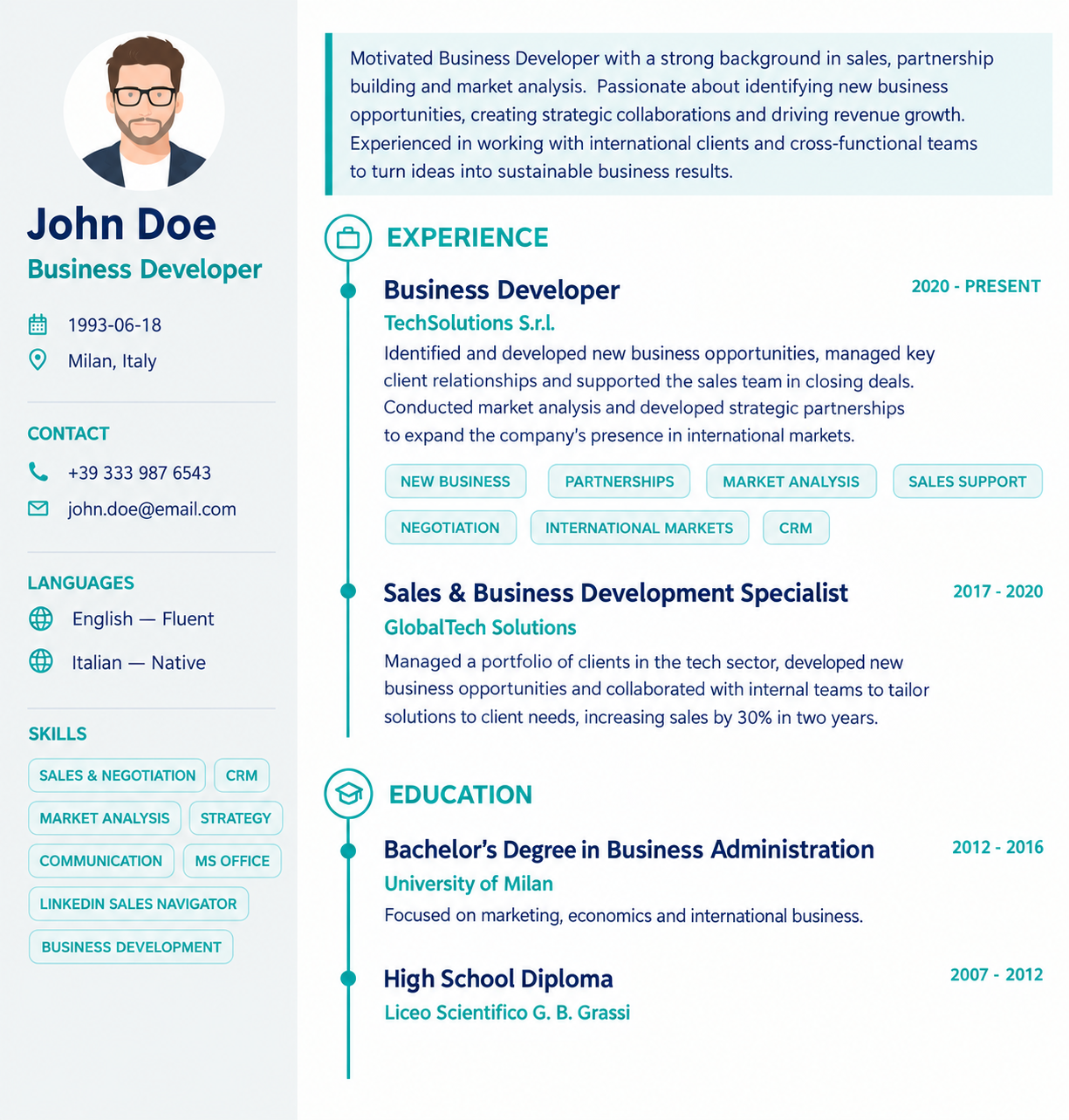
When creating your CV, you can:
- edit the data of the generated CV directly from the preview
- correct any misrecognized information;
- integrate missing content both textually and vocally;
- Upload a photo via your device's camera or gallery
N.B. At any time the candidate can interrupt the conversation using the "Save and Apply" button. The system still generates the CV using all the information collected up to that moment.
The CV can therefore be partially filled in if some topics have not yet been covered during the conversation.
After generating the CV, the candidate will normally continue to fill out the application form and will be able to enter any missing information required by the fields in the form.
Confirmation of CV and completion of the application
Once the generated resume has been confirmed:
- the CV becomes definitive and can no longer be modified;
- it cannot be replaced with another curriculum during the compilation of the application;
- cannot be viewed again during the application process.
The CV generated through Conversa CV builder can be viewed and downloaded by the candidate only after sending the application by accessing his or her reserved Inrecruiting area.
Was this article helpful?
That’s Great!
Thank you for your feedback
Sorry! We couldn't be helpful
Thank you for your feedback
Feedback sent
We appreciate your effort and will try to fix the article