To make the selection process more efficient, Inrecruiting introduces Conversa PreScreen, the intelligent assistant that speaks with your candidates to collect all the information that does not emerge from the CV.
With Conversa PreScreen you can automate pre-screening interviews, while always keeping the candidate experience and human oversight at the center of the selection process.
The AI Vocal Agent independently manages a real voice or text interview (for those who cannot or do not wish to speak), asking targeted questions that can be customized by the recruiter to:
- Collect additional information not included in the CV
- Explore the hard and soft skills most relevant to the job posting
- Assess the candidate’s language proficiency by speaking in the required language and level
- Confirm key requirements such as willingness to travel, shifts, or specific working hours
Below you will find information related to:
- Configurations
- Managing Pre-Screening Interview Invitations
- Conducting the Pre-Screening Interview
- Report Generation and Consultation
Invalidation and Deletion of Pre-Screening Interview Data
Configurations
User permissions
From the section System Settings > General settings > Company user roles configuration > Vacancies you can access the permission “Generate pre-screening interview”, which allows users to access the configuration section for creating a new pre‑screening interview when publishing or editing a vacancy.
Note: this permission is assigned by default to Administrator users.
Invitations and information related to pre‑screening interviews are visible only to users who have the permission View pre‑screening information and send pre‑screening invitations to candidates, which can be enabled from System Settings > General settings > Company user roles configuration.
Pre‑screening Interview Configuration
When creating or editing a vacancy, users who have been assigned the permission mentioned in the previous paragraph will see a “Pre‑screening” tab.
This tab provides access to the general configuration options for the pre‑screening interview to be sent to candidates.
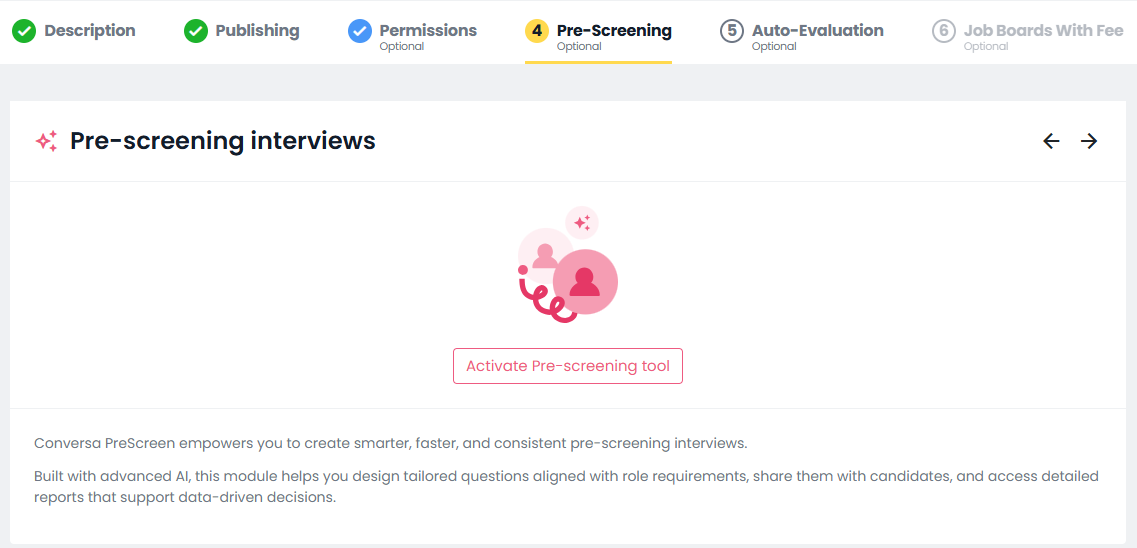
Clicking on “Activate Pre-screening tool” allows access to the following settings:
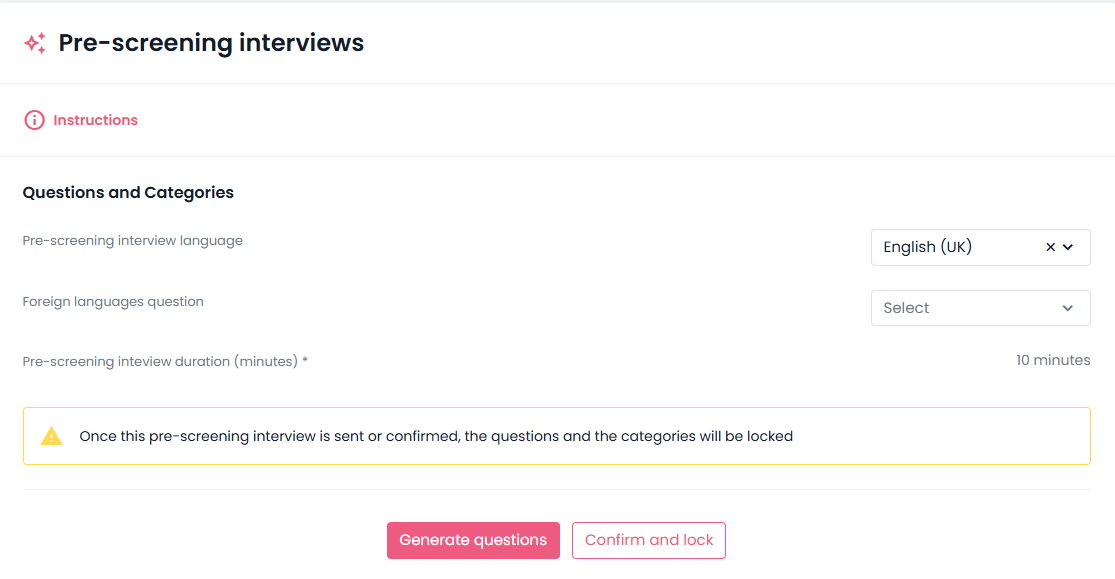
- Pre-screening interview language: default language (chosen among enabled languages in your Inrecruiting interface; by default, it will match the user’s navigation language).
Note: You can set “Candidate’s choice” to let candidates select their preferred language. - Foreign language question: specify languages for certain questions to assess linguistic skills (optional).
- Pre-screening interview duration (minutes): maximum duration of the interview.
Note: Based on the duration, the system will generate a maximum number of questions.
After completing the general configurations, by clicking the “Generate questions” button, you can automatically generate the interview content: this includes both the questions to ask the candidate and the analysis categories used to organize the collected information.
Note: The questions are automatically generated based on the text of the vacancy entered by the company user, using the title and job description to create content relevant to the role and the selection context.
The questions are designed to guide the conversation and explore specific aspects, such as availability for certain shifts or previous work experience.
The analysis categories, on the other hand, are used to structure the final report by grouping data into relevant thematic areas.
Once the content has been generated, you can review, edit, or delete both the questions and the categories.
Note: The number of questions depends on the interview duration set during the initial configuration.
However, Conversa PreScreen may add follow-up questions beyond those configured, to request additional details from the candidate (e.g., in case of a hesitant answer).
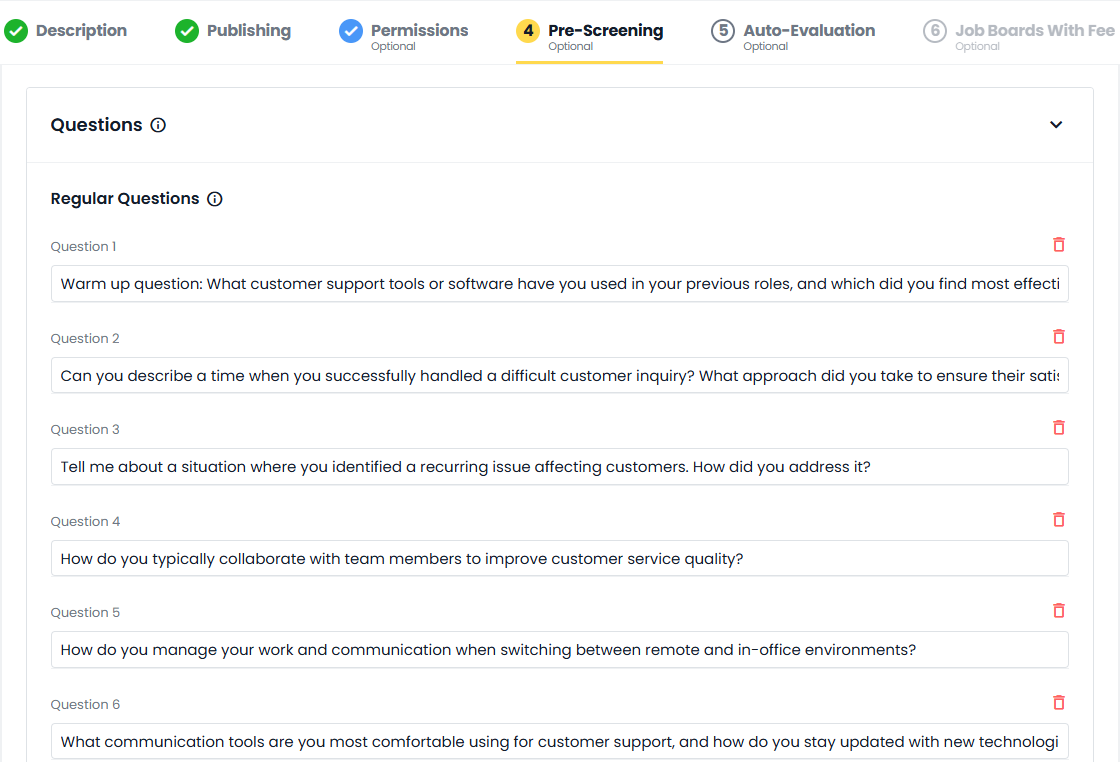
After completing and customizing the content, you can confirm the configuration by clicking the “Confirm and lock” button located at the top right of the screen.
From this moment on, questions and categories can no longer be modified: this choice ensures that the interview starts with definitive and consistent content, maintaining traceability and comparability across reports.
From the Configurations section, you can also define the following information:
- Enable interview invitation based on candidate’s vacancy status change: if enabled, the system automatically suggests sending invitations when certain “Vacancy statuses” are assigned in the pipeline.
Note: The dropdown menu will only display the vacancy statuses for which this feature has been enabled in the Hiring Pipeline configurations. - Welcome message for the interview: the introductory text of the chat, which greets the candidate and provides context for the experience (customizable text).
Note: You can customize the default message from System Settings > E-mails> Vacancies > Pre-screening interview invitation (on-screen message) - Thank-you message for the interview: the closing text of the chat, which thanks the candidate (customizable text).
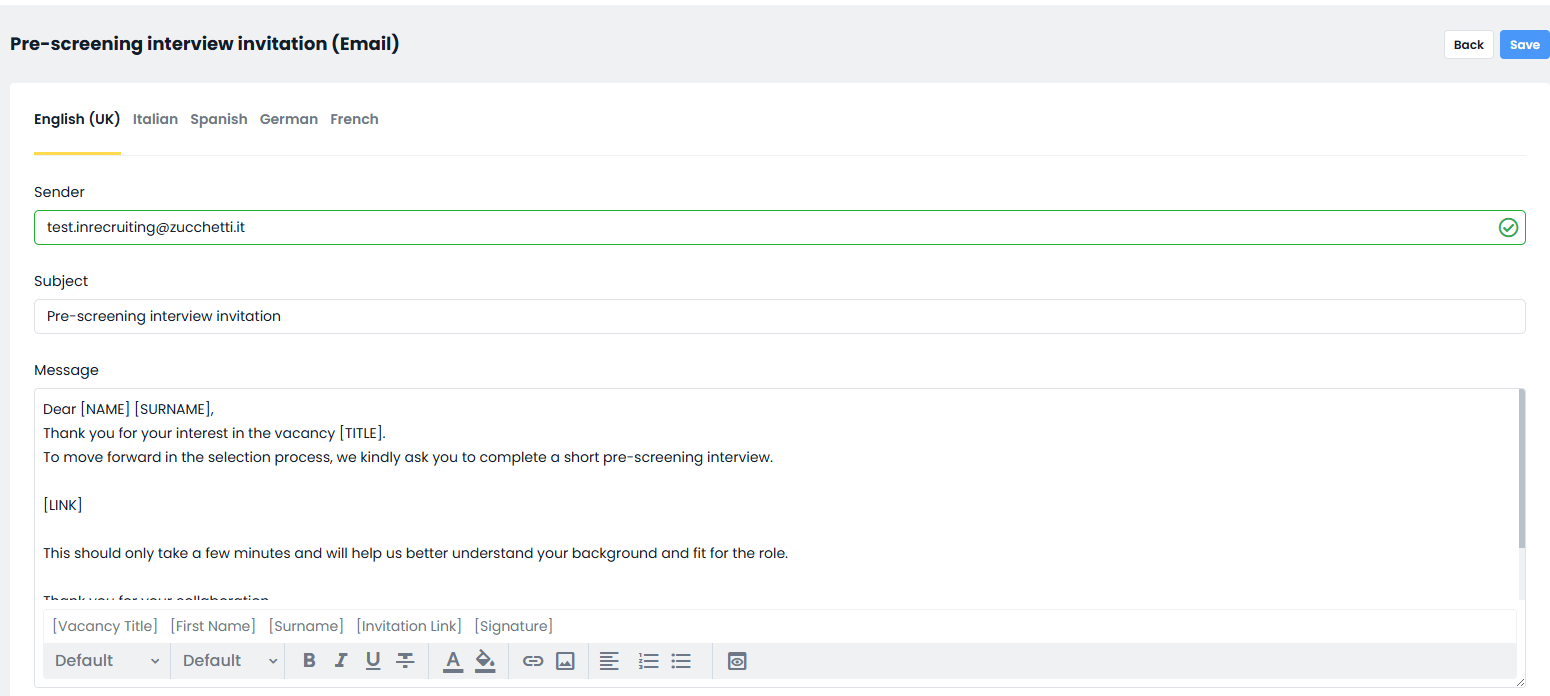
Note: You can customize the default message from System Settings > E-mails> Vacancies > Pre-screening interview thank you message (On-screen notification) - Pre-screening Interview Invitation Email Template: the text of the email sent to candidates invited to the pre-screening interview (customizable text).
Note: You can customize the default message from System Settings > E-mails> Vacancies > Pre-screening interview invitation (Email)
Managing Pre-Screening Interview Invitations
Manual Invitation
Manual invitations can be sent directly from the “Applicants” tab in the vacancy detail page, where you can select one or more candidates registered to the vacancy and then click on “Invite to pre-screening interview” located in the quick actions menu at the bottom of the page.
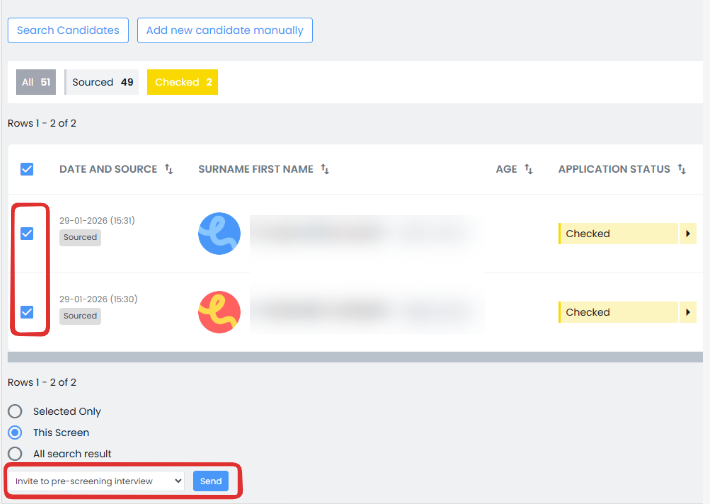
The system takes the user to a pre-send validation screen, where all selected profiles are listed, with specific color highlights for candidates for whom sending the invitation might not be appropriate:
Candidates highlighted in yellow are those who were manually added by the company user (Sourced), and who may therefore be unaware of being associated with a vacancy.
In this case, “sourced” candidates do not see the vacancy in their personal area, but they can still access the pre‑screening if invited by the company user.Candidates highlighted in red are those who have already received an invitation or have already completed a pre‑screening interview, unless the previous interview has been invalidated.
Candidates highlighted in green are those for whom the invitation was successfully sent.
The screen allows the user to review the list, deselect any unsuitable candidates, and proceed with sending the invitations.
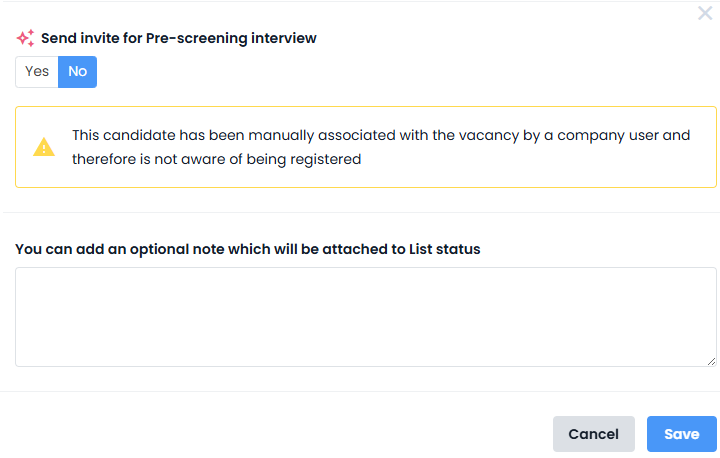
If the candidate was manually added (sourced) and you still decide to invite them to a pre-screening interview, the system will:
- Set “Send invitation to pre-screening interview” to “No” by default (in other cases, it will be set to “Yes” by default).
- Display a warning to further alert the company user that they are inviting a candidate who may not be aware of being linked to a vacancy.
Invitation on Vacancy Status Change
If, during the interview configuration, the option “Enable interview invitation based on candidate’s vacancy status change”
 was activated, the system, after associating the specific vacancy status with one or more candidates, will display a confirmation popup before proceeding with sending the invitation, including any alerts related to validation.
Note: It is not possible to link the pre-screening process to an automated status change scheduled for a future date.
N.B.: It is not possible to link the pre‑screening interview to an automated future status change.
Conducting the Pre-Screening Interview
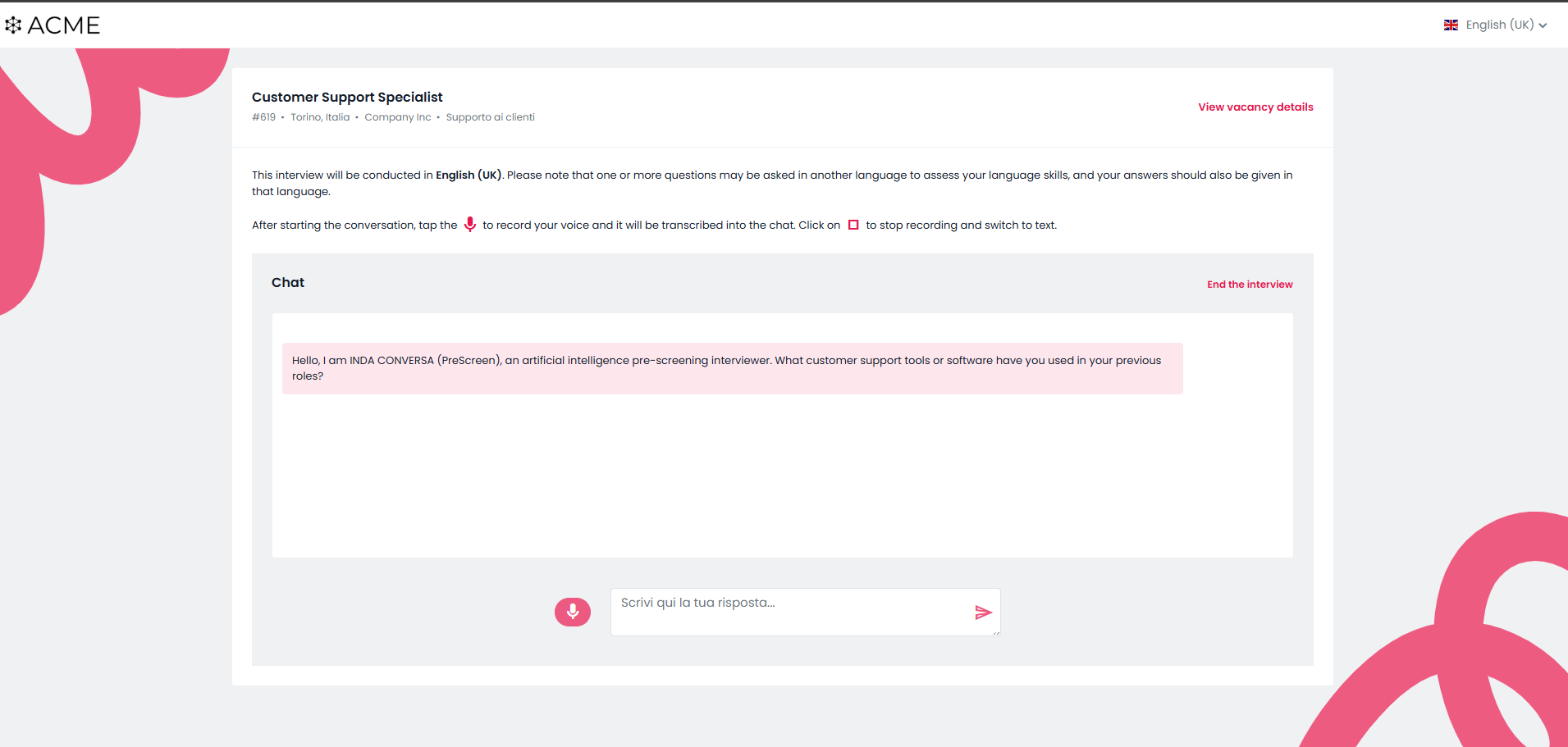
The pre-screening interview is conducted asynchronously through a conversational interface designed to allow the conversation to take place either in written form or via voice, depending on the candidate’s preference.
Note: Interviews can still be carried out even if they are associated with a vacancy that has been unpublished.
Once the invitation is received, the candidate can access the interview in two ways:
- From their personal area, where after logging in, they will find a dedicated widget guiding them through the conversation in a new dedicated section.
- Via the direct link received in the pre-screening invitation email, which provides immediate access to the interview without requiring login, while still ensuring secure candidate identification through a token.
When opening the page dedicated to the interview, the candidate will receive a brief informational introduction to guide their preparation. Specifically, it will indicate:
- The estimated duration of the interview
- The number of expected questions
- The option to select the language in which they wish to conduct the conversation, also useful for verifying specific language skills
- A preliminary test to check the proper functioning of the microphone and audio
During the interview, the candidate will interact with a virtual assistant that asks the questions configured by the company user.
If the candidate interrupts the session (for example, by closing the browser or the tab), the system allows the conversation to resume from the point where it was interrupted, preserving the content already collected and ensuring continuity.
Once the interview is completed, the candidate is taken to a thank-you screen, marking the end of the experience.
Report Generation and Consultation
At the end of the pre-screening interview, the system automatically starts the process of generating a summary report, which aims to collect and organize in a structured way the information gathered during the conversation with the candidate.
The report is generated in the language used by the company user.
Report generation is managed by the INDA system, which processes the received data, including:
- The vacancy text
- The candidate’s CV, if available
- The analysis criteria defined during configuration
- The interview transcript, containing the candidate’s responses
The report contains the following elements:
the texts of the vacancy
the candidate’s résumé, if available
the analysis criteria defined during the configuration phase
the interview transcript, containing the answers provided
The system never rejects candidates and does not assign automatic scores, thus avoiding any risk of bias or discrimination.
No voice information is saved or analyzed: audio is used solely for the conversation and is neither stored nor evaluated.
The video is not used.
- Invalidation and Deletion of Pre-Screening Interview Data
The generated reports can be viewed from different sections of the ATS, providing a complete and contextualized overview of the pre‑screening process
In the “Registrations” tab of the vacancy, a new “Pre‑screening” column is available, showing the interview completion status;
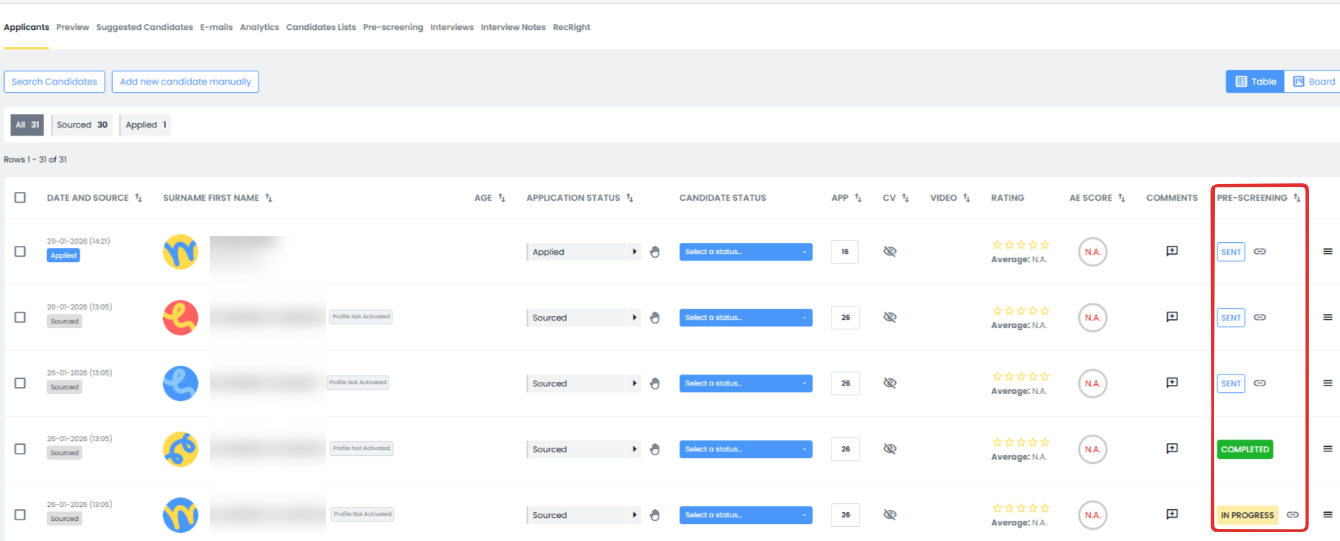
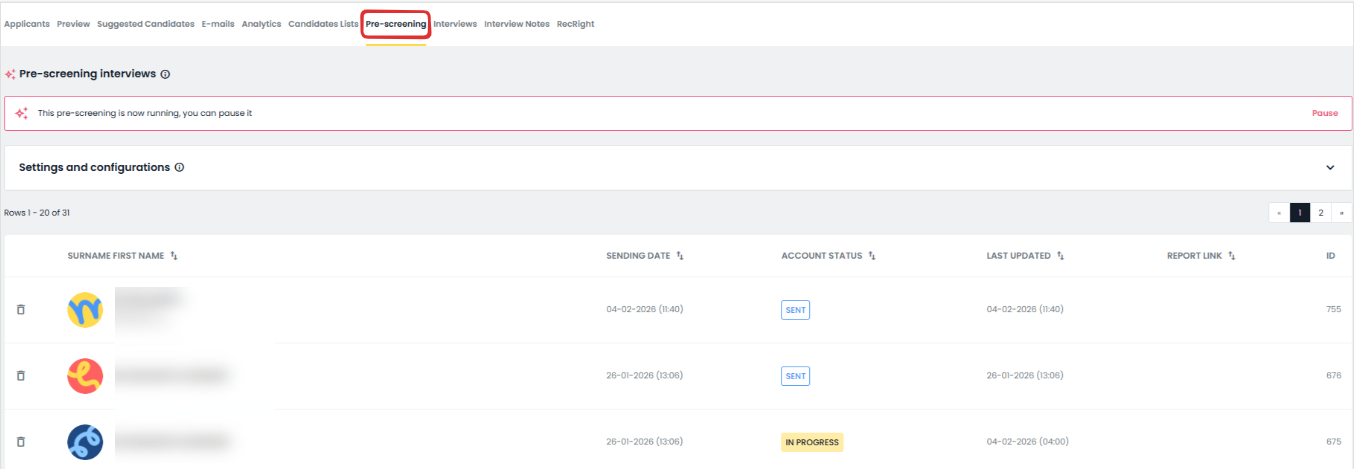
In the vacancy details, a new “Pre‑screening” tab appears, providing the list of invited candidates and those who have completed the interview, with direct access to the report when available;
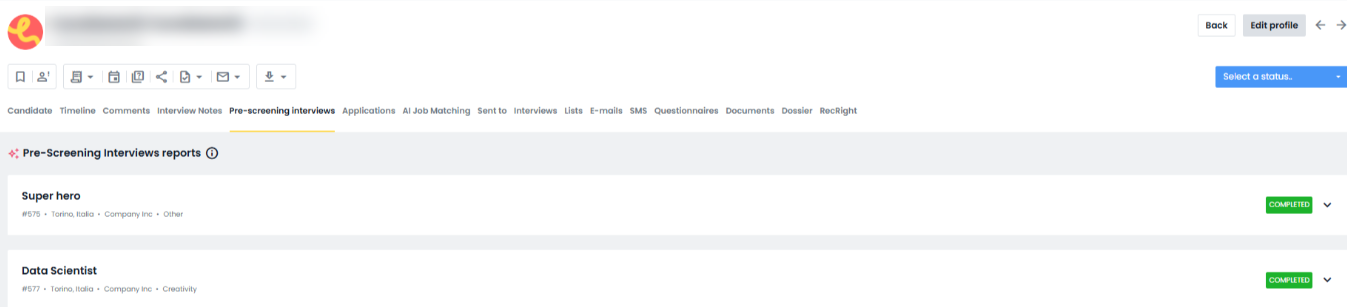
In the candidate’s profile, a dedicated tab is available, collecting the history of completed pre‑screening interviews along with their respective reports.
The report includes the following elements:
- a summary of the main elements of the vacancy;
- the pre‑screening interview status;
- the interview transcript;
- a breakdown of the responses to each question (completed, skipped, unanswered);
- a language proficiency assessment for any foreign languages (CEFR levels A, B, C, or Unknown);
- any inconsistencies between the answers provided and the content of the résumé;
- the categories and their respective evaluations (each can be expanded to view the interview and résumé elements considered for generating the assessment).
The system provides mechanisms for managing and controlling pre-screening interviews already conducted, offering the company user the ability to invalidate an interview if deemed necessary, for example due to configuration errors, technical issues, or to repeat the interaction with the candidate.
Invalidation can be performed directly from the “Pre-screening” tab in the vacancy detail page by selecting the trash button.
Once invalidated, the interview will no longer be considered valid for evaluation purposes, but the transcript of the conversation will remain available for internal consultation by company users. The candidate can also be invited again to take a new interview without limitations related to the previous session.
Any invalidation is logged, just like the invitation itself, in the candidate’s timeline.
Note: If a company user removes a candidate from the vacancy, any pre-screening invitation will stop working. If the pre-screening has already been completed, it will remain available in the vacancy’s Pre-screening tab. In this tab, for any candidates deregistered from the vacancy (either by their own initiative or by the company user), an alert icon will appear with a tooltip informing that the candidate is no longer registered.
Regarding data deletion, the system adopts a retention logic that ensures traceability and availability of information even if the application is removed. In other words, if a candidate is removed from a single vacancy, the data related to the pre-screening will still remain archived.
The definitive deletion of data associated with the pre-screening interview occurs only when the candidate is completely removed from the ATS, either for retention reasons, at the initiative of the company user, or following an explicit request by the candidate.
Was this article helpful?
That’s Great!
Thank you for your feedback
Sorry! We couldn't be helpful
Thank you for your feedback
Feedback sent
We appreciate your effort and will try to fix the article