The workflow represents the path a person follows to provide the necessary data to initiate the hiring process.
This begins with the Welcom page where the person arrives to start the form and includes all the steps you have set up to collect the required information and allow the viewing or signing of necessary documents.
This system helps reduce processing times, decrease the risk of errors, and optimize the overall experience for both individuals and the organization.
To create a workflow, several initial configuration steps must be completed. Since they are mandatory, you must first create the Teams that will later be associated with the workflows by navigating to Settings > General > Teams.
Next, you need to configure the fields that will contain the information to be collected from users by going to Settings > Workflows > Structure > Workflow Form Field Structure.
Once these fields have been defined, they must be enabled within the workflow steps through Workflow Steps by navigating to Settings > Workflows > Structure > Steps templates . For Form-type steps, this section allows you to activate the fields that users will need to complete. It is also possible to enable all other step types you wish to include in the workflow.
Finally, you must create the Welcome Pages, which are the landing pages users will see when accessing the workflow. These can be configured under Settings > Workflows > Structure > Welcome Pages.
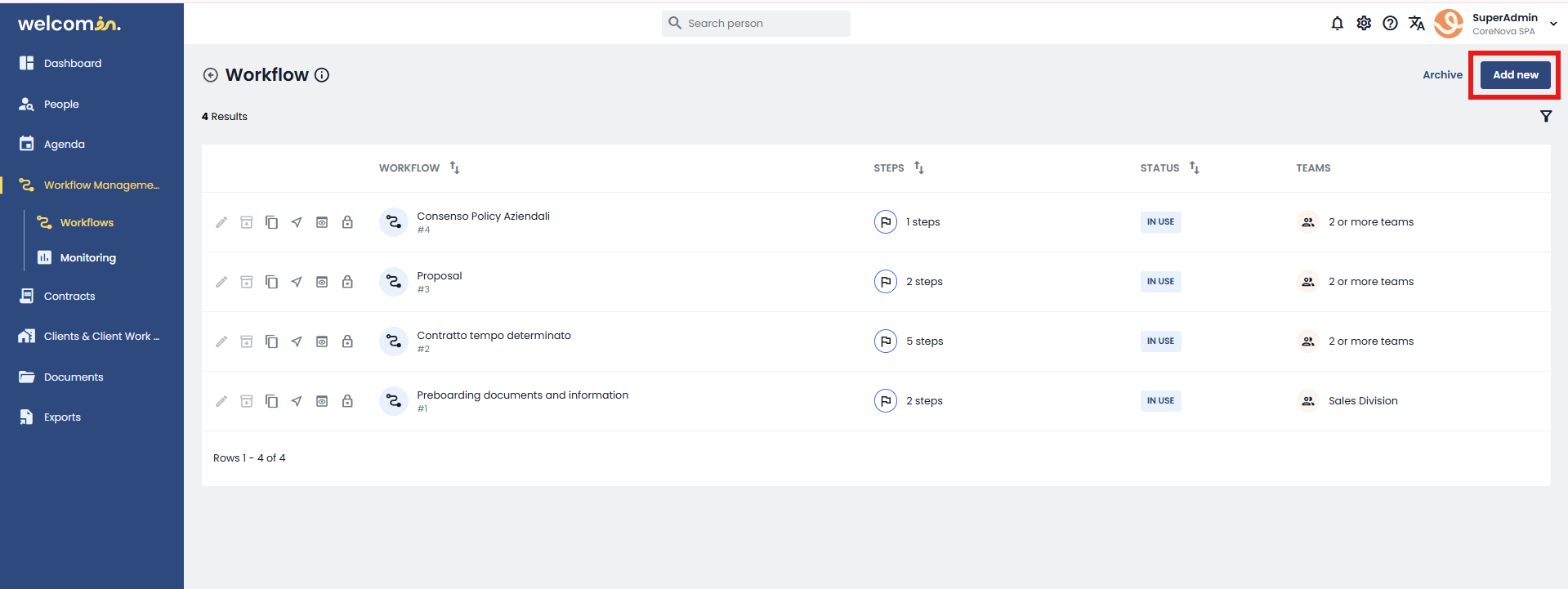
After completing these preliminary configurations, you can access the Workflow Management > Workflows section from the sidebar and click the Add button in the top-right corner to create a new workflow.
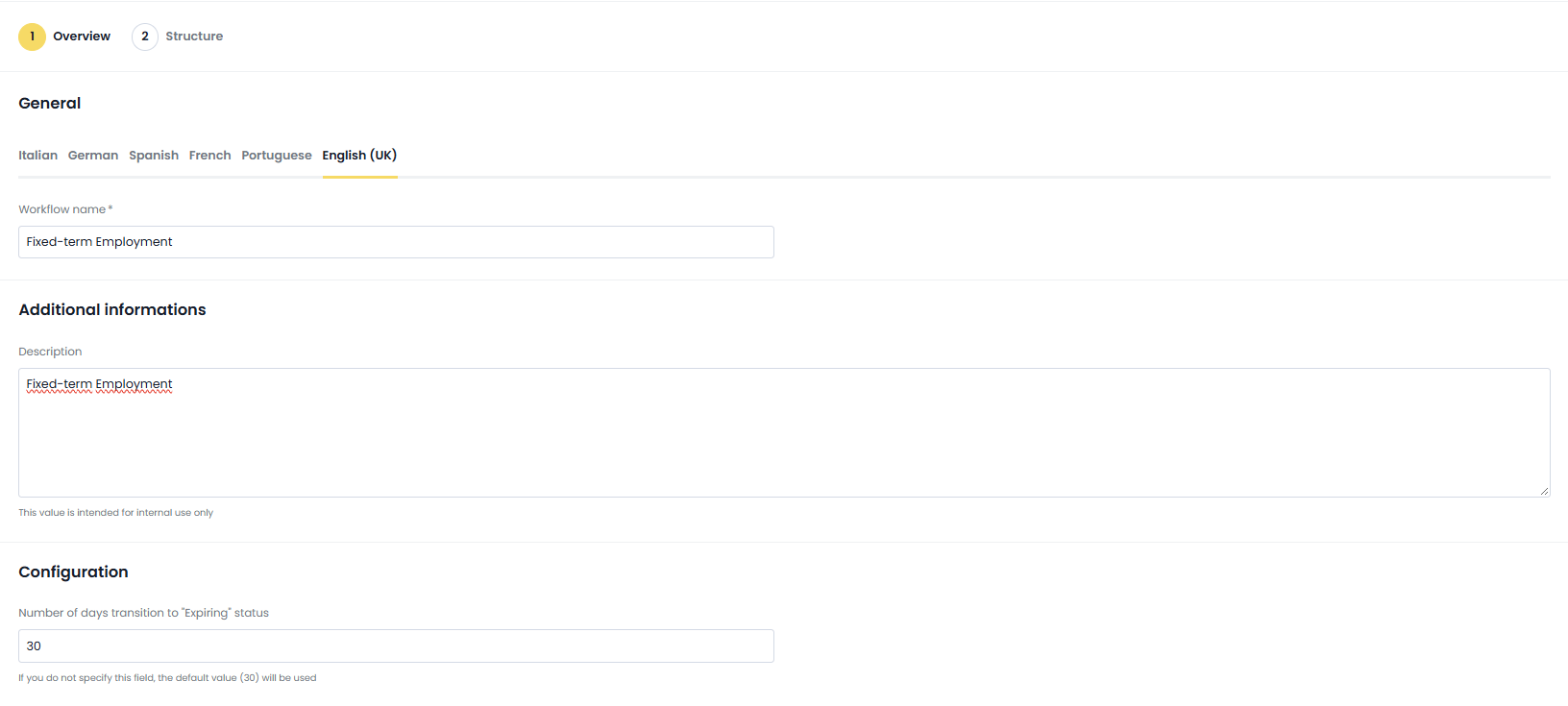
Within the Overview section (Step 1), the following areas are available:
General
In this section, you must enter the workflow name.
This field is mandatory in order to proceed with the creation process.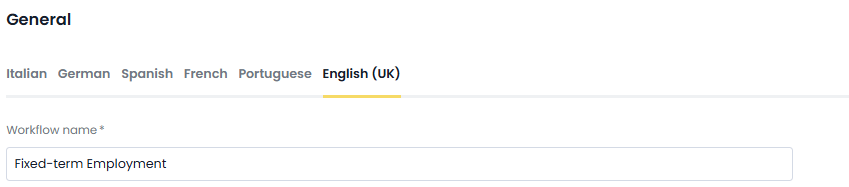
Additional Information
Here, you can enter a description of the workflow.
This description will not be visible to the recipient and is intended to provide internal information about the workflow's purpose and usage.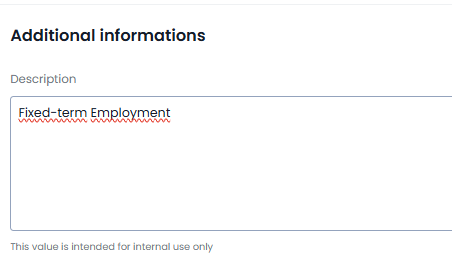
Configuration
In this section, you can define the number of days after which the workflow form will enter the Expiring status.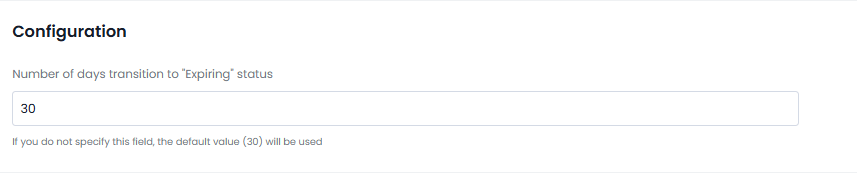 If necessary, a default value can be configured by navigating to:
Settings > Workflow > Default ExpirationTracking
In this section, you can select the company division to which the workflow will be assigned, allowing its ownership to be tracked correctly.
In the Structure tab (Tab 2), you can define your workflow configuration. This step is optional, as the welcome page and workflow steps can also be configured at a later time.
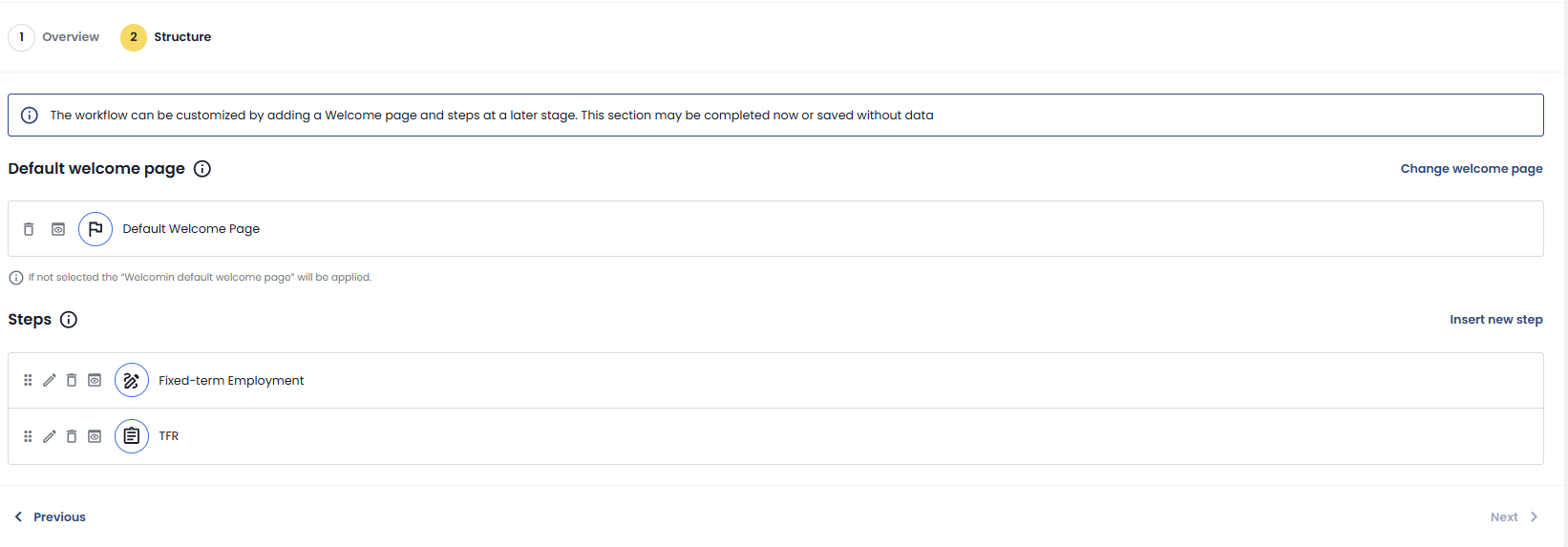
In the section dedicated to the default welcome page, you will find the page configured in Settings > Workflow > Structure > Welcome Pages with the Default option enabled.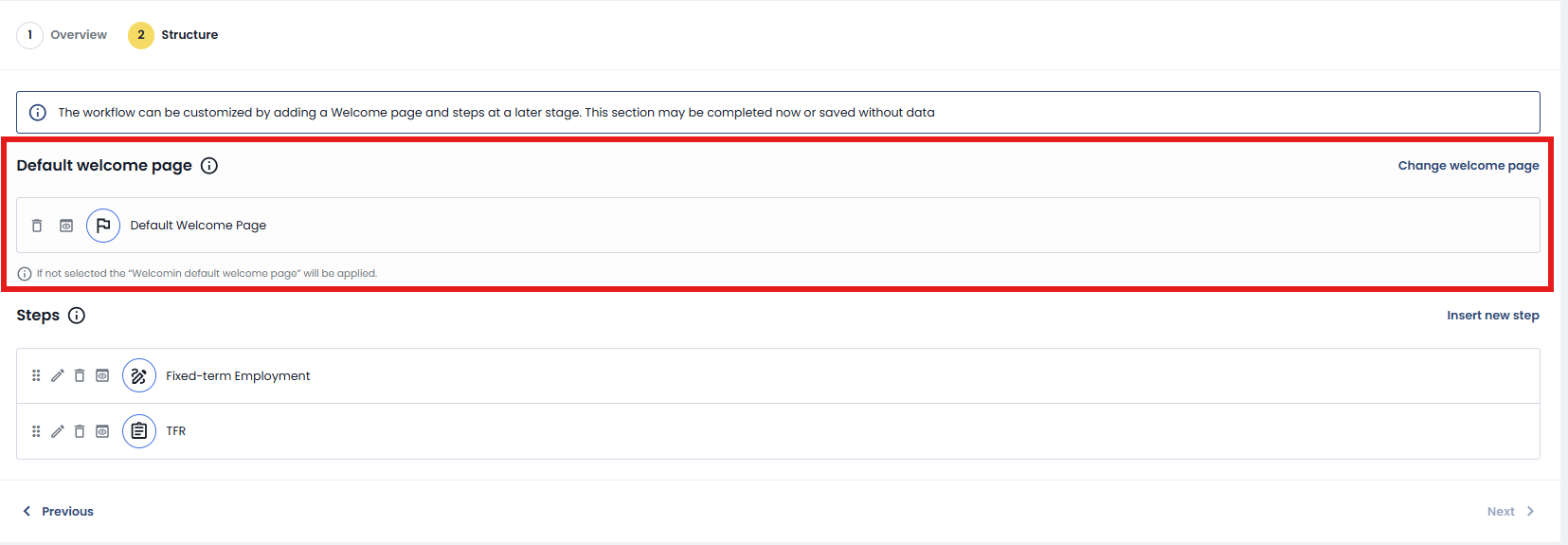
If you would like to select a different welcome page from those already created in the same section, simply click Change Welcome Page on the right-hand side and choose the desired page, which will then become the default welcome page for the workflow.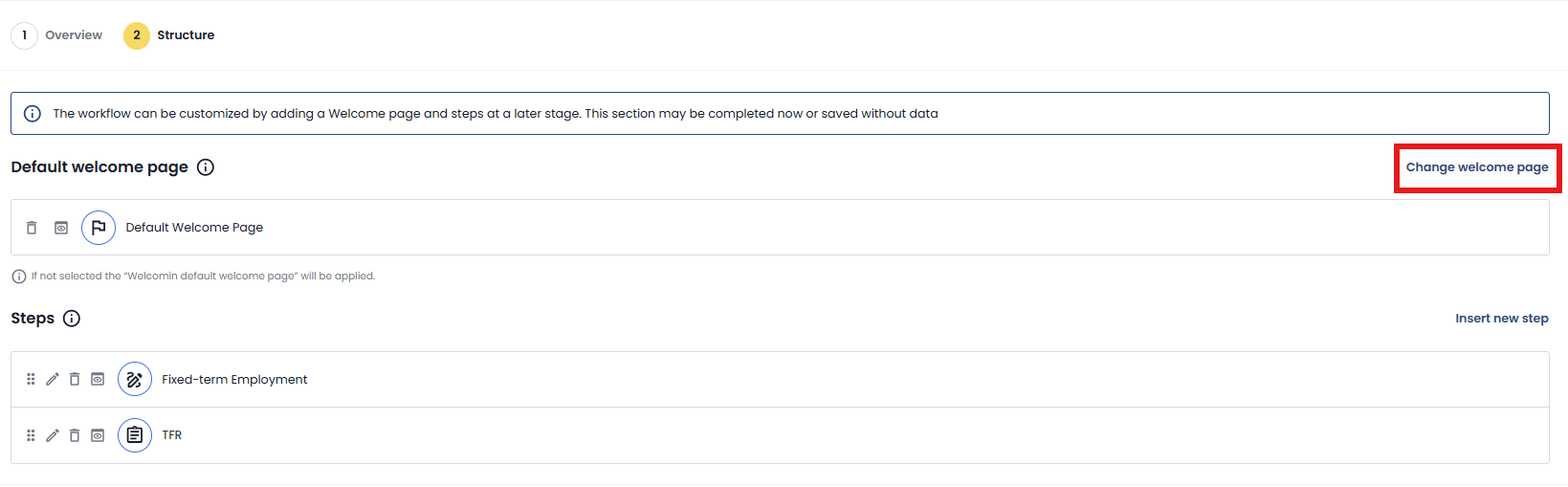
Once selected for a specific workflow, the welcome page will be automatically preselected in the invitation popup. Using the dedicated icon, you can also preview it.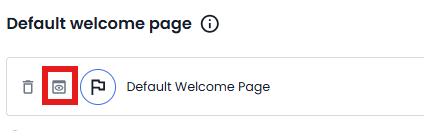
In the section below, you can define the steps that will make up the workflow. By clicking Insert New Step, a popup will open, allowing you to configure the step by selecting:
- The category
- The template (configured under Settings > Workflow > Structure > Step Templates)
- The title to assign to the step
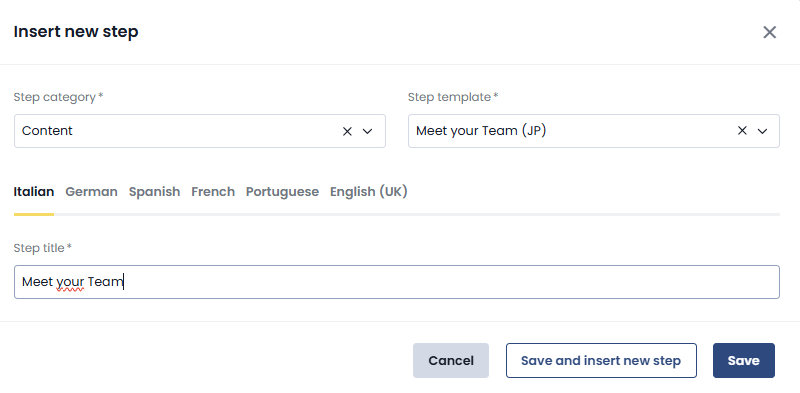
After completing the required fields, you can save and finish the workflow creation process or select Save and Insert New Steps to continue adding additional steps.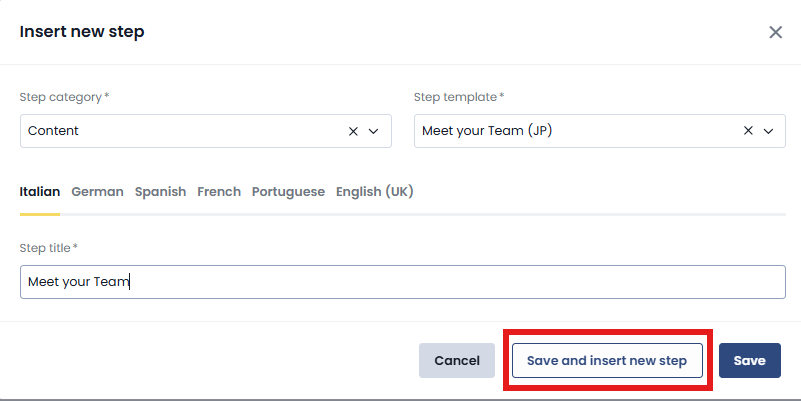
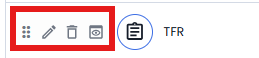
The configured steps will then be displayed in a table format: the first icon ⠿ allows you to drag and reorder the steps, while the other icons allow you to edit them  , delete them
and preview them
If a workflow is currently in use, it cannot be modified or archived.
For each step, the assigned title and step type are displayed.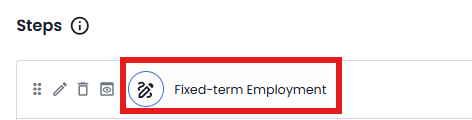
The available step types are:
 Content
- Form

- Profile Form

- Document to View

- Document to Sign

After adding all desired steps, click Save in the top-right corner to confirm the workflow creation.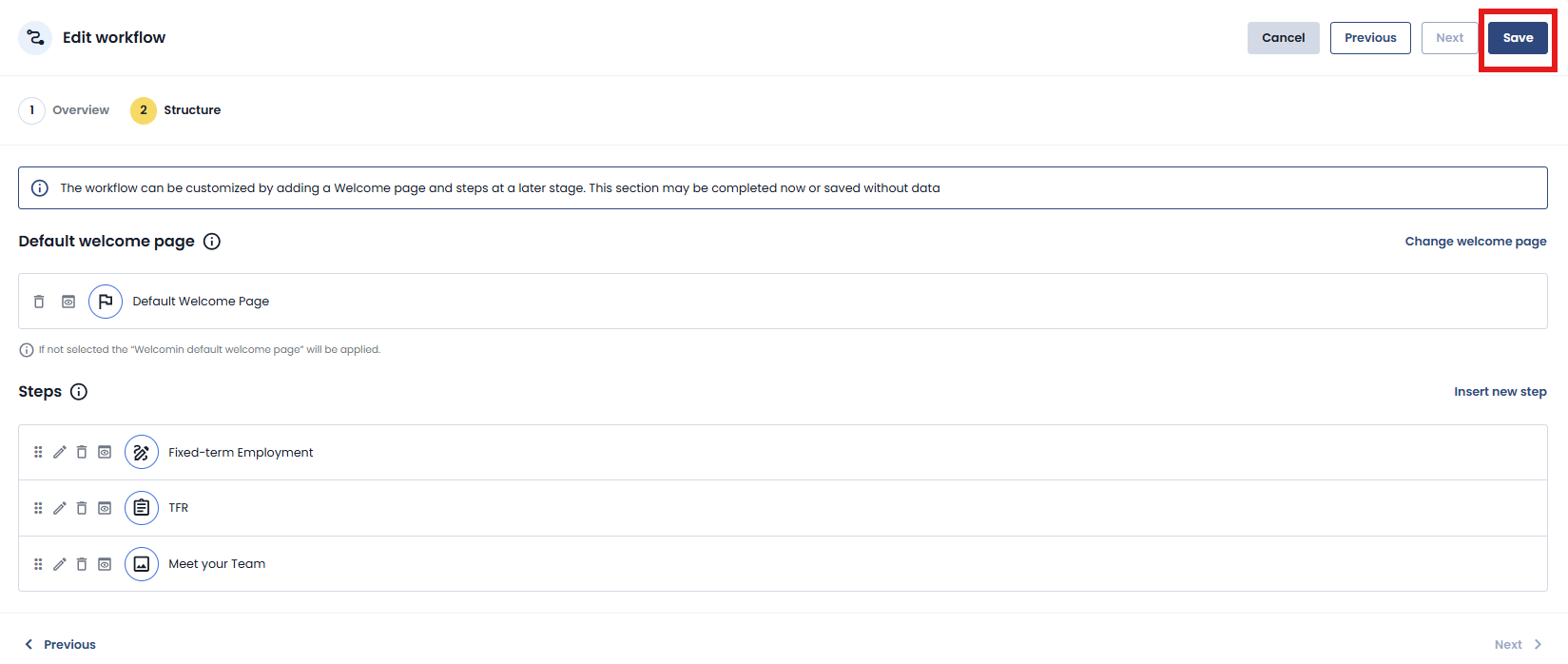
From the workflow list, you can:
- Edit a workflow using the
 icon.
icon. - Archive a workflow using the archive
 icon.
icon. - Send a workflow directly using the send
 icon.
icon.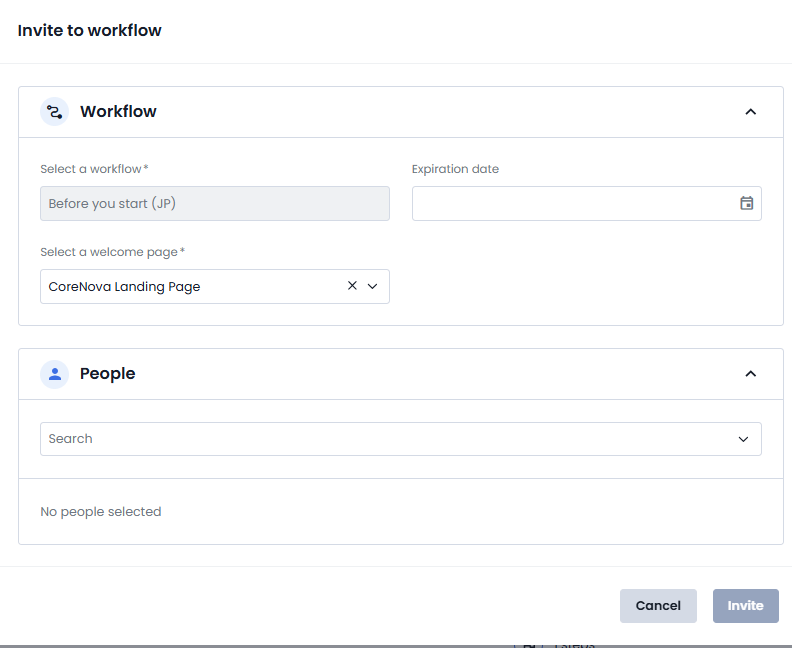
The duplicate icon  allows you to create a copy of an existing workflow, enabling recruiters to reuse its configuration and speed up the creation of new selection processes.
From the same list, it is also possible to preview the newly created workflow using the preview icon  and lock it using the lock icon
 , preventing other company users from modifying it, except for those who have the necessary permissions to unlock it.
The table columns display the workflow type, name, ID, number of steps, status (active or inactive), whether it is currently in use, and the divisions to which it is assigned.
The status of the workflow will be identifiable by the color of the icon background:
| This icon identifies all workflows in all states |
| This icon identifies new workflows |
| This icon identifies workflows that are in progress, i.e. those that have been sent to people to fill in |
| This icon identifies workflows that have been completed |
| This icon identifies workflows that have been rejected |
| This icon identifies workflows that have expired |
| This icon identifies workflows that are due |
| This icon identifies workflows that have been canceled |


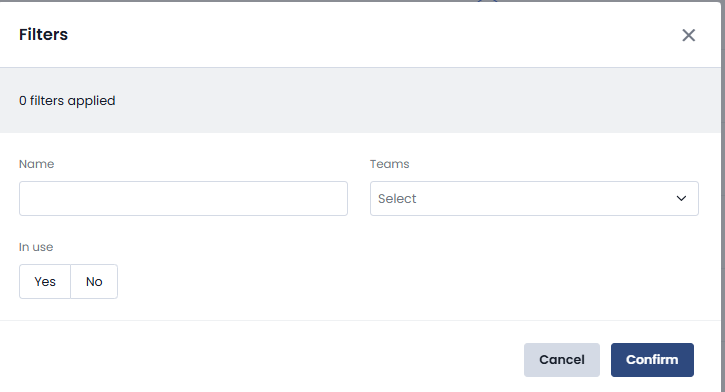
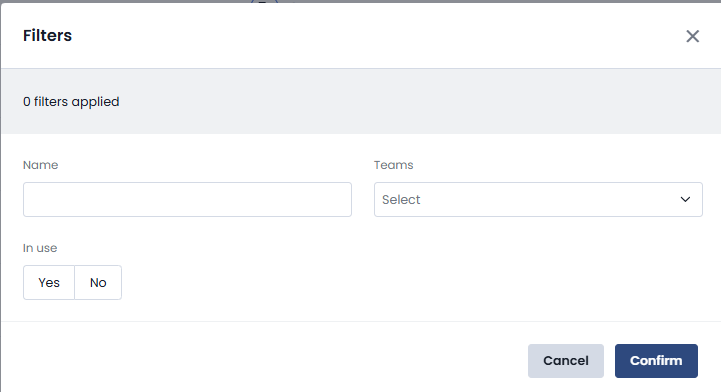
The icon  at the top right allows you to filter workflows based on name, type of step contained and status of use.
Finally, through the "Archive" button located at the top right, it is possible to view all the archived workflows.

You can use the icon to  restore the workflow.
Also in this screen the icon  allows us to access the filters:
Once the configuration is complete, the workflow is ready to be used, sent and monitored, ensuring structured and efficient management of processes and improving the experience for both the people involved and the organization.
Was this article helpful?
That’s Great!
Thank you for your feedback
Sorry! We couldn't be helpful
Thank you for your feedback
Feedback sent
We appreciate your effort and will try to fix the article